Two-Factor and Sessions
Protect your account with an authenticator app and recovery codes, see where you are signed in, and sign out other devices.
On This Page
A password alone is the weakest part of any account. MonoAdmin lets you add a second step, shows every browser and device where you are signed in, keeps a history of security events, and tells you when someone signs in from a place you have not used before. All of it is under your Account window: Sign-in & Security, Sessions and Security Activity.
Two-Factor Authentication
Two-factor authentication adds a second step at sign-in: a 6-digit code from an authenticator app on your phone. The code comes from a standard method called TOTP (time-based one-time password) and changes every 30 seconds, so a stolen password is not enough to get in. If you own a project, turn it on.
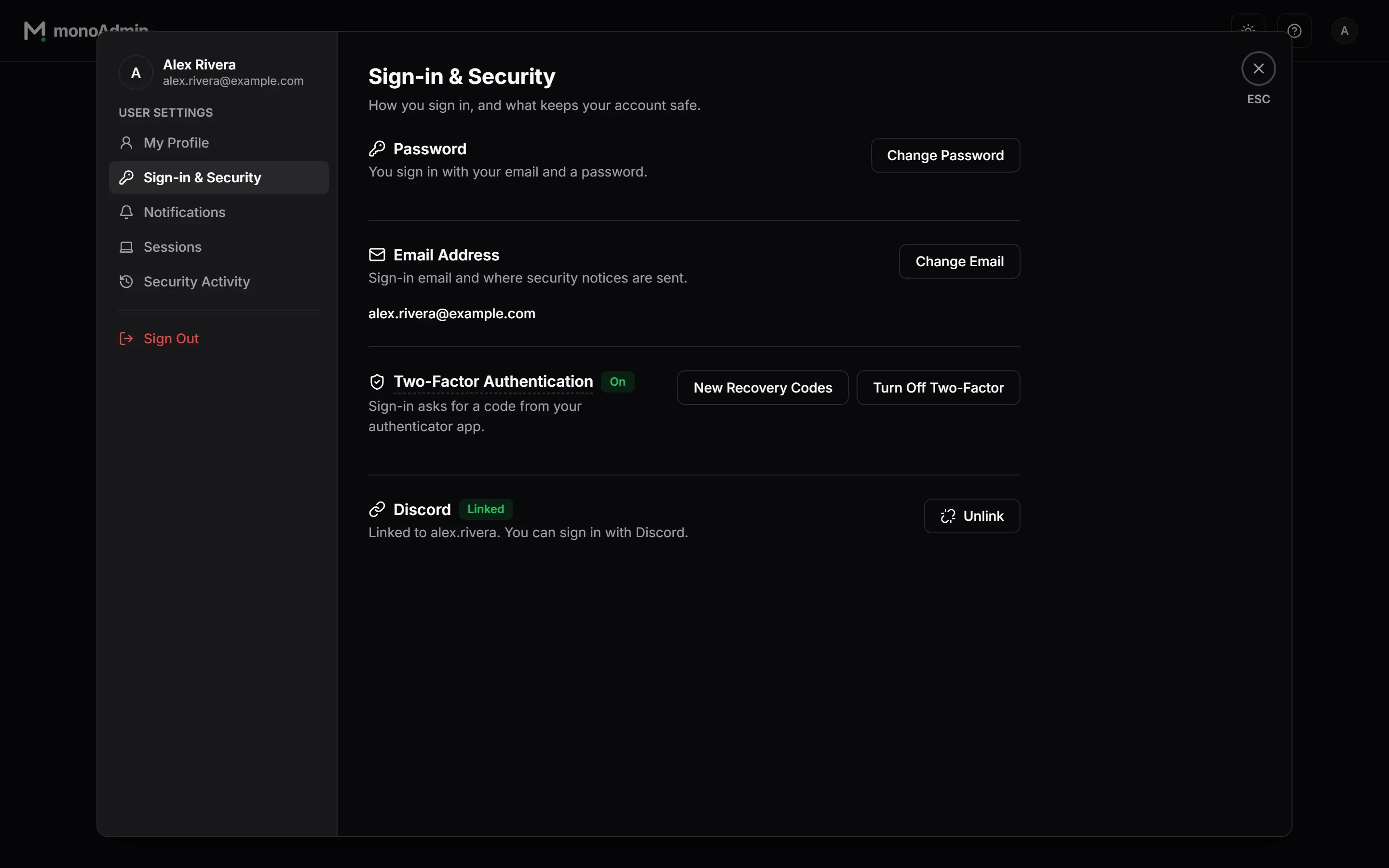
Set It Up
- Open Account > Sign-in & Security and choose Set Up Two-Factor in the Two-Factor Authentication card. You may be asked to confirm it is you first.
- Scan the QR code with an authenticator app such as Google Authenticator, Authy or 1Password. If you cannot scan, choose Copy Key and enter the key in the app by hand.
- Enter the 6-digit code the app shows under Code from the App, then choose Turn On Two-Factor.
- On Save Your Recovery Codes, copy or download the codes, store them somewhere safe such as a password manager, and tick “I have saved these codes somewhere safe”.
When it is on, the toast reads “Two-factor is on. Other devices were signed out.” and MonoAdmin emails you a notice.
Recovery Codes
Turning two-factor on creates 10 recovery codes of 10 characters each. They are shown once, right then. Each code signs you in a single time if you lose your phone. Copy Codes and Download .txt both save them.
New Recovery Codes creates a fresh set. Your current codes stop working as soon as the new ones exist, and the dialog “Create New Recovery Codes?” says so. Using a recovery code is recorded in Security Activity.
Signing In With It
After your password the sign-in shows Two-Factor Verification. Enter the code from your app, or choose Use a recovery code instead. Signing in with Discord asks for the same code. A used code cannot be used again, so if a code is refused right after you used it, wait for the app to show the next one.
The code step lasts 5 minutes and allows 5 tries. After that you see “This sign-in has expired” and start over.
Wrong Codes and Lockout
Someone who knows your password may try to guess the code. After 10 wrong codes in a day, counted across all your sign-ins, two-factor sign-in is paused for a while. The sign-in page says “Sign-In Paused”, and MonoAdmin emails you “Several wrong sign-in codes on your MonoAdmin account”. If that was not you, change your password.
Turn It Off
Choose Turn Off Two-Factor and confirm “Turn Off Two-Factor?”. Sign-in will only ask for your password, your recovery codes stop working, and you get an email saying two-factor is off.
Lost Your Phone and Your Codes
There is no self-service reset, because a reset would be a way around the protection. Contact MonoAdmin support at hello@monoadmin.net.
Sessions
Account > Sessions lists the browsers and devices where you are signed in. Each row shows the browser and system (“Firefox on Windows”), the IP address, when the device was last active and when it signed in. This device comes first and carries a This device badge. A Two-factor badge marks a session that passed the second step.
- Sign Out on a row signs that device out right away. The dialog “Sign Out This Device?” says it has to sign in again.
- Sign Out Everywhere signs out every device, this one included. Its dialog also warns that every game account you linked for the in-game menu is unlinked.
- To sign out only this device, use Sign Out in the user menu.
A session ends after 14 days without use, or 60 days after it started, whichever comes first. Using it pushes back the 14-day limit but never the 60-day one. Closing the browser does not sign you out.
Sensitive changes ask you to confirm it is you again. The confirmation lasts 10 minutes. Profile and Sign-In lists them.
What Signs Other Devices Out
These actions end your other sessions on their own:
- changing your password (this browser gets a new session and stays signed in), or resetting it from the email link (every device is signed out);
- changing your email address;
- turning on two-factor;
- Sign Out Everywhere.
Each of them also ends the links between your game accounts and the in-game menu. Your game accounts then count as unlinked until you link them again with /madmin link and a new code from Settings > My Membership. This is on purpose: a link made with a stolen session should not outlive it. Turn On and Open the Menu covers linking.
For the same reason, each of them also ends what was already handed out and not yet used:
- Password-reset links already emailed to you. An older email cannot undo what you just did. Turning two-factor off ends them too.
- Codes to link a game account that you made and have not typed in yet. A code also stops working as soon as the session that made it ends, so signing out of that one browser is enough.
- Pairing codes for a server that you made and have not used. See Link Your Server.
A reset link works only for the address it was sent to. If the address on the account changes, the links sent to the old one stop working.
Sessions that MonoAdmin staff open to help you are separate from this list. MonoAdmin support can open a session as your account for at most 30 minutes, only to answer your support request or to look into abuse or a security problem, and it needs a recorded reason. Such a session is not shown in your Sessions list or in your Security Activity, and you are not notified each time one is opened. How MonoAdmin Is Secured describes its limits.
Security Activity
Account > Security Activity is a history of sign-ins and changes to how your account is protected. It shows the event, the time, the IP address and the device, 20 to a page, with Newer and Older buttons. MonoAdmin keeps it for 180 days.
| Event | Meaning |
|---|---|
| Account created, Email confirmed | Your sign-up. |
| Signed in, Failed sign-in attempt | Each sign-in, and each wrong password or code. |
| Signed out, Signed out everywhere, Device signed out | Sessions you ended. |
| Password changed, Password reset by email, Email address changed | Changes to how you get in. |
| Two-factor turned on, Two-factor turned off | Changes to the second step. |
| Recovery code used, New recovery codes created | Recovery codes. |
| Discord linked, Discord unlinked | Discord sign-in. |
If you see a sign-in you do not recognise, change your password at once. That signs out every device.
The New Sign-In Alert
When you sign in from a network you have not used in the last 90 days, MonoAdmin emails you “New sign-in to your MonoAdmin account”. It gives the time, the approximate location when MonoAdmin can place the address, the IP address and the browser, and a Review Sessions button.
A network here means a block of addresses, not one address: a /24 range for IPv4 and a /48 range for IPv6. Moving between addresses of the same provider usually does not trigger it. Your very first sign-in never does, and neither does an address MonoAdmin cannot use, such as a local one. If you turned on Discord messages for the Security topic, the alert arrives there too. See Notifications.
If the alert is not about you, open Sessions, sign out everywhere and change your password.