Server Entities
List the vehicles, NPCs and objects on your server, see them on a map, and delete one or hundreds at once.
On This Page
An entity is anything the game world holds that is not part of the map itself: a vehicle, an NPC or a spawned object. When a server lags, the cause is often too many of them. Server Entities shows you exactly what exists right now, read live from your game server, and lets you remove what should not be there.
You need the View Entities permission to open the page, and Delete Entities to remove anything. The server must be linked and online. If it is offline, the page says Your Server Is Offline and shows the list again when the server is back.
The List View
The page opens on a list with three tabs: Vehicles, NPCs (Peds) and Objects. A ped is any person in the game world: NPCs and player characters.
Above the list, a line states how many of that kind are on the server, which rows are shown, and when the server last answered. The list is not stored anywhere: every time you change tab or page, or press Refresh, MonoAdmin asks the game server again. It does not refresh behind your back.
| Column | What it holds |
|---|---|
| Net ID | The network ID: the number the game uses for this entity on every client. |
| Model | The model name, or Unknown model when the server cannot name it. |
| Plate | A vehicle’s number plate, or None. Vehicles only. |
| Position | X, Y and Z. |
| Owner | The player whose game controls the entity’s movement, shown as Server ID and a number, or No player when the server owns it. |
| State | Occupied for a vehicle with someone inside. Player for a ped that is a player’s character. |
Rows come 50 to a page, with page buttons below.
Deleting One Entity
Press the trash icon on a row. A confirmation names the model and net ID and states the consequence:
- A vehicle is removed from the server at once, and anyone inside is left on foot. On a server that runs
jg-advancedgaragesv3, an owned vehicle also goes back to its garage, and the confirmation adds “Owned vehicles go back to their garage.” - An NPC is removed at once. Player characters cannot be deleted, so rows marked Player have no trash icon.
- An object is removed at once.
If the server confirms, a toast says “Deleted” and the model. If it does not answer in time, the page says so and asks you to refresh to check whether it is gone. If the entity has already gone, the dialog says “That entity is no longer on the server.”
Clearing a Whole Kind
If your role includes the matching cleanup permission, the page header also has a Clear Vehicles, Clear NPCs or Clear Objects button for the open tab. It opens the same cleanup as the dashboard, with the Warn Players First countdown and a Cancel until it ends. Occupied vehicles are never removed by a cleanup. See The Dashboard.
The Map View
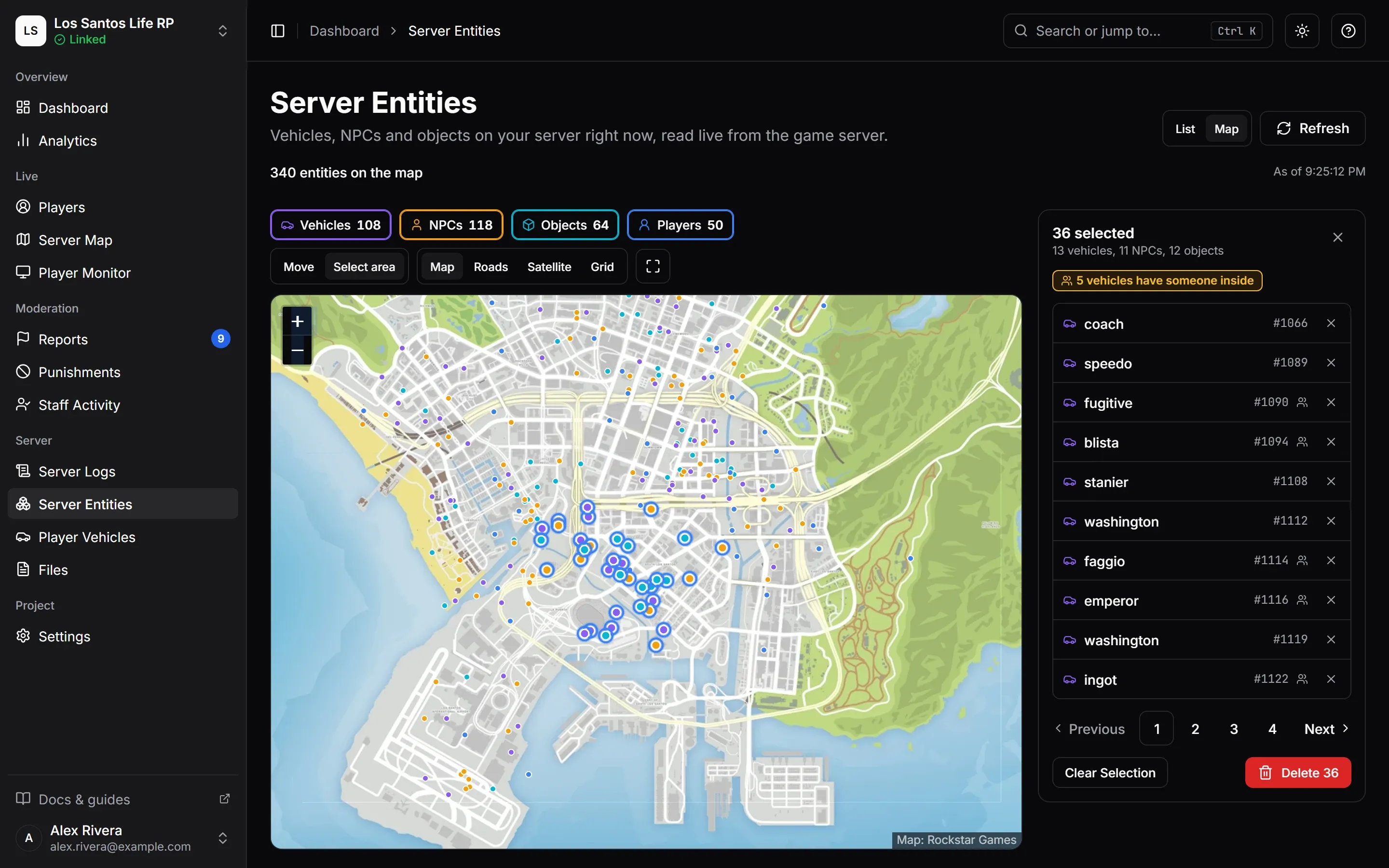
If the resource on your server is recent enough, a List and Map switch appears in the page header. Map draws every entity on the GTA V map at once, which is the quickest way to find a pile-up of abandoned cars or a stray cluster of props.
- Show on the map toggles Vehicles, NPCs, Objects and Players. Players are shown for context only: they cannot be selected or deleted.
- Map style and Fit the Map to the Entities work as on the Server Map.
- A line above the map says how many entities are on it and when the server last answered.
- The map holds up to 10,000 entities at once. If the server has more, the page says it shows the first part.
The map is not refreshed behind your back either. It loads when you open it, after a delete, when a cleanup finishes and when you press Refresh.
Selecting Entities
What dragging does is set by What dragging does:
- Move pans the map.
- Select area draws a box around the entities you want.
Click an entity to select it. Hold Shift or Ctrl and click to add or remove one, or hold either while dragging a box to add to the selection instead of replacing it. Press Esc, or click an empty part of the map, to clear the selection.
The side card lists what you selected: each entity with its model and net ID, a button to jump the map to it and a button to take it out of the selection, plus Clear Selection. It also says how many selected vehicles have someone inside.
Deleting a Selection
With entities selected, press Delete {n} on the card, or Delete on the keyboard.
- One selected entity goes through the same confirmation as in the list.
- Several go through one confirmation titled “Delete 12 Entities?”. It says they are removed for every player, how many vehicles have someone inside (those players are left on foot), and that it cannot be undone. With
jg-advancedgaragesv3 and vehicles in the selection, it adds that owned vehicles go back to their garage.
MonoAdmin sends large selections in batches of up to 500, so a selection can be bigger than that. Afterwards a toast reports how many were deleted, how many were already gone and how many could not be deleted. Anything that could not be deleted stays selected so you can look at it or try again. If the server does not confirm in time, nothing more is sent and the toast asks you to refresh to see what is gone.
Related
- Analytics charts the number of entities over time, so you can see when counts started to climb.
- A permission or a whole feature can be missing. Delete Entities is governed by the feature of the same name in Settings > Features. See Features and Modules.
- With
jg-advancedgaragesv3, deleting a vehicle puts an owned car back in its garage with no return fee, the same as jg’s own/vreturn. See Garage Scripts. - Every delete is recorded in Audit Logs.