Roles and Permissions
Create staff roles, rank them, choose what each can do, and see how the default Admin, Moderator and Support roles start out.
On This Page
A role is a rank with a set of permissions. Every member of your team has exactly one role, and the role decides which pages they see, which actions they can run on players and which settings they can change. Higher roles can manage the roles and the people below them, and nobody can hand out a permission they do not hold. This page explains how roles rank, how to create and edit them, and what the three default roles start with.
MonoAdmin uses its own roles for everything, in the browser and in game. It does not use FiveM ACE permissions, so there is nothing to add to server.cfg or to your permissions file.
The Roles Screen
Open Settings > Roles. Every member can see it. The screen lists your roles with the highest rank first, each with its color, name, Rank {n} and member count. The header shows how many roles your plan allows (“{used} of {limit} roles used”). Picking a role opens it in the editor, with the other roles in a column beside it.
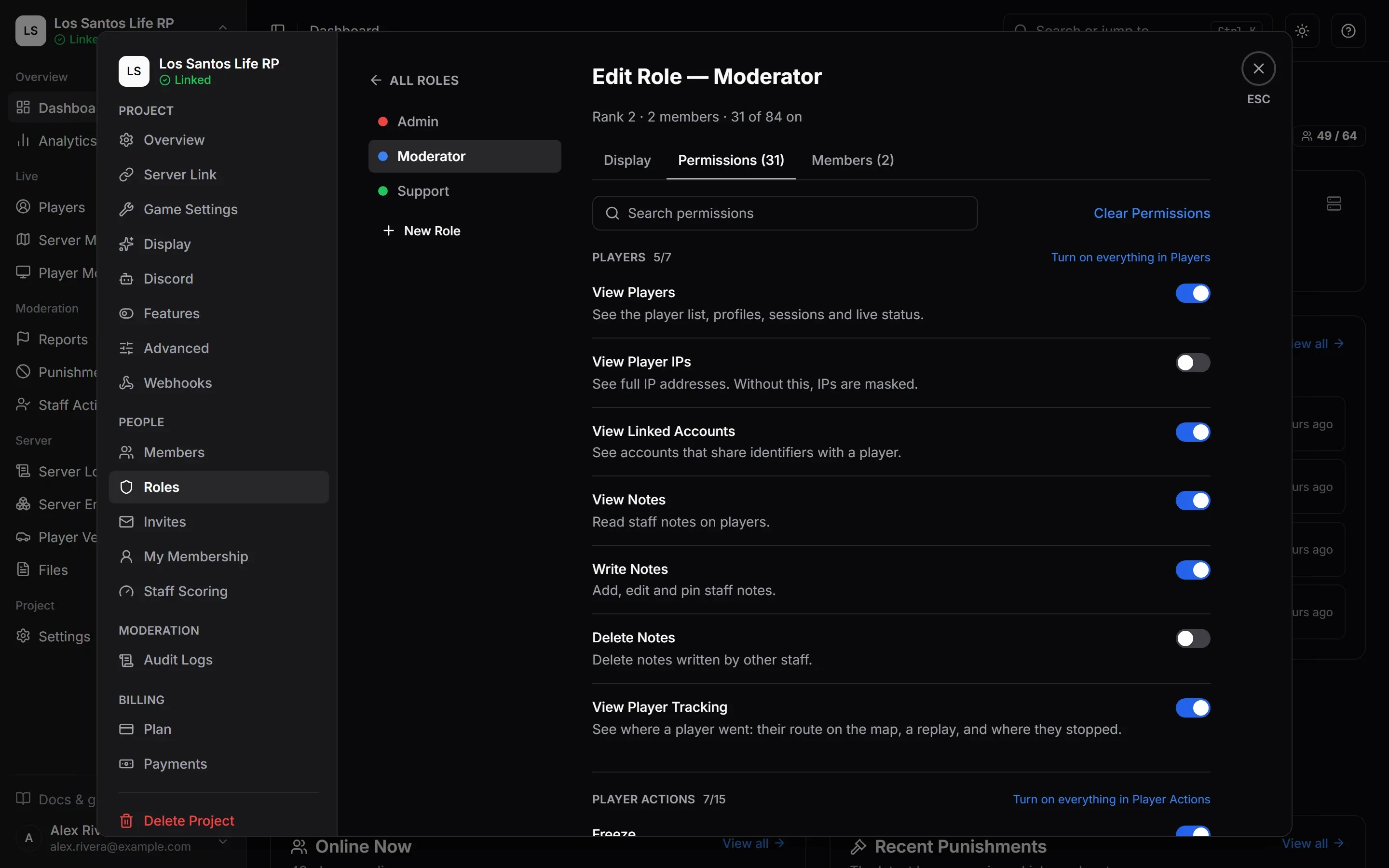
Without the Manage Roles permission the screen is read-only: “You can see what each role may do. Changing roles needs the Manage Roles permission.”
How Ranks Work
Roles sit in a ladder. The top of the list is rank 1, the highest. The owner sits above the ladder: the owner holds every permission and outranks every role.
These rules hold for everyone except the owner:
- You manage only roles below your own. Renaming, recoloring, changing permissions, reordering and deleting all need Manage Roles and a role that ranks below yours. A role at or above your own is read-only: “This role ranks at or above your own, so you cannot change it.”
- You cannot grant what you do not hold. In a role’s permission list, a switch for a permission you do not have is locked: “You don’t hold this permission yourself, so you cannot grant or remove it.” Permissions you do not hold stay exactly as they were when you save.
- Giving someone a role needs more than rank. To invite into a role or move a member to it, the role must rank below yours and you must hold every permission in it. Otherwise a lower role that carries a permission you lack could be used to hand it out.
- One role per member. Putting someone in a role moves them out of their current one.
- Reordering is limited to your own side of the ladder. Drag a role, or use its arrows, to change its rank. “You can only reorder roles below your own.” Roles at or above yours stay where they are, so nobody can climb past their own rank.
A change to a role reaches everyone with that role at once. Open panels reload, and staff in game get the new permissions without rejoining.
Create a Role
You need Manage Roles, and your plan needs room for another role. When it does not, the screen says so and links to Plans and Limits: “Your {plan} plan allows {limit} roles and all of them are in use. Upgrade the plan, or delete a role you no longer need, to add another.”
- Press New Role.
- Enter a Role Name of 1 to 32 characters, for example “Trial Moderator”. Names must be unique within the project.
- Pick a Colour: a swatch, or a custom hex value. It is shown next to the role name everywhere in the panel.
- Press Create Role.
A new role starts at the bottom rank with no permissions, and opens in the editor on its Permissions tab so you can choose what it may do.
Edit a Role
The role editor has three tabs.
Display holds the role’s name and color, and Delete Role. Deleting asks “Delete the {name} role?” and warns that the role and its permission set are removed for good. A role cannot be deleted while people have it: “Move its {n} members to another role first.”
Permissions has one switch per permission, in categories. The tab’s label shows how many are on (“Permissions (n)”), and the line at the top of the editor reads “Rank {n} · {n} members · {n} of {total} on”. Use Search permissions to find one by name or description. Each category has a switch to turn on everything in it, and Clear Permissions clears every permission you are allowed to switch. Name, color and permissions are saved together with the Save Changes bar at the bottom, or discarded with Reset. Leaving with unsaved changes warns you first.
The categories are Players, Player Actions, Fun Actions, Punishments, Reports, Server, Player Monitor, In Game, Owned Vehicles, Character Data, Insights & Logs and Team & Settings. Every permission is explained in Permission Reference. Permissions are named for what they let a person do, such as Ban, View Server Logs or Edit Settings.
Members lists who has the role. Add Members opens a list of the people you may move: “Each member has one role, so the people you pick move from their current role to this one. You can only move people ranked below you.”
The Three Default Roles
Every new project gets three roles. They are ordinary roles, so you can rename, edit or delete them.
| Role | Rank | Color | Starts with |
|---|---|---|---|
| Admin | 1 | Red | Every permission except Manage Server Link, Edit Settings and Advanced Settings |
| Moderator | 2 | Blue | See the list below |
| Support | 3 | Green | See the list below |
Moderator starts with: View Players, View Linked Accounts, View Notes, Write Notes, View Player Tracking, Freeze, Heal, Revive, Teleport, Set Routing Bucket, Screenshot, View Punishments, Ban, Kick, Warn, Mute, Community Service, Revoke Punishments, View Whitelist, Manage Whitelist, View Reports, Manage Reports, Open Discord Tickets, Export Reports, View Server Map, Send Announcements, Shout, Watch Player Screens, View Files, Open the In-Game Menu, Noclip, Spectate and View Server Logs.
Support starts with: View Players, View Notes, Write Notes, Heal, Revive, Teleport, View Punishments, Kick, Warn, View Reports, Manage Reports, View Server Map and Open the In-Game Menu.
Because Admin lacks Edit Settings, an Admin can look at the project’s settings but not change them: the project name and framework, game settings, display styles, features, the ambulance script, the menu key and Staff Scoring all stay with the owner. They also cannot create pairing codes for linking a server. Advanced Settings is a separate permission for writing the custom revive code under Settings > Advanced. That code runs on your game server, so a member who has Edit Settings can pick which revive the project uses but cannot change the code without it. Admin lacks it too, and roles that already exist did not receive it when it was added. The owner can put any of the three permissions on the Admin role, because the owner holds everything. It is a good idea to review all three roles once, since they are a starting point and not a recommendation.
What Else Decides Who Can Do What
A role’s permissions are one of three things that decide what someone can do.
- Ownership. Some things belong to the owner alone and no role can be given them: the Plan, Payments and Delete Project screens, the guided setup, importing from txAdmin, the In-Game Menu and Player Reports switches, and stopping other staff’s Player Monitor streams.
- Feature switches. The owner, or anyone with Edit Settings, can turn whole features off under Settings > Features. A feature that is off takes its permissions away from everyone, the owner included, so a role can hold a permission that does nothing while its feature is off. See Features and Modules. MonoAdmin can also lock a switch off, and the panel then says “Turned off by MonoAdmin”.
- What your server can do. Some actions need a framework or a resource feature. They are hidden where the server cannot do them, whatever the role says.
Everything Is Recorded
Creating, changing, deleting and reordering roles, and changing permissions, all appear in Audit Logs, as do moves of members between roles. For who the people on a role are, see Members and Invitations.