Files
Browse and download the screenshots, report attachments and Discord ticket files your project keeps, and learn how long each is kept.
On This Page
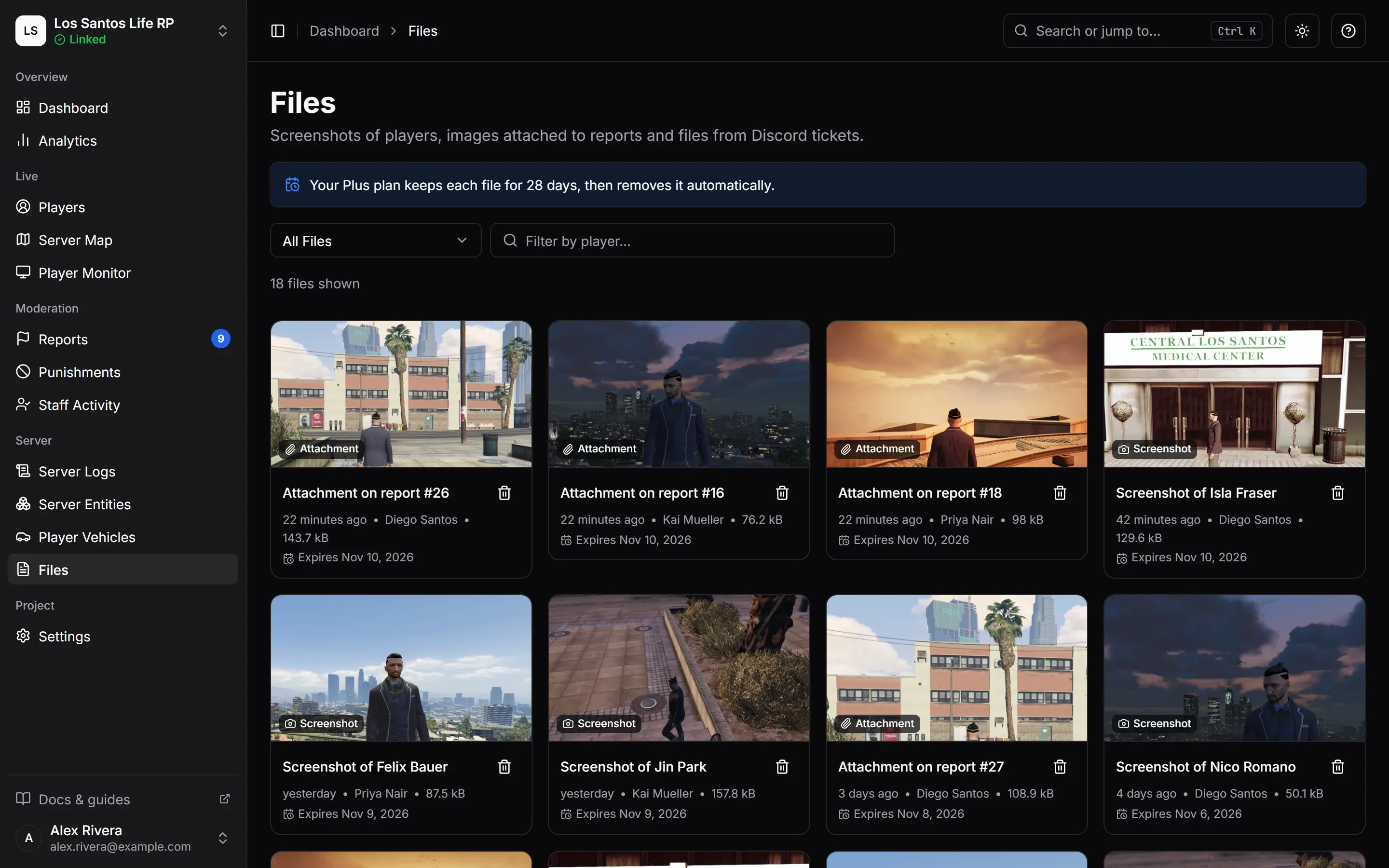
Files is the one place for every file MonoAdmin stores for your project: screenshots of players, images staff attached to reports, and files that came through Discord tickets. You need the View Files permission to open it. Moderators have it by default.
What Is Stored
| Kind | Where it comes from | Kept for |
|---|---|---|
| Screenshot | A staff member pressed Screenshot on a player, or a player attached a screenshot to a report they filed in game. | Your plan’s history, counted from when it was taken. |
| Attachment | An image a staff member attached to a report reply. | Your plan’s history, counted from when it was uploaded. |
| Discord | A file someone sent in a Discord ticket, or the transcript of a closed ticket. | Until its report is deleted. |
The page says how long your plan keeps each file, and every card shows the day it will be removed. A file is removed automatically on that day and cannot be brought back. Reports cannot be deleted, so in practice Discord files stay for as long as the project exists. See Plans and Limits for how long your plan keeps files, and Data, Privacy and Retention for the rest of what is stored.
If your plan changes, files keep the removal date they were given when they were uploaded.
Only images are shown in the page: PNG, JPEG, WebP and GIF, up to 5 MB each for anything staff upload. A Discord file can be of any type; images are displayed and everything else is a download.
Browsing
The newest files come first, as thumbnails. 48 load at a time, and Load More fetches the next batch. A line above the grid counts the files shown.
- Kind filters the page to All Files, Screenshots, Report Attachments or Discord Files.
- Player narrows screenshots to one player. It is hidden for attachments and Discord files, because they belong to reports, not players.
- Clear Filters resets both. With nothing to show, the page says No Files Yet or No Matching Files.
New files appear by themselves, marked New, while the page is open. A file deleted by someone else disappears from the grid. If you had it open, the viewer closes and tells you.
Each card shows what the file is: Screenshot of {player}, Attachment on report #{id} or Discord file, with the removal date or Kept for files that stay.
Opening a File
Click a card to open the viewer. It lists:
- Kind, Player and the Report it belongs to, as a link to that report
- Taken By for screenshots (who asked for it) or Added By for attachments
- Created, Expires, Size and Type
Two buttons get the file itself:
- Open Full Size opens the original image in a new tab.
- Download saves the file.
Both use the file’s own address on cdn.monoadmin.net. The address is long and random, so nobody can guess it, but anyone who has it can open the file without signing in until the file expires or is deleted. Share it only with people who may see the file, and delete a file that should no longer be reachable: its address stops working at once.
Deleting
With the Delete Files permission, Delete File removes a file for everyone at once. The confirmation spells out what happens:
- A screenshot is removed and cannot be restored.
- A report attachment is removed from its report and cannot be restored.
- A Discord file is removed from its report and cannot be restored. It stays in Discord.
Deleting is recorded in Audit Logs.
Where Files Come From
- Take a screenshot from a player’s profile. See Player Monitor and Screenshots.
- Attach images when replying to a report. See Reports.
- Discord files and transcripts arrive through Discord Tickets.