Project Settings
Change your project's name, framework, default ban type, time zone and icon, manage the server link, and set game and ambulance options.
On This Page
Project settings describe the project itself: what it is called, which framework it runs, how it links to your game server and how the MonoAdmin resource behaves when something goes wrong. Open them from Settings in the sidebar. They appear in a window titled Project Settings over the page you were on.
This page covers Overview, Server Link, Game Settings and Advanced. The other screens in the same window have their own pages: Features, Display, Whitelist, Members, Roles, Plan and Payments, Audit Logs and, for the owner, Import from txAdmin, which is covered in Move From txAdmin.
Who Can See and Change What
Every screen has two levels: opening it and changing it. Someone who can open a screen without being able to change it sees the same fields, locked, with a note at the top such as “Your role can view these settings but not change them.”
| Screen | To open it | To change it |
|---|---|---|
| Overview | View Settings or Edit Settings | Edit Settings |
| Server Link | Manage Server Link | Manage Server Link |
| Game Settings | View Settings | Edit Settings |
| Display | View Settings | Edit Settings |
| Features | View Settings | Edit Settings (the In-Game Menu and Player Reports switches belong to the project owner) |
| Advanced | View Settings | Edit Settings (the custom revive code also needs Advanced Settings) |
| Whitelist | Whitelist Settings | Whitelist Settings |
| Import from txAdmin | The project owner | The project owner |
Import from txAdmin belongs to the project owner alone: no role can be given it, and it appears for nobody else. Whitelist has a permission of its own, Whitelist Settings, instead of Edit Settings. The mode you pick there decides who may join the server, and the whitelist is not one of the switches under Features.
The project owner holds every permission. Of the three roles a new project starts with, Admin can view settings but holds none of Edit Settings, Manage Server Link and Advanced Settings. Moderator and Support hold none of them, and cannot open these screens at all. All three permissions stay with the owner until you give them to a role on the Roles screen. The full list is in the Permission Reference.
Overview
Settings > Overview is where the project’s basics live. Name, framework, default ban, time zone and default theme collect in a save bar at the bottom of the window (“Unsaved changes”, with Reset and Save Changes). A toast says “Settings saved” when it worked. The icon is the exception: it saves the moment you pick a file.
| Field | What it does |
|---|---|
| Project Name | 3 to 64 characters. Your staff see it in the project switcher and across the panel. |
| Project Icon | The picture next to the name. See below. |
| Framework | Which roleplay framework the server runs. Decides which features the panel offers. |
| Default ban | Whether a new ban also blocks linked accounts, unless staff choose otherwise. |
| Time Zone | The zone dates, times and charts use for this project. |
| Default Theme | The look for members who follow the project and for players in game. |
| Plan, Created, Project ID | Read only. |
Below the fields, the project owner sees Guided Setup: how far the guided setup got, Open Guided Setup to walk through it again, and, while the dashboard’s Finish Setting Up card is hidden and the setup is not finished, Show on Dashboard to bring the card back.
A plan summary then shows what your plan includes. The project owner also sees a Manage Billing button there.
Framework
Pick the framework your server really runs: ESX, QBCore, Qbox or Standalone. Changing it asks first, with a dialog titled “Change the framework to {framework}?”. It explains that pages and actions the new framework does not support disappear from the panel, and that nothing is deleted. Confirm with Change Framework.
If the project says one thing and the game server reports another, the Dashboard shows “The server runs a different framework” with an Open Settings button, and Settings > Server Link shows the same warning. A framework feature is offered only where both the project’s framework and what the server runs allow it: a mismatch between ESX, QBCore and Qbox leaves those features on, while Standalone on either side turns them off. Fix the setting here, or fix the server. Supported Frameworks lists what each framework gets.
Default Ban
Staff pick a ban type each time they issue a ban. This setting is what the form starts on. A new project starts on Sticky: also block linked accounts. The other choice is Not sticky: only this player. A sticky ban also covers accounts MonoAdmin has linked to the banned player, for example through a shared license, Discord or Steam identifier, or several hardware tokens. Sticky Bans and Linked Accounts explains how the links are found.
Time Zone
The project’s time zone is where panel dates, charts and the times players see in game come from. A new project starts in the time zone of the device that created it. Every member can still choose their own zone for what they see, and Staff Activity days always follow the project zone. Hover the help icon next to the field for that reminder. Display, Themes and Time Zones lists what uses which zone.
Default Theme
The default theme is what members who follow the project see in the panel and in game, and what players see in the report window, warnings and similar screens. Anyone who picked a theme of their own keeps it. See Display, Themes and Time Zones.
Project Icon
The icon shows in the project list, the sidebar and the in-game menu. Until you upload one, the panel uses the icon your server sends when it connects: the file named by load_server_icon in server.cfg. If no icon has arrived yet, it shows the project’s initials.
- Upload Image takes a PNG, JPEG, WebP or GIF of at least 32 pixels on a side and up to 2 MB. Square works best. MonoAdmin stores it as a 128 pixel PNG and keeps nothing of the original.
- Replace Image swaps a custom icon for another.
- Use Server Icon appears while a custom icon is set. It asks “Use the Server Icon?” and removes your upload on Remove Custom Icon.
Server Link
Settings > Server Link is the connection between your FiveM server and the project. It needs the Manage Server Link permission.
The status badge reads Linked and online, Linked, currently offline or Not linked. Once a server is linked the screen also shows its Server name, Resource version (with an Update available badge and a Get the Update link when a newer resource exists), Detected framework, Players, and when the server was last seen or last connected.
Link a Server
- Choose Create Pairing Code. You may be asked to confirm it is you first.
- Copy the command shown, which looks like
monoadmin link XXXXX-XXXXX. A countdown shows how long it has left. - Run it in your server console.
A code works once and for 10 minutes. New Code creates another and cancels the old one. The project owner receives an email every time a server is linked. The steps in full, with the output to expect, are in Link Your Server.
If a server is already linked, linking again replaces it: the old server is disconnected as soon as another one uses the new code.
Unlink Server
Unlink Server disconnects the server right away and its key stops working. Live data, the map and in-game actions stop until you link a server again. Players, punishments and logs are kept, and bans your server has already copied stay in force. The dialog asks “Unlink the server?” and you may need to confirm it is you again.
Game Settings
Settings > Game Settings controls how the resource behaves on your server.
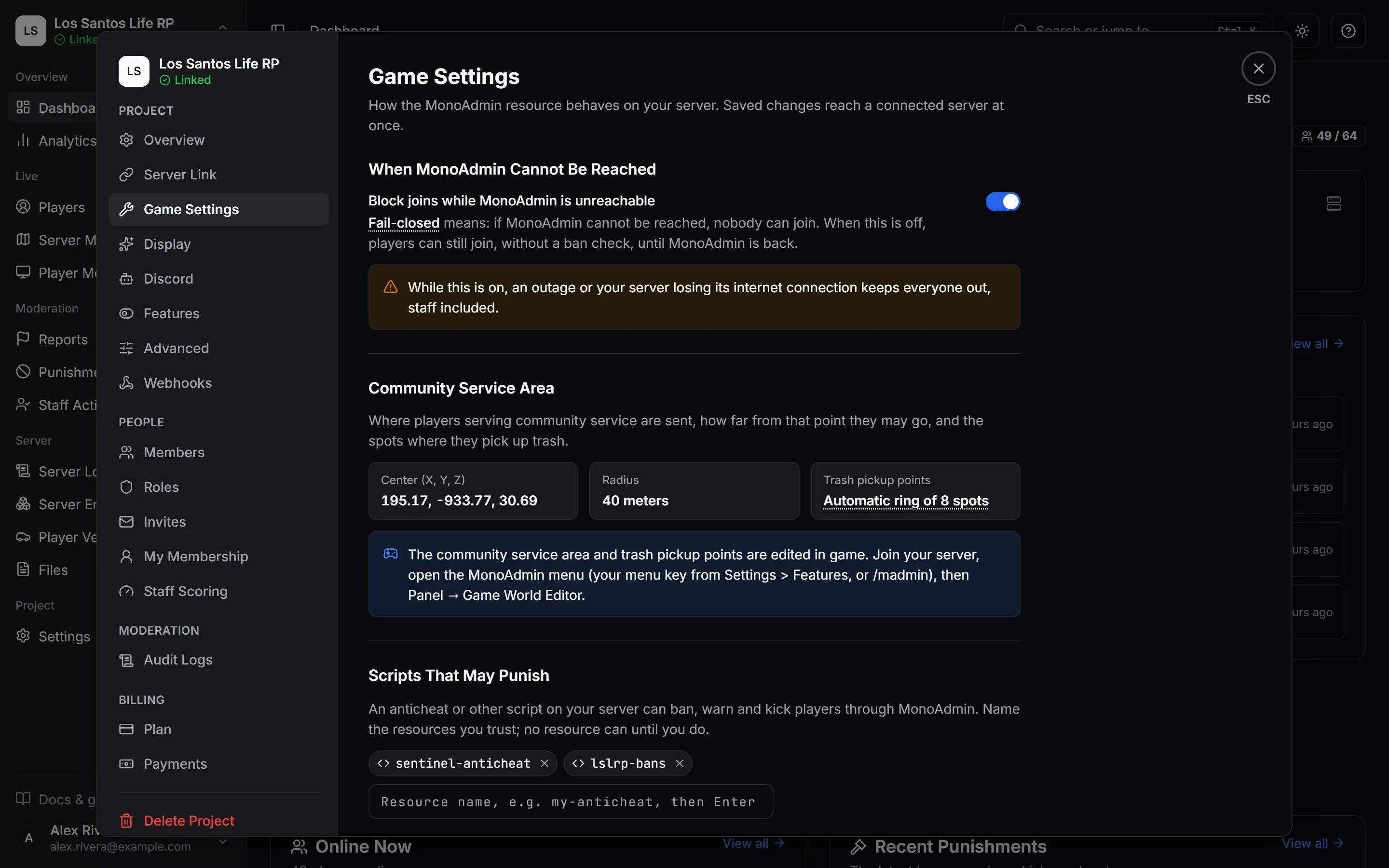
Changes collect in the save bar. A saved change reaches a connected server at once. A server that is offline gets it when it next connects. The toast reads “Game settings saved”.
When MonoAdmin Cannot Be Reached
When a player joins, your server checks its own copy of every ban first. It then asks MonoAdmin about the player and waits about a second and a half. If MonoAdmin does not answer in time, the player is let in. Bans still hold, because the local check has already run.
The switch Block joins while MonoAdmin is unreachable changes that. It is fail-closed behaviour: a safety setting that refuses entry when a check cannot be made, instead of letting everyone in. With it on, nobody joins while MonoAdmin cannot be asked, and the player sees “This server cannot check your access right now. Please try again in a few minutes.”
The switch is off by default. Turning it on shows “Block Joins When MonoAdmin Is Unreachable?” and a warning that an outage, or your server losing its internet connection, keeps everyone out, staff included. Confirm with Turn On and Save. How Bans Are Enforced has the full join check.
Community Service Area
This block is a read-only summary of where community service happens: the Center (X, Y, Z), the Radius in meters and the Trash pickup points. A new project starts at Legion Square with a 40 meter radius and no points. While fewer than 2 points are switched on, players are sent to Automatic ring of 8 spots spread evenly around the center.
You edit the area in game, because coordinates only make sense when you can see the world. Join your server, open the MonoAdmin menu with your menu key or /madmin, then choose Panel, then Game World Editor. It needs the Game World Editor permission. Game World Editor has the walkthrough.
Scripts That May Punish
An anticheat or another script on your server can ban, warn and kick players through MonoAdmin, but only if you name it here. By default no resource can.
Type a resource name and press Enter or a comma to add it. Use letters, digits, dots, dashes and underscores, up to 64 characters. Up to 16 resources fit. Remove one with the small cross on its chip. These punishments are recorded as coming from the game server, never from a staff member. Scripts and Exports shows the script side.
Advanced
Settings > Advanced holds choices that rarely change. Today that is the Ambulance script: which script the in-game Revive goes through, or your own code. Revive goes through that script, so the script’s own death screen, timers and saved “dead” state end too. Every choice saves the moment you make it, except Custom (your own code), which waits for you to save its code.
The screen shows only your own framework’s list:
| Framework | Choices after Auto-detect (recommended) |
|---|---|
| ESX | esx_ambulancejob, Wasabi Ambulance v1 and v2, OSP Ambulance, ARS Ambulance Job, Brutal Ambulance Job, Piotreq Ambulance Job, TK Ambulance Job |
| QBCore | qb-ambulancejob, Wasabi Ambulance v1 and v2, OSP Ambulance, ARS Ambulance Job, Brutal Ambulance Job, Piotreq Ambulance Job, TK Ambulance Job |
| Qbox | qbx_medical, Wasabi Ambulance v2, OSP Ambulance, Piotreq Ambulance Job |
Every list then offers Custom (your own code) and ends with None: MonoAdmin’s own revive, which brings the player back in the game only and calls no script. Auto-detect uses the first supported script your server runs. Under the choice the screen says Detected on your server with the script it found, “No ambulance script found: MonoAdmin brings players back itself.”, or “Connect your server to see which script it runs.” when the server is offline.
Custom runs Lua that you write whenever staff revive a player. Picking it opens a box for the code, and the choice is saved together with the code when you press Save Code. Writing or changing the code needs the Advanced Settings permission as well as Edit Settings, and without it the code shows read-only. The code runs on your game server, so give that permission only to people you trust.
Standalone servers have no ambulance script, so their list has two choices: None: MonoAdmin’s own revive, the default, and Custom (your own code). Revive and Ambulance Scripts explains how Revive works with each script, and what Custom code can use and cannot.