Players and Profiles
Find any player who has joined your server and read their profile: identifiers, sessions, linked accounts, notes, tracking and logs.
On This Page
MonoAdmin records every player the first time they join your server and keeps their history from then on. The Players page lists them all, online or not, and opens a profile for whoever you pick. The profile is where you read what is known about a person and where you act on them.
You need the View Players permission to open the page. Which tabs you see on a profile depends on the rest of your role, as described below.
The Player List
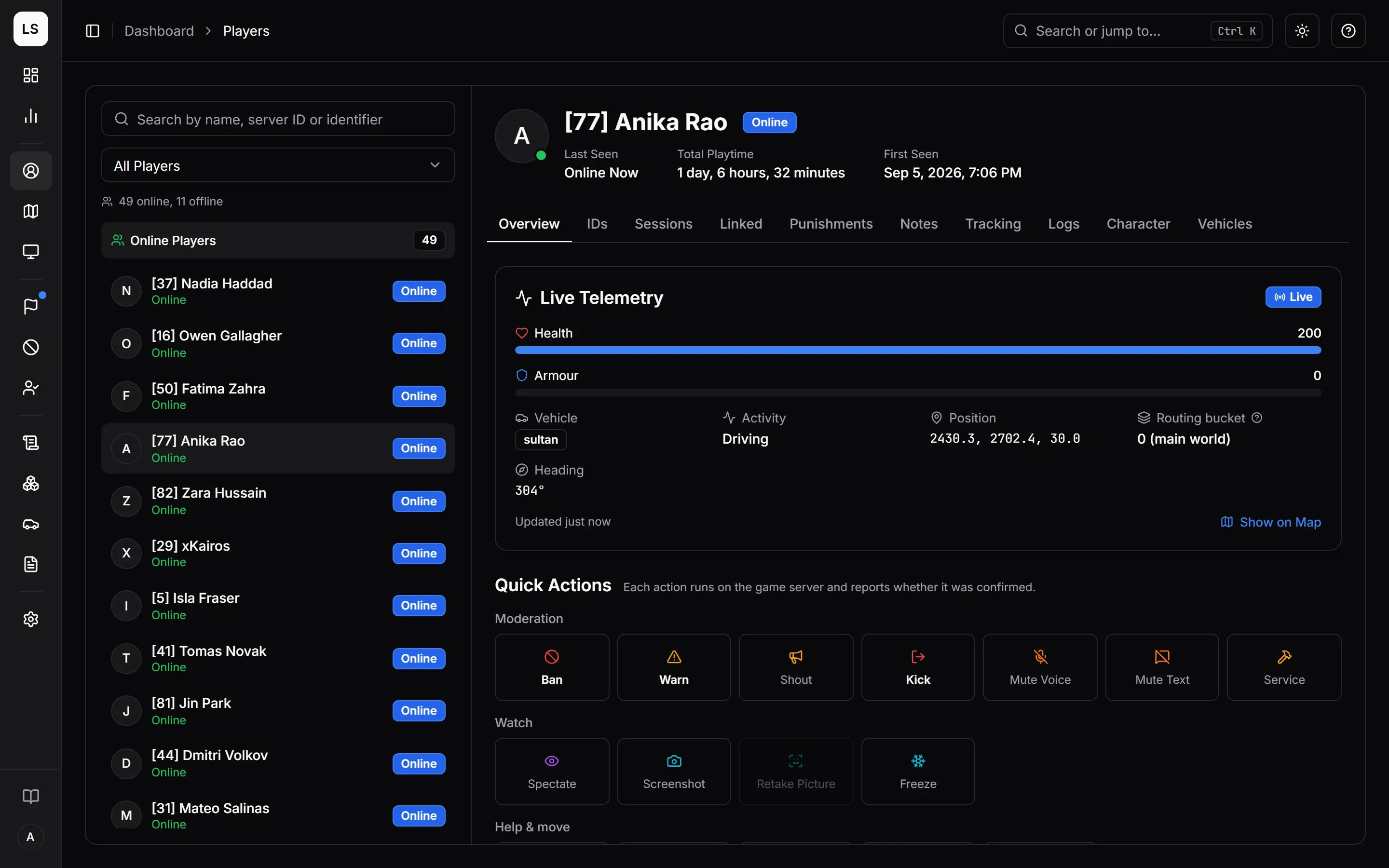
The list is on the left, the selected profile on the right. On a phone they take turns: tap a player to open the profile, and All Players takes you back.
- Online players come first, in a group headed Online Players, followed by Offline Players ordered by when they were last seen. Each group shows its count.
- The line under the search box reads, for example, “12 online, 340 offline”.
- Offline players load 50 at a time. Press Load More at the bottom for the next batch.
- On a wide screen the first player opens by itself, so the right side is never empty.
- Players who join or leave while you are looking at the page slide in and out of the online group.
Searching and Filtering
Type in the search box to narrow the list. It accepts three kinds of text:
| You type | It finds |
|---|---|
| Part of a name | Players whose name contains it, in any capitals. |
| A server ID | The online player with that ID. Server IDs belong to online players only, so this finds nobody once they have left. |
An identifier in the form kind:value |
Every player recorded with that identifier, for example discord:123456789012345678 or steam:110000112345678. |
The identifier form is exactly what the copy button on the IDs tab puts on your clipboard, so you can copy an identifier from one profile and search for it to find other accounts that used it. Hardware tokens cannot be searched this way.
The Show menu filters the list to All Players, Online or Offline. An empty result tells you why: nobody matches the search, nobody is online, or no player has joined yet. Before a server is linked, the page asks you to link one first.
The Profile Header
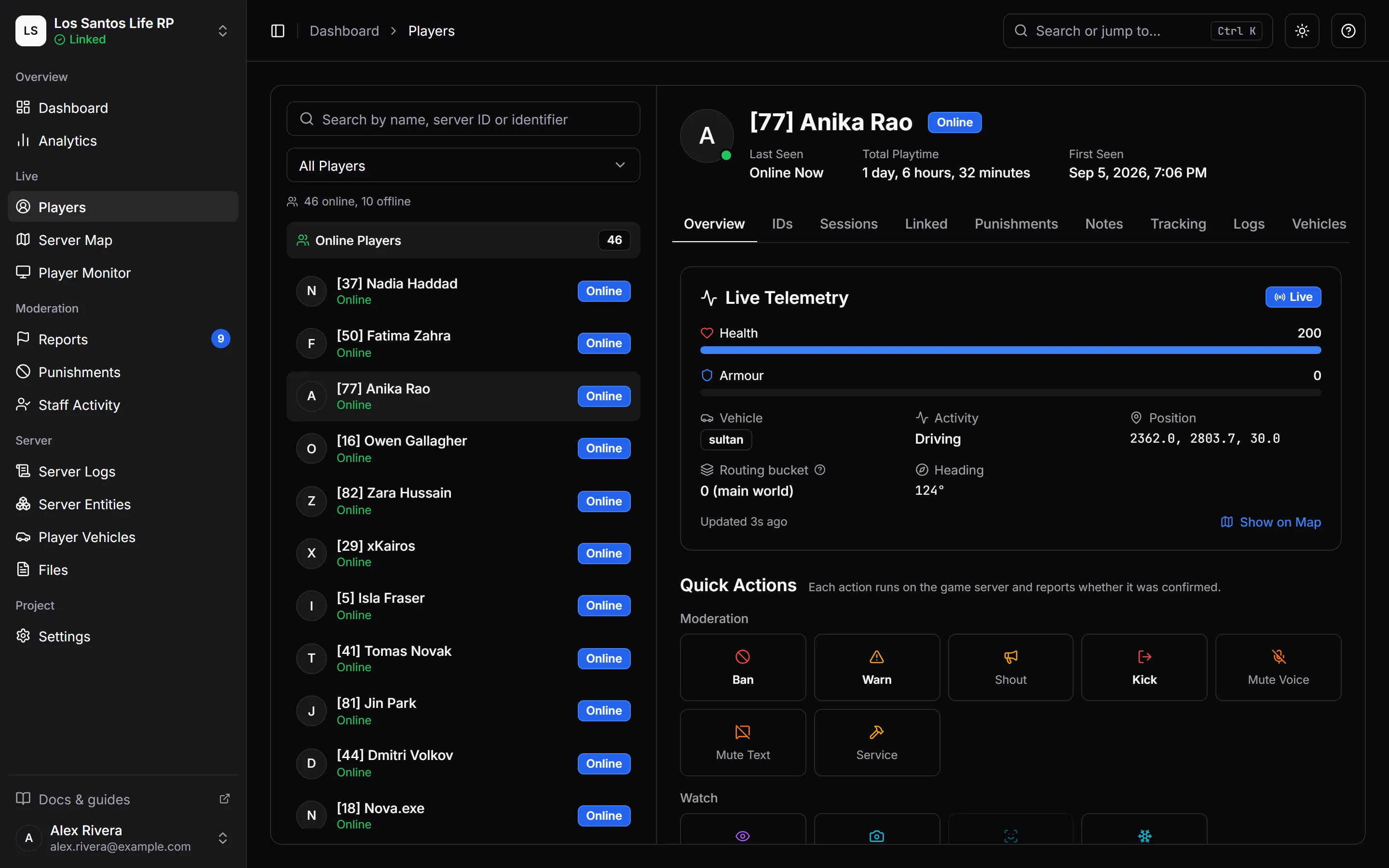
The top of a profile shows:
- A picture. Hover it to see where it came from: From the game (a picture of the character’s face), From Discord or From Steam. Without any of those, MonoAdmin shows a letter.
- The name, preceded by the server ID in brackets while the player is online, and an Online or Offline badge.
- A Staff badge, when the player’s game account is the linked account of a team member. It links to that person’s staff activity. You see it for anyone only if you can view staff activity; otherwise you see it only on your own account. See Staff Activity and Scoring.
- Last Seen (or Online Now), Total Playtime and First Seen.
The Tabs
Every profile has Overview, IDs and Sessions. The other tabs appear only when your role includes their permission, and the last two only when the server’s framework supports them.
| Tab | Shows | You need |
|---|---|---|
| Overview | Live telemetry and the quick actions. | Nothing extra |
| IDs | Every identifier and hardware token recorded for the player. | Nothing extra |
| Sessions | Every visit to the server in the last 2 to 3 months. | Nothing extra (IP addresses are masked without View Player IPs) |
| Linked | Other accounts that share identifiers with this player. | View Linked Accounts |
| Punishments | The player’s bans, kicks, warnings, mutes and community service, and the buttons to issue new ones. | View Punishments |
| Notes | Staff-only notes. | View Notes |
| Tracking | Where the player went. | View Player Tracking |
| Logs | Server Logs lines that involve this player. | View Server Logs |
| Character | The player’s characters and their data. | View Character Data, on ESX, QBCore or Qbox |
| Vehicles | The vehicles the player owns. | View Owned Vehicles, on ESX, QBCore or Qbox |
If you expect a tab and it is not there, your role is missing its permission, or the module behind it has been switched off in Settings > Features. See Roles and Permissions and Features and Modules.
Overview
The Live Telemetry card shows what the player’s game reports right now: health and armour bars, the vehicle they are in (or On foot), their activity (Idle, Walking, Running, Driving, Passenger, Aiming, Shooting, Swimming, Falling, Dead or In a menu), their position, heading and routing bucket. The routing bucket is a separate copy of the game world; players only see others in the same one, and 0 is the main world. Show on Map jumps to the player on the Server Map if you can view it.
The card marks its own limits honestly:
- Live appears while the player’s game is connected to MonoAdmin. Without it, the card says the values come from the server and update less often.
- Unverified client appears when the game client’s readings do not match the server’s. The server’s values are shown instead.
- Frozen appears while the player is frozen.
- An offline player shows a note that there is no live data.
Below the card are the quick actions: see Player Actions.
IDs
A table of Type, Value, First Seen and Last Seen, with a copy button on each row. The types are the identifiers FiveM reports when someone connects, shown by their short names: license, license2, steam, discord, fivem (the Cfx.re account), live (Microsoft Live) and xbl (Xbox Live). Hardware tokens appear here too, as type token. Use the same short names when you search, for example fivem: and not cfx:. A token comes from the player’s machine rather than an account, and one token alone proves little because unrelated players can share it. IP addresses are not identifiers and never appear here; they are in Sessions.
Sessions
One row per visit, newest first: Joined At, Left At (or Still online), Duration, Quit Reason and IP Address. Pages of 25 visits are separated by page buttons.
Without the View Player IPs permission, addresses are masked, for example 203.0.x.x, and a line under the table says so. The project owner always sees full addresses.
Linked
Other players who share an identifier or at least one hardware token with this one, strongest link first. A single shared token is only a weak link, shown as Possible. Each row shows the other account, which kinds of identifier are shared (never their values), when it was last seen, and a confidence badge: Same person, Very likely or Possible, with a percentage. Click a name to open that profile. How the confidence is worked out, and how it feeds sticky bans, is covered in Sticky Bans and Linked Accounts.
Punishments
The player’s full record, newest first, with Ban, Kick, Warn, Mute and Community Service buttons for the types your role allows. Kick is disabled while the player is offline. Click a punishment to read its details and, with the right permission, revoke it. See Punishments.
Notes
Notes are for staff only: players never see them. Anyone with Write Notes can add one with Add Note.
- Each note has a category: General, Incident, Positive or Warning.
- The editor supports bold, italic, underline, strikethrough, inline code, headings, bulleted and numbered lists, quotes, code blocks, dividers and links that start with
http://orhttps://. A note can hold about 10,000 characters. - Pinned notes stay at the top. Anyone with Write Notes can pin or unpin any note. The rest are newest first.
- Only the author can edit a note, and an edited note says so. The author can delete their own notes, and anyone with Delete Notes can delete anyone’s.
- Deleting hides the note from all staff, so it is not shown again, and is recorded in Audit Logs.
Tracking
A map of where the player went, with a replay. See Server Map and Player Tracking.
Logs
The Server Logs lines this player appears in, either as the player or as the other person. The same filters apply as on the Server Logs page: line types (except Webhooks, whose lines name no player), a search word and a date range. See Server Logs.
Character and Vehicles
The player’s characters as stored in your framework’s database, and the vehicles they own. Both are described in Characters and Owned Vehicles.
What Is Kept
Player records, their identifiers, punishments and notes stay for as long as the project exists. The visit list on the Sessions tab does not. Each visit, with the IP address of that visit, is kept for at least 60 days and at most about 90 days: visits are deleted in 30-day batches. IP addresses are never kept longer than 90 days. This does not depend on your plan. Time-based data such as tracking follows your plan’s history. There is no way to delete a single player from the panel. The full list of what is kept and for how long is in Data, Privacy and Retention.