Server Map and Player Tracking
Watch players move on the live GTA map, follow one, and replay where a player went with the Tracking tab on their profile.
On This Page
MonoAdmin shows where your players are in two ways. The Server Map is live: every online player as a marker on the GTA V map. The Tracking tab on a player’s profile is history: the route that one player took, with a replay.
The Server Map
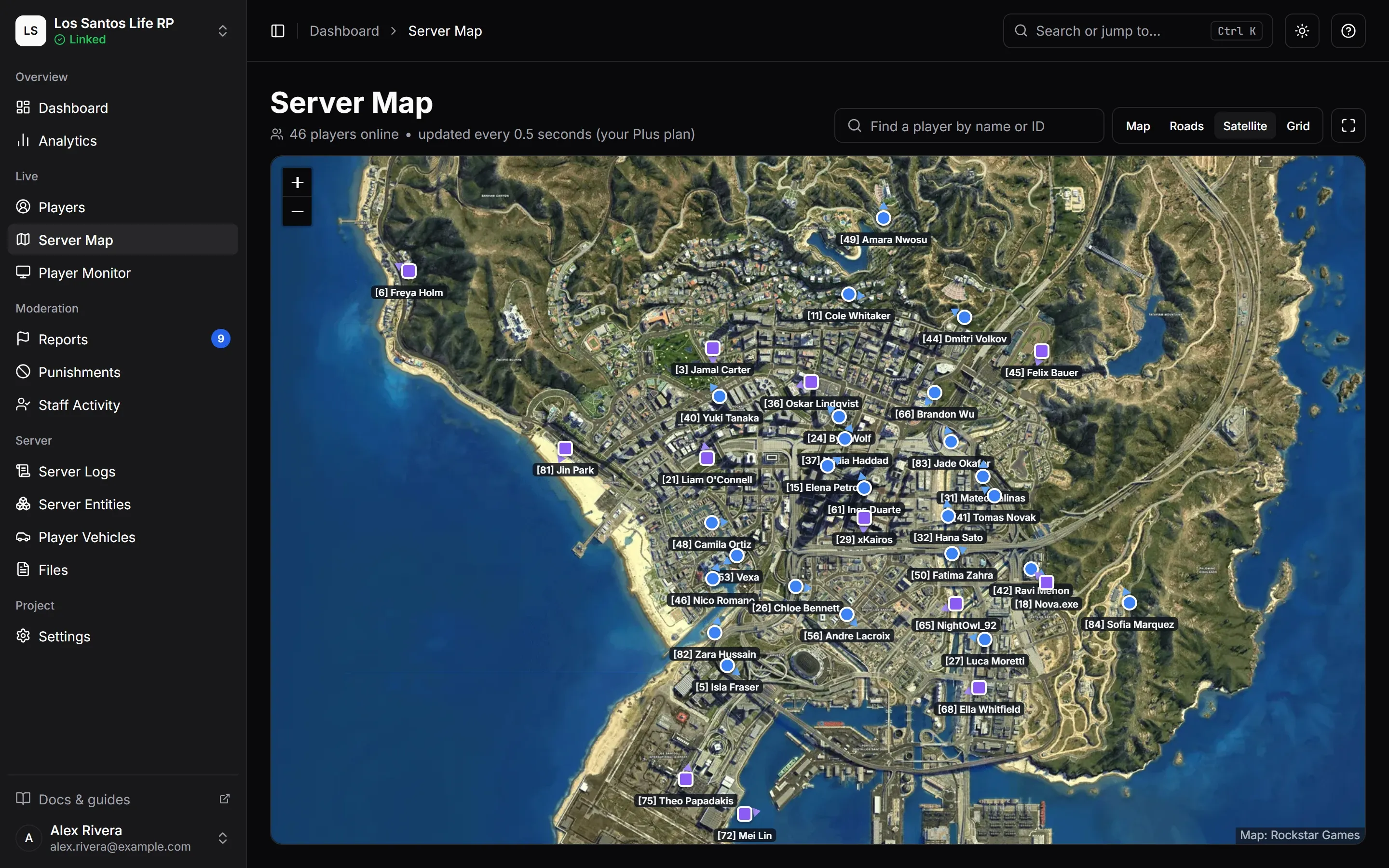
Open Server Map in the sidebar. It needs the View Server Map permission, and the page header says how many players are online and how often the map updates for your plan, in the form “updated every N seconds (your Starter plan)”, with your own plan’s name. Faster refresh rates come with bigger plans; see Plans and Limits.
Reading the Map
- Each player is a marker with a label such as
[12] Alex: the server ID in brackets, then the name. Hover a marker to see it written out. - Names come from the player list. Without View Players your role sees the label
[12]only. - If the server is not linked or is offline, a banner says so and the map is empty. Players appear again as soon as the server is back.
- Drag to move the map and scroll to zoom. Show the Whole Map fits everything in view.
- Switch the look with Map style: Map (the default), Roads, Satellite or Grid. Your choice is remembered in this browser. If the map pictures cannot be loaded, the page draws positions on a plain coordinate grid of the GTA V world and says so under the map.
Finding and Following a Player
Type a name or a server ID into Find a player by name or ID and pick a result, or click a marker. The map centers on that player and a card opens beside it.
The card shows:
- The name and server ID, and a Dead badge, an In a vehicle or On foot badge.
- Health and Armour bars, and the player’s coordinates.
- Unverified position when the game client’s position does not match the server’s. The server’s position is shown instead.
- A live view of the player’s screen at the top, if you have Watch Player Screens, screen sharing is on and a monitor slot is free. It starts by itself when the card opens, holds a slot while the card is open, and stops when you close the card or pick someone else. See Player Monitor and Screenshots.
Three buttons act on the player:
| Button | What it does |
|---|---|
| Follow | Keeps the map centered on the player as they move. Press it again (it reads Following) to let go. |
| Quick Actions | A short menu of Heal, Revive, Freeze in Place, Unfreeze and Bring to me, limited to what your role allows. See Player Actions. |
| Open Profile | Opens the player’s full profile. Needs View Players. |
When the selected player leaves the server, the card says so.
The Tracking Tab
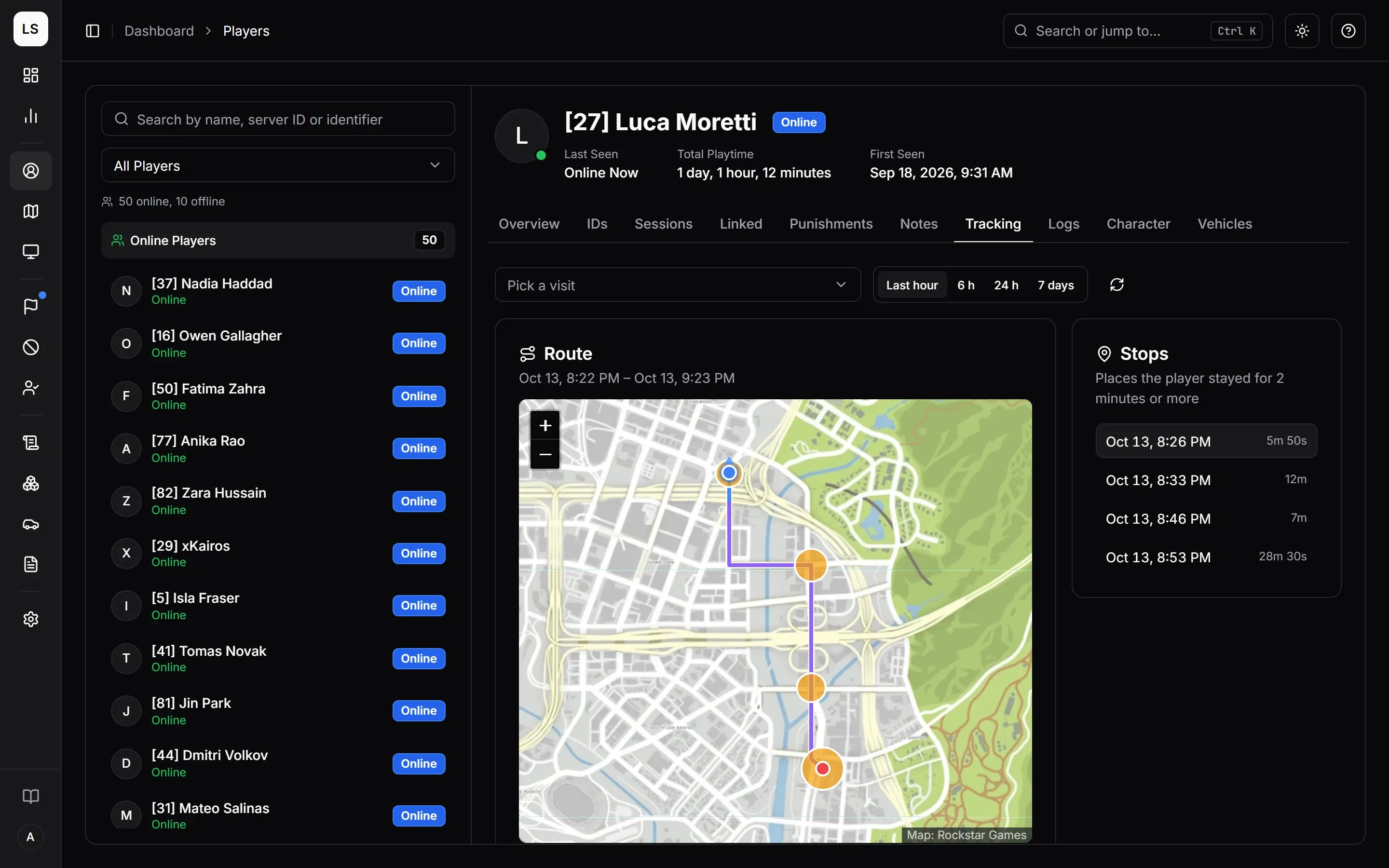
Tracking answers “where did this person go?” after the fact. Open a player’s profile and choose Tracking. It needs the View Player Tracking permission. If MonoAdmin has switched tracking off for your project, the permission is withheld from everyone and the tab is not shown.
How Points Are Saved
While a player is on your server, the game server sends MonoAdmin where they are every few seconds. These readings come from the game server itself, not from the player’s own game, so they do not depend on that game being connected.
MonoAdmin does not keep every reading. It saves a point when:
- the player has moved at least 3 metres since the last saved point, or
- their activity, vehicle state or routing bucket changed, or
- a minute has passed without a saved point, even if they stood still.
It never saves more than one point every 4 seconds. Each point records the time, coordinates, heading, whether they were in a vehicle, the vehicle’s name, their activity and their routing bucket. Two points more than 90 seconds apart mean no data in between: the player was off the server, or the link between your server and MonoAdmin was down.
Points are kept for as long as your plan keeps history, and older ones are no longer shown. See Data, Privacy and Retention.
Choosing What to Show
At the top of the tab:
- Visit picks one of the player’s most recent visits, labelled with when it started, when it ended and how long it lasted. A visit that is still going shows “now”.
- The range buttons pick a stretch of time instead: Last hour, 6 h, 24 h or 7 days. Ranges longer than your plan’s history are not offered. Picking a range clears the visit and the other way round.
- The refresh button takes a fresh reading of the same range.
For a visit that is still going, a Following live badge appears and the route keeps growing every ten seconds. Anything else is a snapshot until you refresh.
A request covers at most 7 days and 10,000 points. Ranges longer than 8 hours are thinned to the first point of each time bucket, and the tab says “Thinned to one point every …” with an explanation on hover. Pick a single visit or a shorter range to see every point. If a range holds more points than can be shown, a warning says the route stops early.
Reading the Route
The Route card draws the path on the map. The legend explains the colors:
- On foot and In a vehicle have their own colors.
- Jump is a dashed line for a sudden move too fast to be walking or driving, such as a teleport, a respawn or a loading screen.
- Stop marks a place where the player stayed.
- A break in the line means no points were saved there.
Below the map is a summary of the Distance, the time On foot, the time In a vehicle and the number of Stops.
Stops
A stop is a place where the player stayed within 30 metres for at least 2 minutes. The Stops card lists them with when each began and how long it lasted. Click one to jump the replay and the map to it.
Replay
Press play to watch the route unfold. The slider scrubs through time, and the speed buttons run the replay at 1x, 5x, 20x or 60x. While it plays, a line shows the time, the player’s activity, the vehicle, the speed in km/h and the routing bucket if it is not 0. Gaps with no data are skipped rather than waited out. The replay pauses when the tab is hidden.
The empty state, “No positions saved in this range”, appears when the player was not on the server in the range or when it is older than your plan keeps.
Related
- Players and Profiles explains the rest of the profile.
- Server Entities has its own map of vehicles, NPCs and objects.
- Analytics maps where players disconnected and where games crashed.