Punishments
Ban, kick, warn, mute or give community service from the panel: how long each lasts, what the player sees and how to revoke one.
On This Page
A punishment in MonoAdmin is a record first and an action second. When you issue one, MonoAdmin stores it with your name, the reason and the time, and then tells your game server to carry it out. Bans, mutes and community service are also kept in a local copy on the server itself, so they hold even when MonoAdmin cannot be reached. Kicks and warnings are one-off deliveries.
There are six types:
| Type | What it does | Lasts |
|---|---|---|
| Ban | Removes the player and refuses them at the door. | A set time or permanently. |
| Kick | Disconnects an online player once. They can rejoin. | One-off, kept on the record. |
| Warning | Shows the player a message they must confirm. | Until the player confirms it. |
| Voice Mute | Silences the player’s voice chat. | A set time or until lifted. |
| Text Mute | Blocks the player’s text chat. | A set time or until lifted. |
| Community Service | Sends the player to work off a number of tasks. | Until the tasks are done. |
This page covers issuing, finding and revoking. How each one behaves in game is in How Bans Are Enforced, Sticky Bans and Linked Accounts and Warnings, Mutes and Community Service.
The Punishments Page
Open Punishments in the sidebar. You need View Punishments.
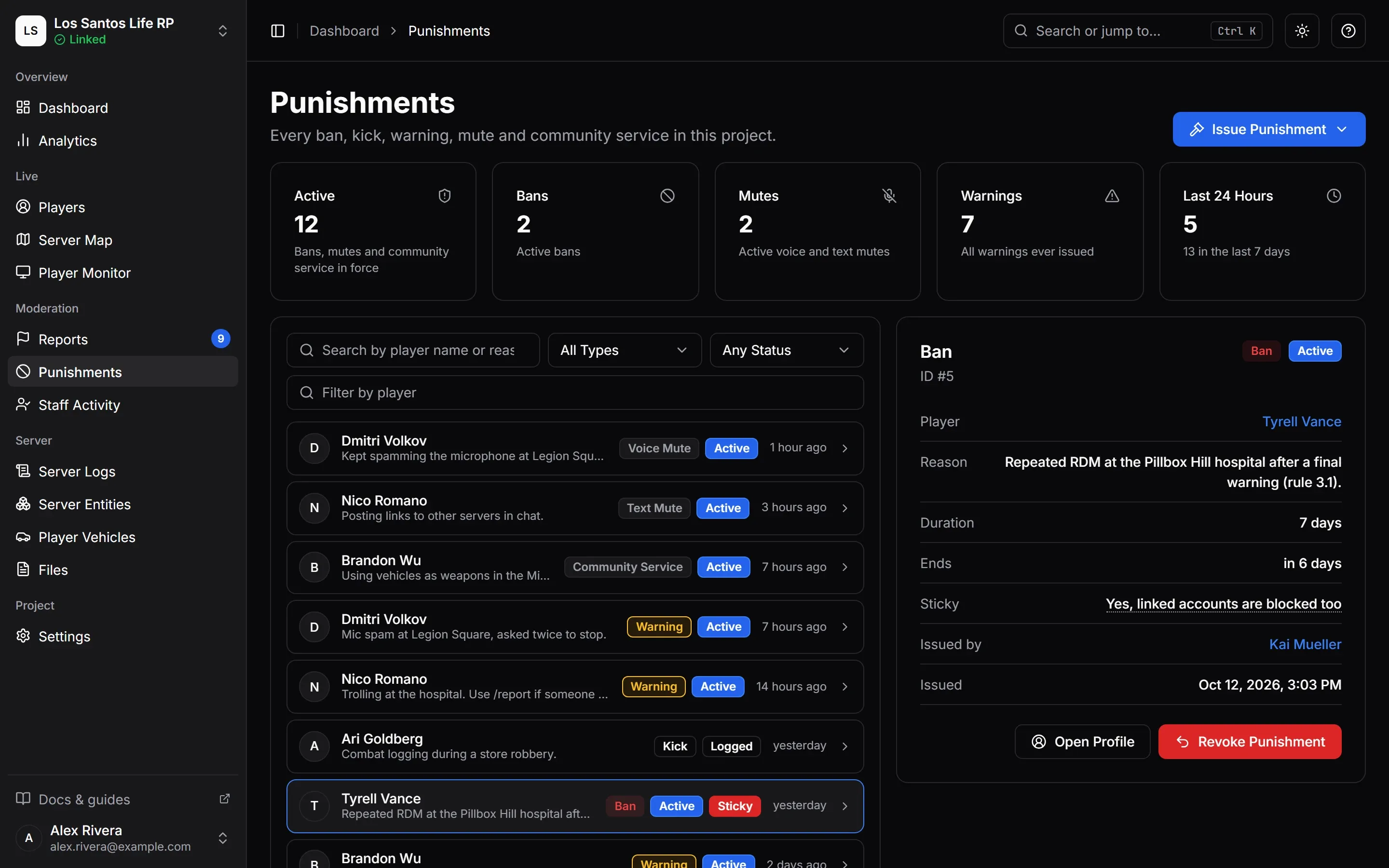
At the top, five cards give the totals: Active, Bans, Mutes, Warnings (every warning ever issued) and Last 24 Hours, with the count for the last 7 days underneath. Active counts everything still in force, which includes warnings the player has not yet confirmed.
Below them, the list is on the left and the selected punishment on the right. On a phone they take turns.
- Search by player name or reason, up to 64 characters.
- Type filters to Ban, Kick, Warning, Voice Mute, Text Mute or Community Service.
- Status filters to Active, Expired, Revoked or Completed.
- Filter by player narrows to one player. Clear Filters resets all of them.
- The list is newest first and loads more with Load More.
- Each row shows the player, the reason, the type, the status, a Sticky badge on sticky bans and when it was issued.
- New punishments and revocations appear without a reload. The selected one is in the page address, so you can send a link to a colleague.
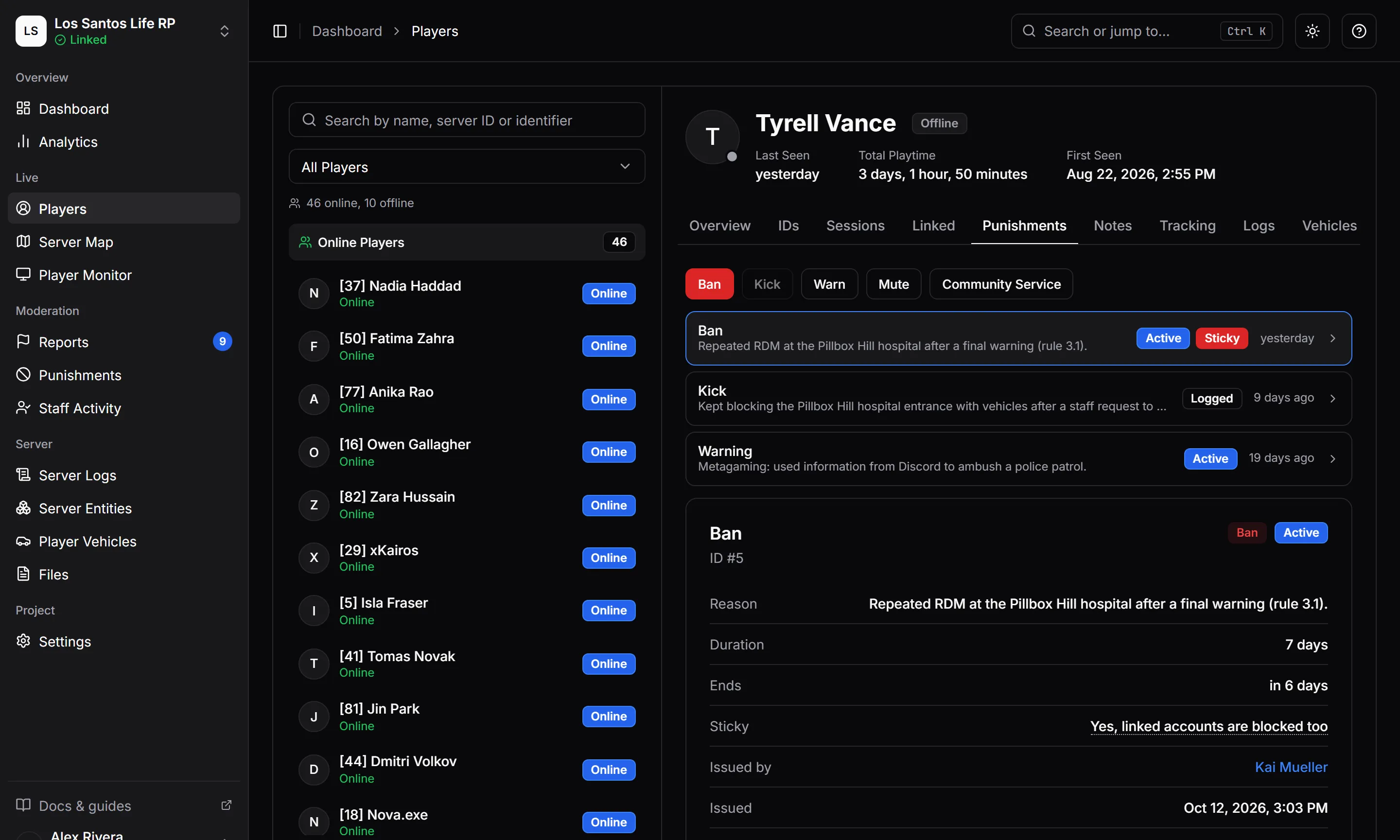
The same list, limited to one person, is on the Punishments tab of their profile; see Players and Profiles.
Reading a Punishment
Select a row to see the details: Player, Reason, Duration (for bans and mutes), when it Ends, whether a ban is sticky, whether a warning was Acknowledged (or “Not yet: shown to the player when they are next online”), the Progress of a community service, Issued by and Issued. Once revoked, it also shows Revoked by and the Revoke reason.
Issued by shows a staff member’s name, or Game server for a punishment a script on your server asked for. See Scripts and Exports. A punishment brought over from txAdmin shows the txAdmin admin’s name as plain text and a From txAdmin tag. See Move From txAdmin.
Issuing a Punishment
You can start from three places: the Issue Punishment menu at the top of the page, the Punishments tab of a player’s profile, or the moderation tiles on the profile’s Overview tab (Ban, Warn, Kick, Mute Voice, Mute Text and Service). The menu lists only the types your role may issue.
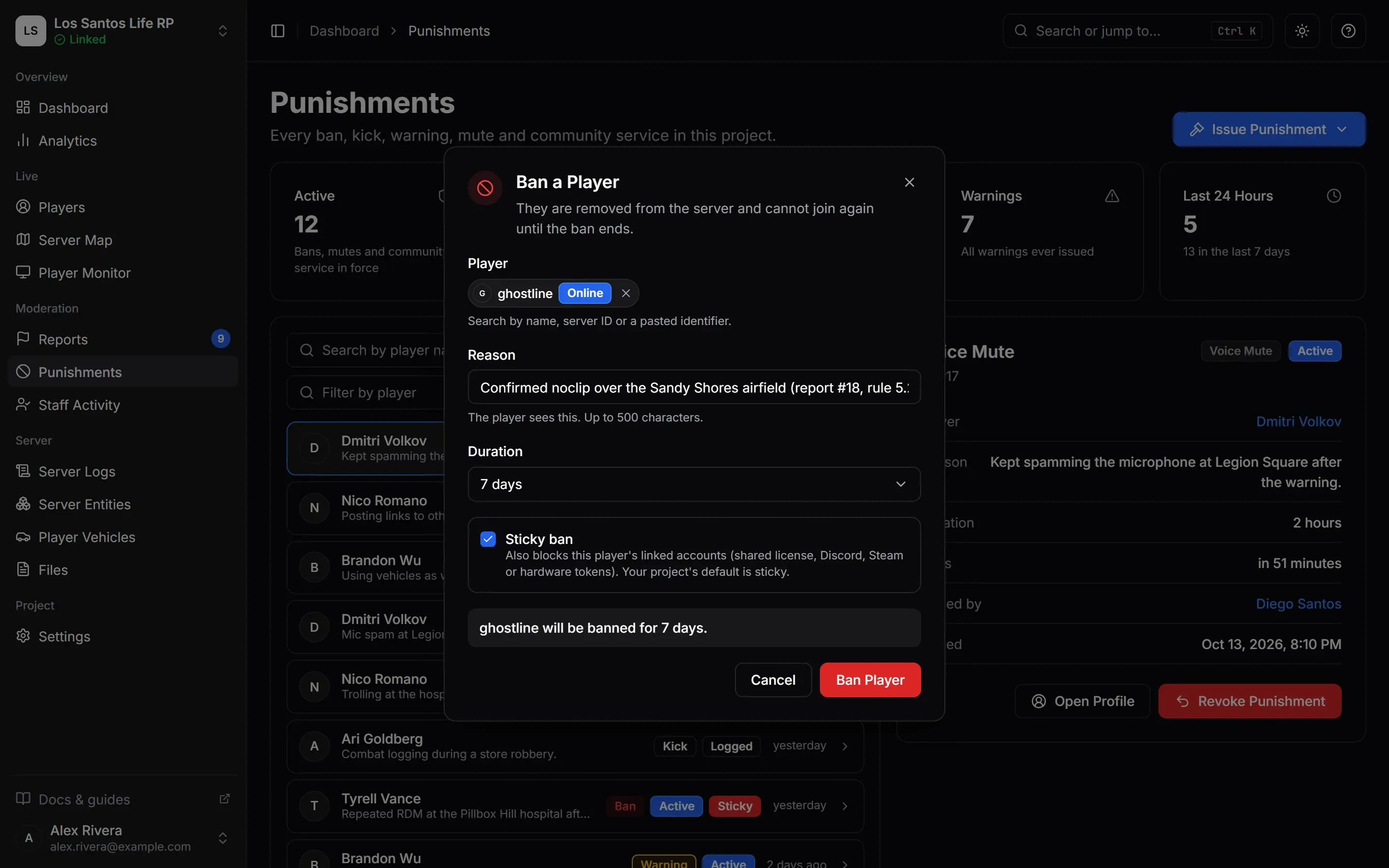
- Choose the type. If you did not start from a player, pick one by name, server ID or a pasted identifier.
- Write the Reason.
- Set the options for the type, described below.
- Read the summary line at the bottom, such as “Alex will be banned for 1 day.”, and press the confirm button: Ban Player, Kick Player, Warn Player, Mute Player or Assign Service.
Each type needs its own permission: Ban, Kick, Warn, Mute or Community Service. Revoking needs another, Revoke Punishments.
The Reason
A reason is required for every type. It can be up to 500 characters, and control characters are removed. Players see it, so write something they can understand.
- A ban shows the reason on the screen the player gets when refused or removed.
- A kick shows it on the disconnect screen.
- A warning shows it on the confirmation overlay.
- A mute and community service keep the reason on the record for staff.
Durations
The panel offers fixed choices, so a punishment is never open-ended by accident.
| Type | Choices | Starts as |
|---|---|---|
| Ban | 1 hour, 1 day, 3 days, 7 days, 30 days, Permanent | 1 day |
| Mute | 10 minutes, 1 hour, 1 day, 7 days, Until lifted | 1 hour |
| Community Service | 1 to 500 tasks | 10 tasks |
| Kick and Warning | No duration |
A timed ban or mute starts counting when you issue it and ends on its own.
Bans: the Sticky Option
The Sticky ban checkbox decides how far a ban reaches. It starts ticked or not according to the project’s Default ban under Settings > Overview. A sticky ban also blocks accounts linked to the player; a ban that is not sticky blocks only that player’s own account identifiers. The full rules are in Sticky Bans and Linked Accounts.
Mutes
Choose Voice chat or Text chat. If your server cannot mute that kind of chat, the dialog tells you “This server’s resource can’t mute voice chat.” (or “text chat”) and the confirm button is disabled. Voice mutes work with Mumble and pma-voice, and text mutes with the default chat resource; see Voice and Text Mutes.
Who Can Be Punished
- Bans, warnings, mutes and community service can be issued to an offline player. The dialog says “Alex is offline. It is recorded now and takes effect when they next join.” A ban is refused at the door, a warning appears when they join, and a mute or community service starts as they join.
- A kick needs the player online. For an offline player the dialog says there is nobody to kick and the button is disabled.
- A player can have only one active ban, one active voice mute, one active text mute and one active community service at a time. Trying again shows “Alex already has an active ban. Revoke it first to issue a new one.” Warnings and kicks have no such limit.
What You See After Pressing the Button
The punishment is saved either way, and the toast tells you what the game server did with it. Only the first of these reads as done.
| What happened | The toast says |
|---|---|
| The server carried it out | “Alex is banned.”, “Alex was kicked.”, “Alex was warned.”, “Alex is muted.” or “Alex was sent to community service.” A ban that removed players who were online says “Alex is banned and was removed from the server.” |
| A warning for a player who is offline | “Saved. Alex is offline and sees it when they next join.” |
| The game server is offline | “Saved. The game server is offline, so it applies when the server reconnects.” |
| The server did not answer in time | “Saved, but the game server did not confirm in time. It may not have applied yet.” For a kick: “The game server did not confirm in time. Alex may still be online.” |
| The server refused | “Saved, but the game server refused to apply it. Check the server.” |
A sticky ban can remove more than one player at once, because other connected accounts of the same person match too. The toast then says how many were removed.
Statuses
| Status | Meaning |
|---|---|
| Active | In force. A ban, mute or community service that has not ended, or a warning the player has not confirmed. |
| Expired | A timed ban or mute reached its end. |
| Revoked | Staff lifted it. |
| Completed | A warning the player confirmed, or community service the player finished. |
A kick has no status of its own: it shows Logged on its row and in its details, and is stored as Completed, so the Completed filter includes kicks.
A ban or mute ends on schedule even when the server cannot reach MonoAdmin. The server enforces the end time itself, and the panel shows the record as Expired as soon as the end time has passed.
Revoking a Punishment
Select a punishment and press Revoke Punishment. You need Revoke Punishments; without it the button is disabled and says so on hover.
- Read the consequence in the dialog. For a ban it says “They can join the server again straight away. This is recorded in Audit Logs.” For a mute, the player can use that chat again straight away. For community service, the remaining tasks are cancelled. For a warning or a kick, the record stays in their history, marked as revoked.
- Write Why it is being revoked. A reason is required, up to 500 characters.
- Press Revoke.
The toast reports the game server’s answer in the same way as when issuing: “Revoked.”, or a note that the server is offline and will lift it when it reconnects, did not confirm in time, or refused.
You can revoke anything that is not already revoked, including a punishment that has already ended. The dialog then says “It is no longer in force, so nothing changes in game. The record is marked as revoked with your reason.” That is how you correct a record without changing the game.
Revoking a ban is recorded in Audit Logs, as is every issue.
No Appeals Flow
MonoAdmin has no built-in way for a banned player to appeal, and no way to edit or delete a punishment. To handle an appeal, take it where your community already talks: a Discord ticket of a type such as Ban Appeal works well, and so does a report. If you decide the ban was a mistake, revoke it with a reason that mentions the appeal. To change a ban’s length, revoke it and issue a new one.
Records stay for as long as the project exists, so a player’s history is always there when the next case comes.
Related
- Warnings, kicks and bans can also be issued from the in-game player window; see The Panel Tab and Player Window.
- Scripts you trust, such as an anticheat, can ban, warn and kick through MonoAdmin; see Scripts and Exports.
- Who may do what is set per role; see Roles and Permissions.