Display, Themes and Time Zones
Choose how notifications, announcements and shouts look in game, which panel theme you see, and the time zone dates are shown in.
On This Page
Three things control how MonoAdmin looks and reads. The project picks how messages look on players’ screens in game. The project and each member pick a theme, which is the look of the panel and the in-game menu. And the project and each member pick a time zone for dates and times. The project’s choices are on Settings > Display and Settings > Overview. Yours are on Account > My Profile.
In-Game Display Styles
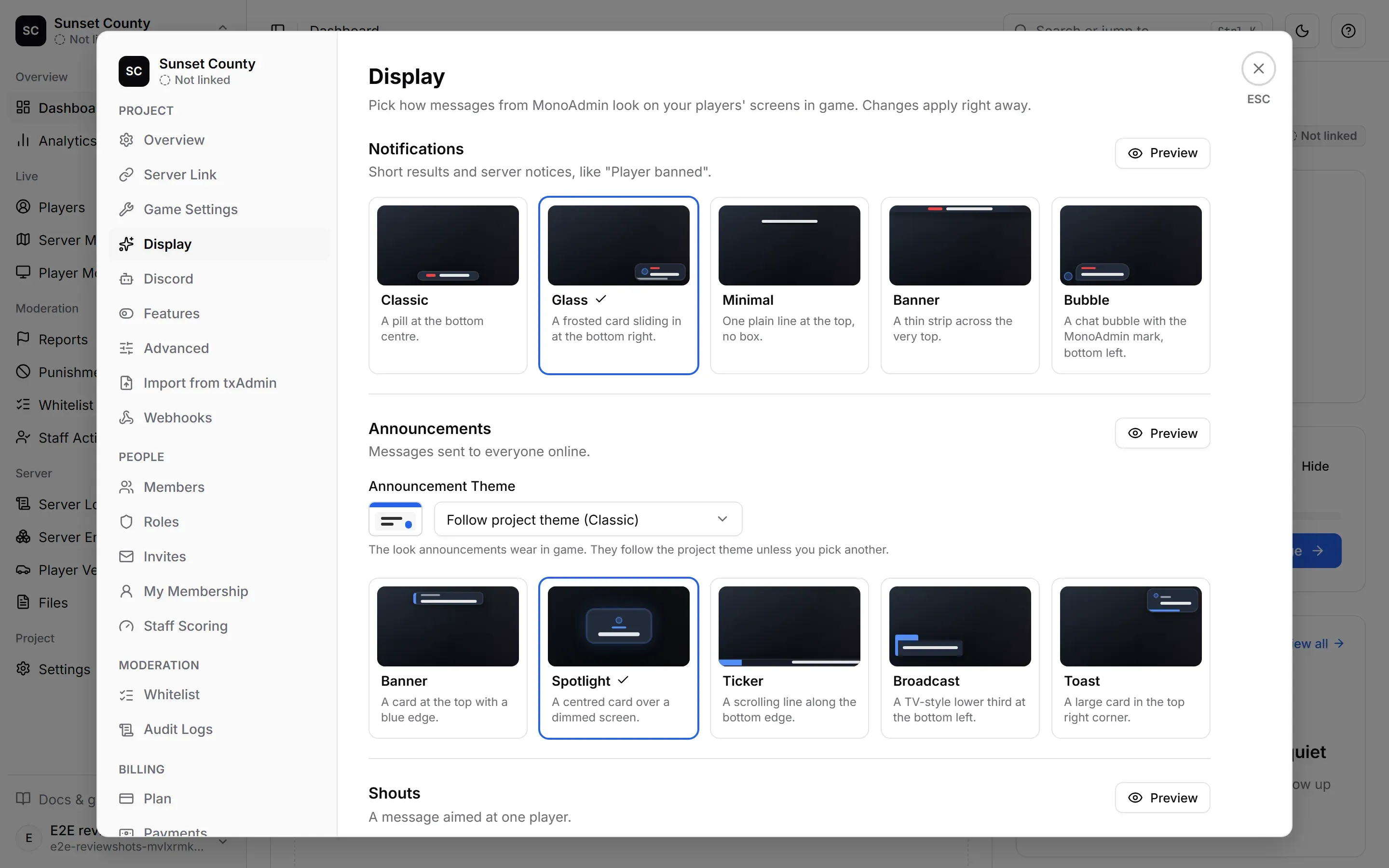
Settings > Display sets how three kinds of message look on your players’ screens. Each kind has five styles, shown as cards with a small drawing of the game screen in the colours of the theme the message wears. Pick a card and it saves at once, with a toast such as “Notification style saved”. A connected server shows the new style straight away.
You need View Settings to open the screen and Edit Settings to change it. Without Edit Settings the cards are locked, with the note “Your role can see these styles but not change them.” The preview still works.
The Preview
Each kind’s card has a Preview button. It opens a window with a preview of the game screen: the message the way the game draws it, in the theme it wears, on a 1920 × 1080 screen scaled down to fit. The message comes in, stays for its usual time (5 seconds for a toast, 10 for an announcement, 8 for a shout), goes out, and then plays again. It opens on the style in use, and a line under the screen says so, such as “Glass is in use”.
Pick another style at the top of the window to try it: “Previewing Spotlight. It is not saved yet.” Nothing changes until you choose Use This Style, which saves it the same way as picking its card. Without Edit Settings you can try every style but not use one.
- Preview text: type your own message to see how it fits. Until you do, the box shows a sample. The text is only shown on this screen. Nothing is sent to the game.
- Toast and Server notice (notifications only): both use the notification style. A toast is a short message about something that just happened, like a staff reply to the player’s report. A server notice comes from the server itself, like a cleanup warning, and is labelled “Server notice”.
- Replay plays the message again from the start.
- Full screen shows the preview at the size of your screen. Press Esc or choose Exit full screen to leave it.
The same cards and Preview buttons are in the In-Game Display part of the guided setup’s Customize More step.
Notifications
Short results and server notices. The default is Classic.
| Style | Looks like |
|---|---|
| Classic | A pill at the bottom centre. |
| Glass | A frosted card sliding in at the bottom right. |
| Minimal | One plain line at the top, no box. |
| Banner | A thin strip across the very top. |
| Bubble | A chat bubble with the MonoAdmin mark, bottom left. |
Announcements
Messages sent to everyone online, from the Dashboard’s quick actions or the in-game menu. The default is Banner. Whoever sends one can also pick a style for that one announcement; the style set here is what players see when they do not.
| Style | Looks like |
|---|---|
| Banner | A card at the top with a blue edge. |
| Spotlight | A centred card over a dimmed screen. |
| Ticker | A scrolling line along the bottom edge. |
| Broadcast | A TV-style lower third at the bottom left. |
| Toast | A large card in the top right corner. |
These are Classic’s looks. Every theme draws the five styles in its own way, from the same family as its menu and windows, so a Spotlight in Retro Desktop is not the same card as a Spotlight in Savanna.
Announcement Theme
Announcements wear the project’s theme, like everything else players see, unless you give them one of their own. Announcement Theme, in the Announcements card, offers Follow project theme, which is the default, or any of the eight themes. It saves at once (“Announcement theme saved”), and the announcement cards and their preview then show the theme you picked. It needs Edit Settings, like the styles.
Shouts
A message aimed at one player. The default is Alert.
| Style | Looks like |
|---|---|
| Alert | Big centred text on a dark band that pulses once. |
| Megaphone | A card at the top centre, signed “Staff”. |
| Sticky | A card at the right edge that stays until time runs out. |
| Flash | The screen edge flashes amber twice, text in the middle. |
| Marquee | The text sweeps across the middle of the screen once. |
What Players See shows these messages from the player’s side. Announcements and shouts are sent from the Self tab and the player actions.
Panel Themes
A theme is the whole look of the staff interface: the web panel and the in-game menu. There are eight.
| Theme | Description |
|---|---|
| Classic | The standard look. Light, dark, or following your device. |
| Midnight | Blue-black with indigo and cyan, and a soft glow. |
| Pink | Soft blush and rose, with rounded buttons. |
| Retro Desktop | Beige windows with blue title bars, like an old desktop. |
| Vapor | Dark steel blue with a green call to action. |
| Savanna | Sunny and chunky, with thick outlines and warm colours. |
| Material | Purple tonal surfaces with raised cards and pill buttons. |
| Ribbon | White and pink with polka dots and a red bow. |
Classic keeps its light and dark switch (Switch to dark mode in the top bar). Every other theme is one look of its own.
The Project Default
On Settings > Overview, Default Theme sets the look for two groups: members who follow the project, in the panel and in game, and players, on their own screens in game, such as the report window and warnings. A new project starts on Classic. Changing it needs Edit Settings and goes through the save bar like the other Overview fields.
Your Own Theme
On Account > My Profile, the Theme card lets you pick Follow Project, which is the default, or one of the eight themes. Only you see your choice, and it applies in the panel and in game. Choose Save Theme and the panel switches at once. Other members and the project’s default are not affected.
You can also open the picker from the command palette: press Ctrl + K (Cmd + K on a Mac) and choose Change Theme. In game, the Settings tab of the menu has a Theme row with the same choices.
If you pick a theme, it wins everywhere. If you stay on Follow Project, you see whatever theme the project in front of you uses, so two projects can look different.
Time Zones
Dates, times and charts are shown in a time zone. Both the project and each member have a say.
The Project Zone
Settings > Overview > Time Zone sets the project’s zone. A new project starts in the time zone of the device that created it. Changing it needs Edit Settings.
Staff Activity totals are stored per day, so their days run midnight to midnight in the project zone for everyone. After you change the zone, recent days are totalled again in the new one.
Your Zone
On Account > My Profile, the Time Zone card offers three modes:
- Use each project’s time zone is the default. Dates follow the project you are in. Outside a project, such as on the project list, your device’s zone is used.
- Use this device’s time zone follows the browser, and follows it if you travel.
- Always use shows one zone you pick from the list in every project.
The card tells you what is in effect: “Dates and times are shown in {zone} right now.” Your choice only changes what you see. Other members keep their own, and the project’s zone stays as it is.
What Uses Which Zone
| Where | Zone used |
|---|---|
| Dates, times and charts in the panel | Your zone |
| Analytics, where the days in a chart start and end | Your zone |
| Staff Activity days and scores | The project’s zone, for everyone |
| In game, including the date a temporary ban ends on the ban screen | The project’s zone |
| Emails and Discord messages to you | Your zone if you chose Always use, otherwise UTC |
Emails write the time in full, for example “12 October 2026, 14:03 UTC”, so there is no doubt which zone it means.