Create Your Account and Project
Sign up for MonoAdmin, create a project for your FiveM server and pick the framework it runs, step by step.
On This Page
Everything in MonoAdmin lives in a project, and one project is one FiveM server. This page walks through creating your account, creating the project and choosing its framework. It takes a couple of minutes. The next step is to install the resource on your server.
Create Your Account
- On the MonoAdmin website, choose Get Started. The Create Account page opens.
- Fill in the form:
- Display Name: shown to your team in audit logs and reports. Up to 64 characters.
- Email: the address you will sign in with. It must be one you can read, because you confirm it next.
- Password: at least 10 characters, with at least 5 different characters, and it must not contain your email address. The form shows a strength meter as you type, and a short sentence works well. No symbols are required.
- Complete the Verification check, then choose Create Account.
- Open the confirmation email and follow its link. The link works once and expires after 24 hours. If it has expired, the page lets you request a new one.
- Email Confirmed appears. Choose Sign In.
You can also choose Continue with Discord to sign up with a Discord account. That needs a Discord account with a verified email address. A Discord sign-up never attaches itself to an existing account that uses the same email: if one exists, sign in with your password and link Discord later from your account settings.
If the page says Sign-Ups Are Closed, or that new accounts are paused, MonoAdmin is not accepting new accounts at the moment. Try again later. If you already have an account, you can sign in as usual.
Create Your Project
After you sign in, the Projects page lists every project you belong to. With none yet it shows No Projects Yet.
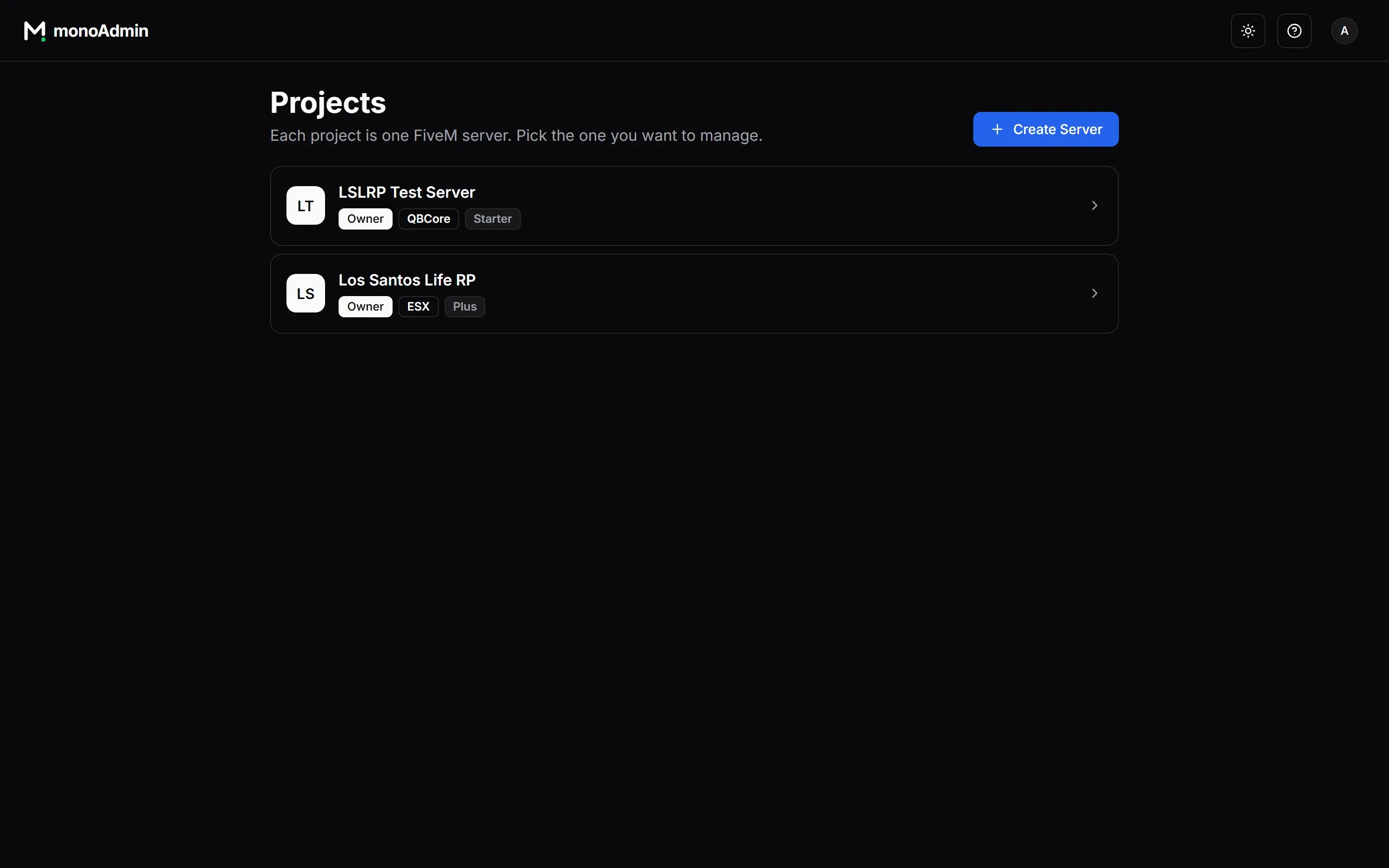
- Choose Create Server. The Set Up a Server page opens. On your first project it also says “Let’s connect your first server; it takes about five minutes.”
- Under Name Your Server, enter a Server Name of 3 to 64 characters. This is how the project appears to you and your staff, and you can change it later in Settings.
- Choose Continue. Under Which Framework Does Your Server Run?, pick one of the four options (below).
- Choose Create Project.
The project is created and the guided setup opens on its first screen, Link Your Server, with a pairing code ready. The project’s time zone starts as the one your device uses; you can change it in Settings > Overview.
An account can own up to 10 projects. Past that, the panel says “You already own the maximum number of projects. Delete one you no longer use to create another.” Each project has its own plan, team, roles and settings, so a second server is a second project.
Pick the Framework
The framework decides which features MonoAdmin can offer. Pick what the server really runs.
| Option | What you get |
|---|---|
| ESX | Moderation, map, monitor, live player actions, and editing of character, inventory and owned-vehicle data |
| QBCore | The same as ESX, plus a gang you can change on each character |
| Qbox | The same as QBCore, plus a list of every job and gang a character belongs to |
| Standalone | No framework: moderation, the live map, the Player Monitor, reports and Server Logs. No jobs, money, items or character data. |
Not sure which one you run? Look at your server.cfg. A line ensure es_extended means ESX, ensure qb-core means QBCore, and ensure qbx_core means Qbox. MonoAdmin uses the same names to detect the framework once the resource is installed. Character and vehicle data also need oxmysql; see Requirements.
If You Pick the Wrong One
Nothing is lost. Once the resource connects, MonoAdmin compares your choice with what it detects on the server. If they differ:
- The dashboard shows The server runs a different framework, with an Open Settings button.
- The guided setup’s What We Found on Your Server screen offers a Switch to {framework} button.
- The server console prints a warning every time it connects.
A framework feature is offered only where both your project’s framework and what the server runs allow it. You can also change the framework yourself under Settings > Overview. The panel asks you to confirm first, because pages and actions the new framework does not support disappear from the panel. Nothing is deleted. See Supported Frameworks for the details.
What Comes Next
- Install the resource on your game server.
- Link your server with the pairing code.
- Finish the guided setup.
You can also invite your team at any time. See Members and Invitations.