Features and Modules
Switch whole modules and staff actions on or off for your project, and see which permissions each switch takes away from every role.
On This Page
Roles decide who may do something. Features decide what your project allows at all. A feature is a named group of permissions, and while it is switched off those permissions are withheld from every member, in the panel and in game. Settings > Features is where you flip them.
How the Screen Works
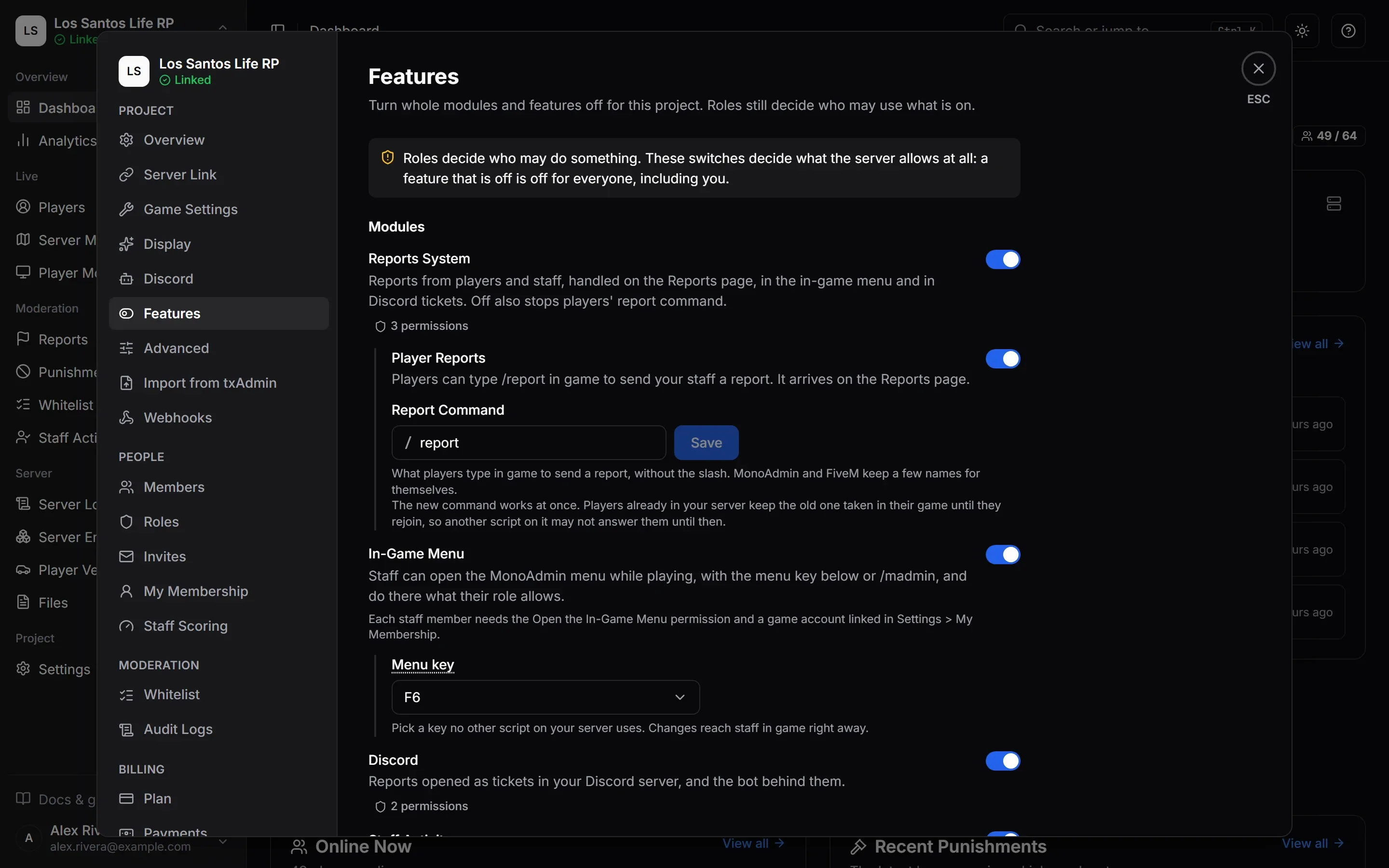
Every switch saves the moment you flip it. There is no save bar and no confirmation, because turning something off is the safe direction and may be needed in a hurry. Turning something on only gives back what your roles already allow. It never grants a permission to anyone.
- A toast confirms each change: “{feature} turned on. Staff whose role includes it can use it again.” or “{feature} turned off for this project.”
- Next to each switch, a chip such as 2 permissions shows what it governs. Hover it for the list, for example “Governs 2 permissions: Heal, Revive”.
- Flipping a switch needs the Edit Settings permission. Without it you see the same switches, locked, with the note “Your role can see these switches but not change them.”
- Everything starts switched on, except the two owner-only switches described below.
A feature that is off is off for everyone, including the owner. The panel hides the page or disables the control, with a reason such as “{feature} is turned off for this project (Settings > Features).” A page that is off answers “That page is turned off for this project. It can be turned back on in Settings > Features.” In game, a staff power you switch off ends at once for staff who are using it. Each change is recorded in the Audit Logs as “Changed game settings”.
Because features and roles combine, a member can only do something when their role grants the permission, the feature is on, and your framework and resource can do it. Permission Reference explains the combination.
The Five Groups
The screen has five groups.
- Modules are whole areas of the panel: the Reports System, Discord, Staff Activity, Server Logs, the Player Monitor and the Server Map. The owner-only In-Game Menu and Player Reports switches sit here too.
- Staff Powers (In Game) are the powers staff use from the in-game menu, such as noclip, god mode and spectating.
- Movement & Vehicles covers teleporting, vehicle actions and routing buckets.
- Players covers healing, freezing, the fun effects, money, items, jobs, character editing and screenshots.
- Server Tools covers announcements and shouts, clearing the area around yourself, server-wide cleanups and deleting entities.
The table below lists every switch with what it does and the permissions it takes away. The rest of this page covers the parts the table cannot show.
Modules
Reports System and Player Reports
Reports System governs View Reports, Manage Reports and Export Reports. Switching it off also stops players’ report command in game (/report unless you renamed it), and Discord tickets stop with it, because every ticket is a report. See Reports.
Under it sits Player Reports, which is owner-only: “Players can type /report in game to send your staff a report. It arrives on the Reports page.” The panel shows your own report command in place of /report. It is off by default, so players cannot file reports until the owner turns it on. While Reports System is off this switch is locked with the note “Turn on Reports System first. This does nothing while it is off, and your choice here is kept.”
The Report Command
Under the Player Reports switch, Report Command is what players type in game to send a report. It is /report until you change it. Type the name without the slash: the box shows the slash for you, and a slash you type anyway is dropped while capital letters become lowercase. Unlike the switches, the name has its own Save button, and the toast reads “Report command set to /{command}”.
A name has to follow two rules:
- It is 2 to 32 characters: lowercase letters, digits and underscores, starting with a letter. Otherwise the box says “Use 2 to 32 characters: lowercase letters, numbers and underscores, starting with a letter.” An empty box says “Enter a command name.”
- It is not one of the names MonoAdmin and FiveM keep for themselves, or the box says “MonoAdmin or FiveM already uses that name. Pick another one.” MonoAdmin’s own are
madmin,madmin_players,madmin_noclipandmonoadmin. FiveM’s arequit,disconnect,connect,reconnect,bind,unbind,rbind,cmdlistandclear.
Anyone with Edit Settings can change the name, not only the owner. The Player Reports switch itself stays the owner’s. Without Edit Settings the box is locked with the note “Only members with the Edit Settings permission can change this.”
The new name works in game at once. Players already in your server keep the old name taken in their game until they rejoin. Typing it does nothing: no window, and not even “Player reports are switched off on this server.” So another script that uses the old name may not answer them until they rejoin, and they need to type the new one. The panel says the same under the box: “The new command works at once. Players already in your server keep the old one taken in their game until they rejoin, so another script on it may not answer them until then.”
The name also appears in the toast players get when staff reply (“Type /{command} to read it.”), in the hint of the in-game menu’s Reports row, and in the sample message of the preview on Display, Themes and Time Zones. Your server needs a resource version that knows the report command: an older one keeps /report whatever you save here. See Update or Remove the Resource.
When Another Script Uses the Command
Many servers already run a report script on /report. While Player Reports is on, MonoAdmin looks for other resources that register the same command, in two places:
- On the server. It reads the commands your server has registered, and looks again at once when you change the command or the switch, and shortly after another resource starts or stops.
- In players’ games. A player’s game tells the server which other resources register the command there, so this part shows up only once a player has joined, and only for scripts that run in players’ games.
It looks only for the command you have now, and not at all while Player Reports is off. An entry clears by itself when its resource stops, when you change the command and when you turn Player Reports off.
When it finds one, a warning appears under the Player Reports switch: Another script uses /report. It says “{resources} also registers /report, so players typing it may get that script instead of MonoAdmin.” and names each resource with a badge, On the server or In players’ games (or both), for where it registers the command. The same warning shows in the guided setup: under the Report command row of the screen that reports what was found on your server, and under the Player Reports switch on the features screen. Under it you “Choose one way to settle it”:
- Use Another Command. “Give MonoAdmin’s reports a different command. The other script keeps /report.” Choose a Command opens the Report Command box in place; Hide closes it. It needs Edit Settings.
- Keep /report, Turn Off {resource}, or Keep /report, Turn Off the Other Scripts when there are several. “MonoAdmin keeps /report once the other script is stopped. This panel does not change your server’s files, so you do it there.” The panel says how: remove the
ensureline of each resource fromserver.cfgand restart your server, or, for now, typestop <resource>in the server console. Eachstopline has a copy button. “This warning goes away by itself once the script has stopped.” - Turn Off MonoAdmin’s Player Reports. Owner only. “Players can no longer send reports in game with MonoAdmin. Reports your staff open in the panel keep working, and the other script keeps /report.” It asks “Turn Off Player Reports?” first, and Turn Off confirms. The toast reads “Player reports turned off”, and it is the same as flipping the Player Reports switch.
MonoAdmin never changes your server itself: it does not stop a resource or edit a file. The warning is advice. No warning means MonoAdmin found no other script, not that none can answer the command. Which script answers when two resources register the same command has not been checked on a real server, so settle a warning rather than leaving both.
In-Game Menu and the Menu Key
In-Game Menu is the other owner-only switch, and it is off by default. When it is on, staff who linked their game account can open the MonoAdmin menu while playing and do what their role allows. Turning it on asks “Turn On the In-Game Menu?” and warns: “Your game server vouches for who is playing, so only turn it on for a server you control.” Confirm with Turn On. Turning it off never asks.
Each staff member needs three things at once: the menu switched on here, the Open the In-Game Menu permission on their role, and a game account linked in Settings > My Membership. Turn On and Open the Menu walks through it.
Under the switch, Menu key picks the key staff press to open and close the menu:
- No key (type /madmin) is the default.
/madminalways works. - Otherwise choose F1 to F7, F9 to F11, Insert, Delete, Home, End, Page Up or Page Down. F8 and F12 are not offered.
Pick a key no other script on your server uses. It only does anything for recognised staff. Anyone with Edit Settings can change it, and the change reaches staff in game right away. The toast reads “Menu key set to {key}.” or “Menu key removed. Staff type /madmin to open the menu.”
If your server runs an older resource, the switch shows “Your server’s MonoAdmin resource doesn’t support this yet. Update the resource to use it.”
Server Logs and Its Capture Switches
Switching Server Logs off means no line is kept at all, by the game server or the cloud. Under it, one switch per log type decides what is recorded:
| Type | Notes |
|---|---|
| Connections, Disconnects, Kicks, Staff Actions | Written by MonoAdmin itself. |
| Chat, Commands | Sent by the resource. An older resource does not send them yet: “Update the resource to start them.” |
| Items | Needs ox_inventory. The row shows Needs ox_inventory while your server is not running it. |
| Money | Needs a framework with money (ESX, QBCore or Qbox). |
| Phone | Public posts and calls on lb-phone, never messages, mail or DarkChat. Needs lb-phone 2. The row shows Needs lb-phone while your server is not running it. See Phone Scripts. |
| Webhooks | A copy of every line a webhook accepts, Send Test lines included. Turning it off stops only the copy: the webhook goes on accepting lines and keeps them in its own Delivery Log. Lines that arrive meanwhile are not copied later. See Webhooks. |
A type that is off is not recorded at all. Lines already kept stay until your plan stops keeping them. If the Server Logs module is off, the type switches wait with “Turn on Server Logs first”, and your choices are kept. Server Logs governs View Server Logs, so while it is off nobody can read a webhook’s Live Tail or Delivery Log either, and webhooks keep their lines in the Delivery Log without copying them. Server Logs shows how to read them.
The Other Modules
- Discord governs Manage Discord Tickets and Open Discord Tickets. While it is off the ticket bot does nothing for the project. See Discord Tickets.
- Staff Activity governs View Staff Activity. Off also hides the Staff Activity page and the Staff Scoring screen. See Staff Activity and Scoring.
- Player Monitor governs Watch Player Screens. See Player Monitor and Screenshots.
- Server Map governs View Server Map. See Server Map and Player Tracking.
When a Switch Is Missing or Locked
Not available on {framework}. Some features need things only a framework provides. On a Standalone server there is no switch for Money, Items, Jobs or Character Editing. The row shows Not available on Standalone with the hint “Servers running Standalone cannot do this, so there is nothing to switch.” The Money and Items log types follow the same rule. See Supported Frameworks.
Turned off by MonoAdmin. MonoAdmin staff can turn a feature off for a project. The switch then shows off with the badge Turned off by MonoAdmin and cannot be changed here. Your own setting is kept, so the feature returns to what you chose if MonoAdmin turns it back on. Contact MonoAdmin support at hello@monoadmin.net to ask why. MonoAdmin can also switch off a few areas that have no switch on this screen: Player Tracking, Webhooks, Analytics and the Game World Editor. When it does, those areas are unavailable for the project. With Webhooks off, posts to a webhook are refused and the Webhooks page is unavailable, but lines already copied to Server Logs stay there.
Waiting on another switch. Player Reports waits for Reports System, and the log types wait for Server Logs. They stay as you left them and take effect when the switch above comes back on.
Every Switch
Modules
| Switch | What It Does | Permissions It Governs |
|---|---|---|
| Reports System | Reports from players and staff, handled on the Reports page, in the in-game menu and in Discord tickets. Off also stops players' report command. | View Reports, Manage Reports and Export Reports |
| Discord | Reports opened as tickets in your Discord server, and the bot behind them. | Manage Discord Tickets and Open Discord Tickets |
| Staff Activity | How active each staff member is, their score, and the Staff page. | View Staff Activity |
| Server Logs | What happened on the game server: connections, kicks, staff actions, chat, commands, items, money and lines posted to webhooks. Off keeps no line at all. | View Server Logs |
| Player Monitor | Watch live screen streams of players. | Watch Player Screens |
| Server Map | The live server map with players on it. | View Server Map |
Staff Powers (In Game)
| Switch | What It Does | Permissions It Governs |
|---|---|---|
| Noclip and Freecam | Staff can fly through the world without collisions, or fly the camera alone while their character stays put. | Noclip |
| Invisible | Staff can become invisible to other players. | Invisible |
| God Mode | Staff can take no damage. | God Mode |
| Super Jump | Staff can jump far higher than normal. | Super Jump |
| Spectate | Staff can watch a player from their point of view. | Spectate |
| Player Names and Blips | Staff can see every player's name tag and map blip. | Player Names and Blips |
Movement & Vehicles
| Switch | What It Does | Permissions It Governs |
|---|---|---|
| Teleport | Move players, or yourself, to coordinates or to another player. | Teleport |
| Spawn Vehicle | Give a player a vehicle by model name. | Spawn Vehicle |
| Repair Vehicle | Fully repair the vehicle a player is in. | Repair Vehicle |
| Delete Vehicle | Delete the vehicle a player is in. | Delete Vehicle |
| Boost Vehicle | Give the vehicle a player is in a burst of engine power and top speed. | Boost Vehicle |
| Routing Buckets | Move players between routing buckets. | Set Routing Bucket |
Players
| Switch | What It Does | Permissions It Governs |
|---|---|---|
| Heal and Revive | Restore a player's health, bring a downed player back, or heal everyone. | Heal and Revive |
| Freeze | Lock a player in place. | Freeze |
| Fun Actions | Ragdoll, fire, drunk, explosions and the other fun effects. | Ragdoll, Set On Fire, Drunk, Explode, Explode Head, Reverse Controls, Flip View, Animal Attack and Kidnap |
| Money Needs ESX, QBCore or Qbox | Give or take an online player's cash and bank money. | Give Money and Remove Money |
| Items Needs ESX, QBCore or Qbox | Give an online player inventory items. | Give Item |
| Jobs Needs ESX, QBCore or Qbox | Change a player's job, online or in the database. | Set Job and Edit Job |
| Character Editing Needs ESX, QBCore or Qbox | Edit a character's identity, money, gang, position, metadata and inventory in the database, and reset a phone lock. | Edit Character, Edit Gang, Edit Position, Edit Metadata, Edit Inventory and Reset Phone Lock |
| Screenshots | Capture a player's screen. | Screenshot |
Server Tools
| Switch | What It Does | Permissions It Governs |
|---|---|---|
| Announcements and Shouts | Message every online player, or pop a message up for one. | Send Announcements and Shout |
| Clear Area | Staff can remove vehicles, NPCs and objects around their own character. | Clear Area |
| Server-Wide Cleanups | Remove vehicles, NPCs or objects across the whole server. | Clear Vehicles, Clear NPCs and Clear Objects |
| Delete Entities | Delete individual entities from the entity browser. | Delete Entities |