Turn On and Open the Menu
Switch the in-game menu on, pick its key, link your game account with /madmin link and open MonoAdmin while you play.
On This Page
The in-game menu puts MonoAdmin’s tools in front of your staff while they play: flying around, helping and punishing players, running cleanups and opening the web panel’s day-to-day pages without leaving the game. It is off until the owner switches it on, and it opens only for staff whose game account is linked to their MonoAdmin account. This page covers what has to be true, how to pick a key, how to link a game account and what to do when the menu stays shut.
What Has to Be True
The menu opens for a staff member only when all three of these hold:
- The owner has turned the In-Game Menu on. It is off by default.
- Their role includes Open the In-Game Menu. The default Admin, Moderator and Support roles all start with it.
- They have linked the game account they play on. The link is made once, with a code from the web panel.
Your server also has to be linked to the project and run a resource version that includes the menu. If the resource is too old, the menu answers “This server’s MonoAdmin resource can’t run the in-game menu. Update the resource.” See Update or Remove the Resource.
MonoAdmin does not use FiveM ACE permissions for any of this. Roles in the panel decide what each person may do, and MonoAdmin checks again on every action. Opening the menu grants nothing by itself: each action inside still needs its own permission (see Roles and Permissions).
Turn the Menu On
Only the project owner can switch the menu on or off. No role can be given this power.
- Open Settings > Features.
- Find the In-Game Menu module and flip its switch.
- Read the confirmation, Turn On the In-Game Menu?, and press Turn On.
The confirmation warns that “your game server vouches for who is playing, so only turn it on for a server you control.” That is the reason the switch belongs to the owner: MonoAdmin recognises staff in game by the identifiers your game server reports, so a server you do not control could claim that a player is you.
The guided setup offers the same switch with a Recommended badge, and follows it with a Pick Your Menu Key step.
Turning the menu off ends every staff member’s in-game powers at once. Noclip, invisibility, spectating and the rest stop, and a menu that is open closes with “Your MonoAdmin staff access in game has ended.” While it is off, game accounts cannot be linked either. The linking attempt answers “The in-game menu is switched off on this server, so game accounts can’t be linked. The owner can switch it on in the web panel’s settings.”
Pick a Menu Key
Under the In-Game Menu switch is a Menu key list. Anyone with the Edit Settings permission can change it, not only the owner. The default is No key (type /madmin): a new project has no menu key at all.
Any key of the keyboard can be picked. The list puts them in groups: function keys, letters, digits, typing and modifier keys, navigation, the number pad and symbols. A few are not offered: Esc and P open GTA’s pause menu, F8 is FiveM’s console, and the Windows, Menu and Print Screen keys belong to Windows.
Under the list, the panel says what the key you picked already does:
- A key GTA uses says so, for example “W also moves your character in GTA.” Pressing it then does both.
- A key the open menu reads only opens the menu, and pressing it again does what it does in the menu instead of closing it. Tab, Shift, Enter, Backspace and the arrows move around the open menu, G, H and E are used by the Game World Editor, and W, A, S, D, Q, Space and Shift fly in noclip and freecam. Esc closes it as always.
- Letters do nothing while the chat or a text box is open.
Things worth knowing about the key:
- It is not a FiveM key binding. It does not appear under FiveM’s key settings, and a player who is not staff gets nothing when they press it. The resource reads the key itself and tells only recognised staff which key the project chose.
- A change reaches staff right away. Nobody has to rejoin. If a staff member has the menu open, its hints and the Settings tab update at once.
- It does nothing while something else has the keyboard. Typing the key in the chat box, in another resource’s screen or in the pause menu does not open the menu, and a key still held down when the chat closes does not fire.
- Pick a key no other script on your server uses. If two scripts react to the same key, both will.
- F6 is the key confirmed on a real server so far. The other keys use the same mechanism, but if one does nothing on your server, pick another or use
/madmin.
/madmin always works, with or without a key.
Open the Menu in Game
Type /madmin in the chat, or press the project’s menu key. The same action closes the menu again. It cannot be triggered more than about four times a second.
Opening checks your access with MonoAdmin first, and the menu shows when the answer arrives. It is a column at the edge of the screen (left by default, and you can move it) with the project’s icon and name, your name, your role and the resource version. It has three tabs: Self, Panel and Settings, described in The Self Tab and The Panel Tab and Player Window.
You keep walking and looking around while the menu is open. Forms, text fields, the Players sheet with its player window and the Web Panel take the mouse and keyboard until you leave them, and you cannot move while they have it.
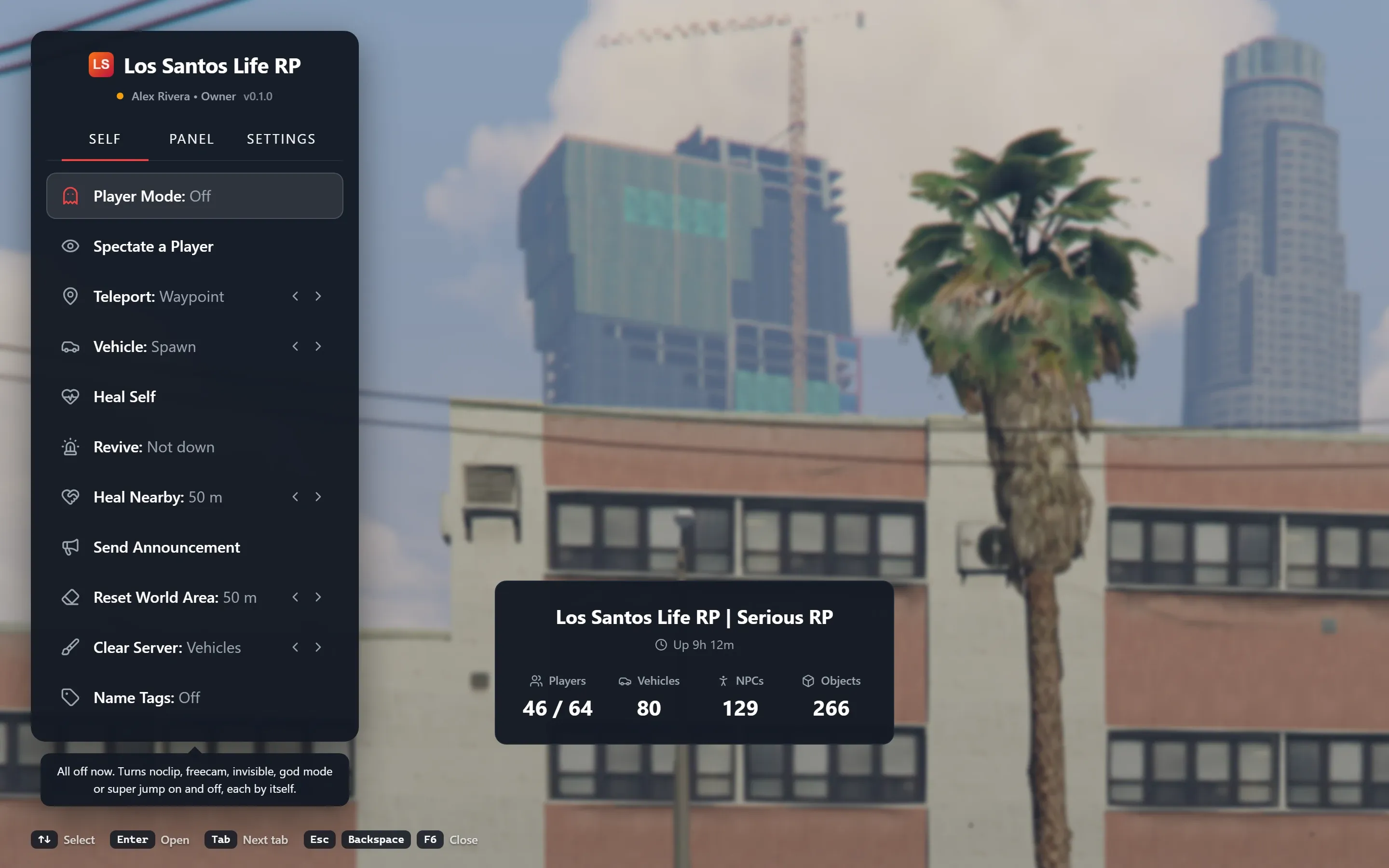
If you type /madmin followed by anything other than link, you get a reminder instead. With a key set it reads “Press {key} or type /madmin to open the MonoAdmin menu. To link this game account, type /madmin link followed by the code from the web panel.” Without a key it says the menu key is chosen in the web panel under Settings > Features.
Link Your Game Account
Linking proves that the person playing is the staff member who asked for the code. Each staff member does it once, on the game account they play on.
- Join your server on the game account you want to link.
- In the web panel, open Settings > My Membership. Under Your Game Account, press Link Game Account. If you have not signed in recently, the panel asks you to confirm it is you first.
- The panel shows a code in the form
ABCD-EFGH, with two ready-made commands: In the chat (/madmin link ABCD-EFGH) and In the F8 console (no slash). Copy one. - Paste it in game. Case, spaces and the dash do not matter.
- A toast confirms the link, and the panel changes to Game account linked.
A code works once and for 10 minutes. Get a New Code replaces the one on screen. The panel shows “Waiting for you to type it in game” until it hears back. A code belongs to the browser session that asked for it: if you sign out of that session, sign out everywhere or change your password before you type it in game, it stops working and you need a new one.
When the link succeeds, MonoAdmin stores your game account’s identifiers as yours and marks them as verified. You get an email about the new link, so a link made from a stolen session does not go unnoticed. Your row on the Members page gets a Verified in Game badge. To link a new PC or another game account, use Link Again: the account you link from takes over.
Link Messages
What you see in game after /madmin link:
| Message | What it means |
|---|---|
| Linked to {name}. You can now use the in-game menu when it is switched on. | It worked. |
| Type /madmin link followed by the code from the web panel, for example /madmin link ABCD-EFGH. | You typed the command without a code. |
| That link code isn’t valid. Check it, or get a new one in the web panel. | A typo, a code that was already used, a code from another project, or a code whose browser session has ended since you asked for it. |
| That link code has expired. Get a new one in the web panel. | More than 10 minutes passed. |
| This game account has no Rockstar license MonoAdmin can verify | The account has none of the identifiers that can recognise staff (see below). |
| Too many link attempts. Wait a minute and try again. | A short limit on attempts per player and per project. |
| This game account was linked to someone else at the same moment. Try again. | Two members linked the same identifiers at once. |
| The in-game menu is switched off on this server, so game accounts can’t be linked. The owner can switch it on in the web panel’s settings. | The owner has not turned the menu on. |
| Linking didn’t work. Try again, or get a new code in the web panel. | Any other failure. |
| MonoAdmin can’t be reached right now. Try again in a moment. | Your server has lost its connection to MonoAdmin. |
Right after you join, you may also see a message that your visit is not known to MonoAdmin yet, followed by a request to try again in a moment. It means MonoAdmin has not finished registering your visit. A player the project does not track, for example while the project is over its plan’s player limit, stays unknown.
Who Gets Recognised
MonoAdmin recognises a staff member in game by identifiers that FiveM verifies with Cfx.re when a player joins: Rockstar license, Rockstar license 2 and Cfx.re (FiveM). Linking stores the ones your current visit shows.
- Steam, Discord and the other identifier kinds never recognise anyone. You can type those into Edit Identifiers on the Members page to help staff tell players apart, but they are for reference only and sign nobody in.
- Only the identifiers of the current visit count. If you join with a Cfx.re account different from the one you linked, even with the same license, you are not recognised until you link again.
- One identifier belongs to one member. If you link identifiers another member had linked, you hold them now and the other member loses them. The audit log records it as “Took over another member’s linked identifiers”, and the other member has to link again.
- Exactly one member must match. If a game account matches more than one member, the menu refuses to open. Ask the owner to fix the links in the web panel.
See Members and Invitations for how identifiers are edited and shown.
When the Menu Does Not Open
If the menu cannot open, you get a short toast. The same refusal is not repeated within 30 seconds.
| Message | What to do |
|---|---|
| You’re not recognised as staff here. Link this game account with /madmin link and the code from the web panel. | Link the account you are playing on, or check that you joined with the account you linked. |
| This game account is linked to more than one staff member. Ask the server owner to fix the links in the web panel. | Link again from the account that should keep it. |
| Your role can’t use the in-game menu. Ask the server owner for the In-game menu permission. | Someone with Manage Roles adds Open the In-Game Menu to your role. |
| The in-game menu is switched off for this server. The owner can switch it on in the web panel’s settings. | The owner turns it on under Settings > Features. |
| This server’s MonoAdmin resource can’t run the in-game menu. Update the resource. | Update the resource on the server. |
| Too many tries. Wait a moment, then open the menu again. | You pressed the key repeatedly; wait a few seconds. |
| MonoAdmin can’t be reached right now. Try again in a moment. | The server has lost its link. See Troubleshooting. |
| The menu couldn’t open. Try again in a moment. | Any other failure. |
Two more cases are worth knowing:
- A project over its plan’s player limit. The menu opens, but most actions are paused with “The project is over its plan’s player limit, so most actions are paused until fewer players are online.” See Plans and Limits.
- A server that loses its link to MonoAdmin. Staff keep their powers for about a minute. After that they end, and actions that need MonoAdmin answer that it cannot be reached.
If your access changes while you play, the menu follows. A new role, a removed permission or a feature switched off reaches an open menu without a rejoin, and a mode whose permission you lost, such as noclip, ends on its own.
Related Pages
- The Self Tab for the tools that act on you.
- The Panel Tab and Player Window for players, reports and the Web Panel.
- Game World Editor for placing the community service area.
- Console and Chat Commands for every command MonoAdmin adds.