Staff Activity and Scoring
See how active each staff member is, how their score from 0 to 100 is worked out, and how to change its weights and targets.
On This Page
Staff Activity shows how active each member of your team is: the admin work they do in the panel and in game, the time they spend on your server and the reports they handle. Each member gets a score from 0 to 100 against daily targets you can change. It is a way to spot who carries the team and who has gone quiet, not a verdict. This page explains who sees what, how the score is worked out and how to change the targets.
Who Sees What
Staff Activity is in the sidebar for every member of the project, as long as the Staff Activity module is on under Settings > Features. Turning it off hides the page and Settings > Staff Scoring.
- Everyone sees their own report: their own actions, time in game and reports handled.
- Members with View Staff Activity see the whole team and open any member’s report. The default Admin role has it. Moderator and Support do not.
- A member’s recent actions, one by one, need View Audit Logs, unless you are looking at your own report. Without it the totals still count them, and the page says so.
- The reports someone replied to need View Reports.
- The members list also shows a score pill beside each role on Settings > Members for those who may see Staff Activity.
The Team View
With View Staff Activity, the page opens on the team. The period picker at the top offers 7D, 30D, 90D and 365D, with 30 days as the default. The period is in the address, so you can share a view.
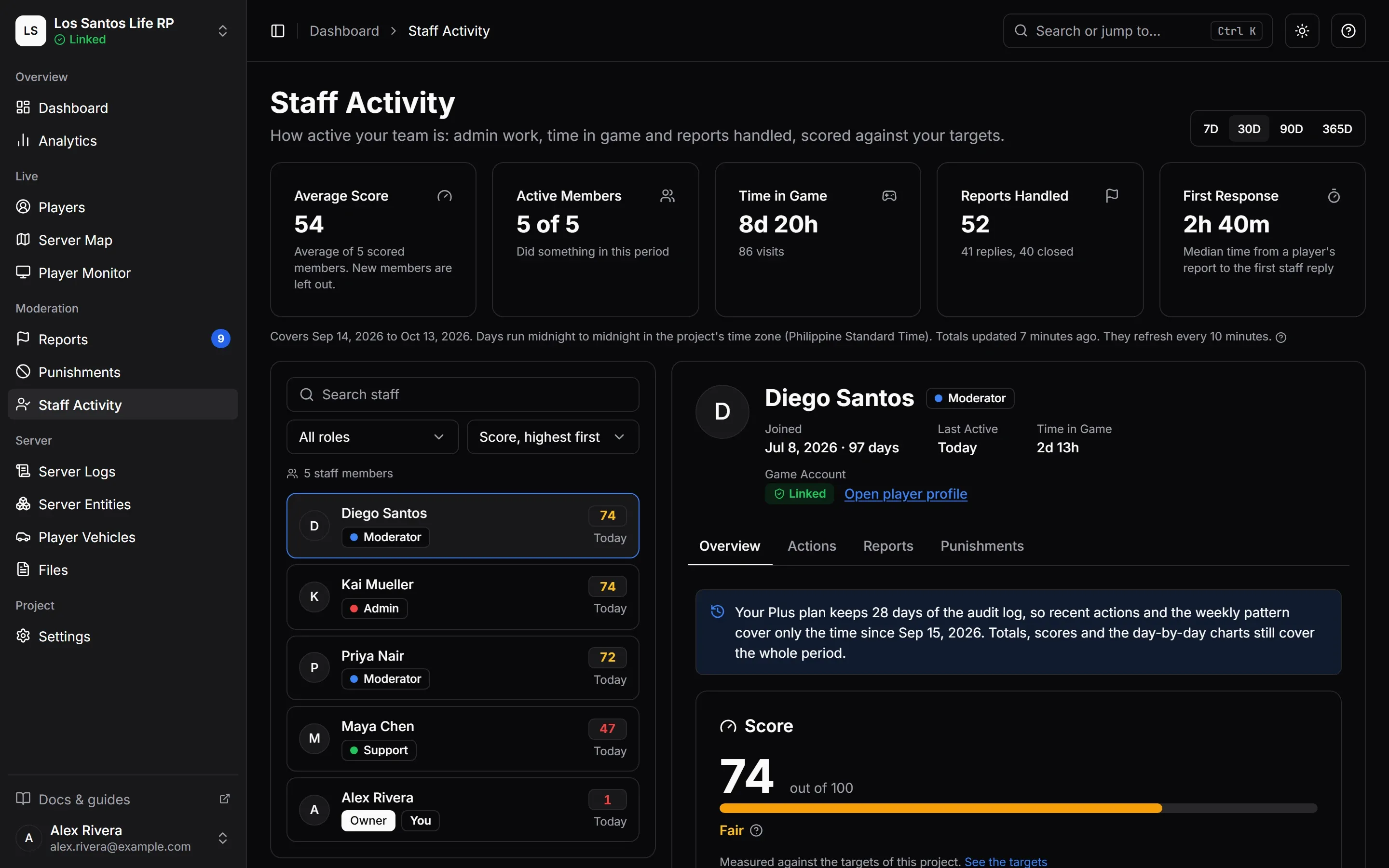
The team totals are:
- Average Score, the mean of the scored members. New members are left out of it.
- Active Members, “{active} of {total}”: who did something in the period.
- Time in Game and the number of visits.
- Reports Handled, with replies and closes.
- First Response, the median time from a player’s report to the first staff reply.
The list below it can be searched, filtered to one role and sorted by score (highest first, the default), name, most actions, most time in game, most reports handled, fastest first response, last active or newest member. Each row shows the score, any badges and when the member was last active. Select a member to open their report. On a tablet or phone the list and the report take turns.
Totals refresh every 10 minutes. For a new project the page says “Totals are being prepared” until the first totals exist.
A Member’s Report
The report has a header with when the member joined, when they were last active, their time in game and their game account (Linked, or Not linked if none is; on your own report there is also a Link a game account link). It has four tabs.
- Overview: the score, what it is made of, and a Day by Day chart with one bar per day for actions, time in game or reports.
- Actions: What They Did, actions by kind and by where they were done (the panel or in game) with how many failed, and When They Work, actions by hour of the week. Then Recent Actions, their latest 20.
- Reports: Report Handling, with reports handled, public replies, internal notes, closes, claims and the median first response, and Reports They Replied To.
- Punishments: Punishments Issued (bans, kicks, warnings, mutes and community service) and Lifted by others, which counts punishments this member gave that another staff member revoked later. Some of those are normal appeals. A lot of them can point to mistakes.
The recent actions list and the hours chart come from the audit log, so they reach back only as far as your plan’s history. The report says when they cover less than the period. Totals, scores and the day-by-day charts still cover the whole period. See Plans and Limits and Audit Logs.
How the Score Is Worked Out
A score is the share of the project’s daily targets a member met, on a scale of 0 to 100. Three parts count, each compared with its target for the period:
| Part | Counts | Target |
|---|---|---|
| Admin Actions | Points for what the member did from the panel and in game. Each kind of action is worth set points and counts up to a daily limit. Actions that worked count, and so do those whose result is unknown because the game server did not answer in time. Failed ones are shown but earn nothing. | Points per day, on each day your game server was online |
| Time in Game | Time on your server with a linked game account | Minutes per day, never more than the time the server was online that day |
| Reports Handled | Distinct reports the member replied to publicly or closed. Internal notes do not count. | Reports per day, never more than were filed that day |
Each part’s result is the member’s total divided by the target, and never counts for more than 100%. The score is the weighted average of the parts that can be judged: each part’s result times its weight, divided by the weights of the parts that count. The result is rounded to a whole number.
For example, with the default weights of 35, 30 and 35, a member who met all of their action target and half of their time target, in a period with no reports filed, scores (35 × 100% + 30 × 50%) ÷ (35 + 30), which is 77.
The Speed Factor
Slow replies lower the Reports Handled part. If the median time from a player’s report to the first public reply is slower than the First response target, the part is multiplied by the target divided by the median, and never by less than 0.5. A median within the target changes nothing. Only reports players filed count here.
Parts That Are Left Out
A part that cannot be judged is left out, and the others share its weight. The report explains each one:
- The weight of the part is 0 in Settings > Staff Scoring.
- The game server was offline for the whole period, so there was nothing to do.
- Time in game is counted only since a date after the period. Earlier days show 0 because it could not be measured.
- No game account is linked, so time in game cannot be counted. The member has to link one with
/madmin link(see Turn On and Open the Menu). - Their role cannot handle reports.
- No reports were filed in the period.
If nothing can be judged, the score reads Not enough data. That is not a low score.
On the day a member joined, only the hours after they joined count towards targets, and on today only the hours so far. A new member is not marked down for time before they were there.
Bands and Badges
The score is Good at 75 and up, Fair from 50 to 74 and Low below 50. Badges explain the cases that need care:
- New: joined less than 7 days ago. Their score is Provisional, and it is left out of the team average until they have been there a week.
- Inactive: after those first 7 days, no actions, replies, notes or time in game in the last 7 days.
Staff Scoring Settings
Settings > Staff Scoring holds the weights and targets. Anyone with View Settings or View Staff Activity can read it. Changing it needs Edit Settings, which the owner always has and the default Admin role does not. The screen’s read-only note says “The owner can change them”, but that is only the usual case: anyone whose role includes Edit Settings can.
A change applies to every score right away, including past periods, because scores are worked out from the daily totals when you read them. Each change is recorded in the audit log.
| Setting | What it does | Default | Range |
|---|---|---|---|
| Admin Actions weight | How much the actions part counts | 35 | 0 to 100 |
| Time in Game weight | How much time in game counts | 30 | 0 to 100 |
| Reports Handled weight | How much report work counts | 35 | 0 to 100 |
| Action points per day | Daily points target | 10 | 1 to 1,000 |
| Minutes in game per day | Daily time target | 120 | 1 to 1,440 |
| Reports handled per day | Daily reports target | 3 | 1 to 1,000 |
| First response target, in minutes | How fast the first public reply should come | 10 | 1 to 10,080 |
| Daily limit per action | How many times one kind of action counts per day | 20 | 1 to 1,000 |
Only the proportions of the weights matter: 35, 30 and 35 is the same as 7, 6 and 7. A weight of 0 leaves the part out, and at least one weight must be above 0. The screen shows each weight as a share of the score. Reset to Defaults replaces everything with the defaults after a confirmation.
What Each Action Is Worth
Show Action Points lists every action and its points. In short:
| Kind | Points |
|---|---|
| Ban | 5 |
| Community service | 4 |
| Kick, warning, mute | 3 |
| Revoking a punishment, adding a note, taking a screenshot, watching a player’s screen, spectating, setting a job, giving or taking money, giving an item, editing a character or an owned vehicle | 2 |
| Editing a note, healing, reviving, teleporting, freezing, spawning, repairing or deleting a vehicle, resetting a phone lock, shouting, moving a player to another routing bucket, healing everyone or everyone nearby, announcing, starting a cleanup, deleting entities, clearing an area in game | 1 |
| Unfreezing, boosting a vehicle, fun effects, retaking a picture, deleting a note, cancelling a cleanup | 0 |
Everything else, such as settings, billing, team changes and webhooks, is worth 0 points. Report replies and closes count as reports handled instead. The table on the settings screen is the authority if it differs.
Punishments issued by a script are attributed to the game server, never to a staff member, so they do not count for anyone.