Audit Logs
Search every action your staff took in the panel, in game and in Discord: who did it, to whom, and whether it worked.
On This Page
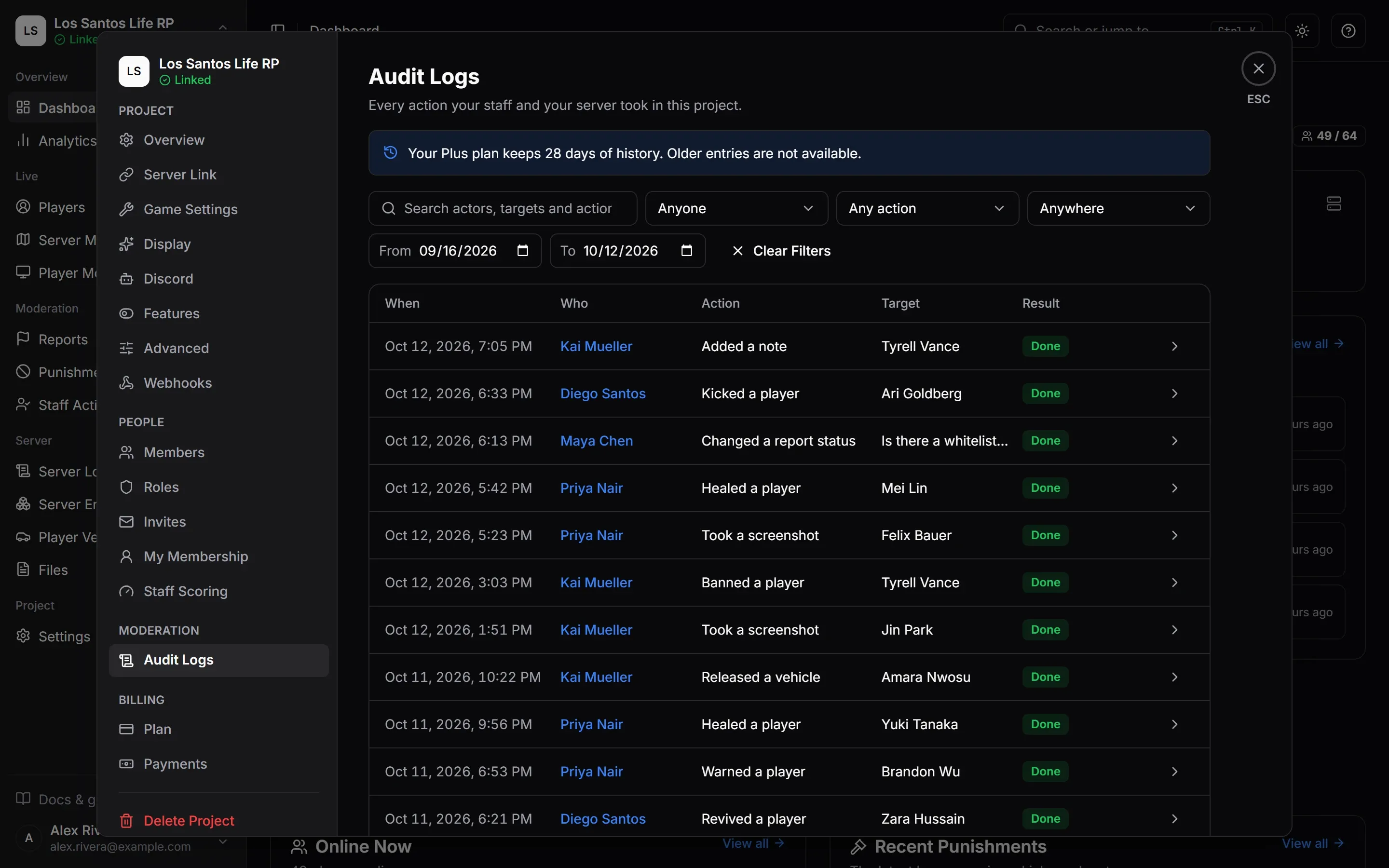
The audit log is the record of what your team did. Every ban, role change, setting and server action goes in it with who did it, what it was done to, where it was done from and how it ended. Use it when you need to answer “who removed that?”, to check that an action actually reached the game server, or to review one staff member’s work. It lives at Settings > Audit Logs and needs the View Audit Logs permission, which the default Admin role has and Moderator and Support do not.
Reading the Log
Entries are listed newest first, 50 at a time, with Load More at the bottom. A banner at the top tells you how far back you can look: “Your {plan} plan keeps {days} of history. Older entries are not available.” The length of history depends on your plan: see Plans and Limits.
Each row has five columns:
| Column | What it shows |
|---|---|
| When | Date and time in your time zone. Hover for the exact moment. |
| Who | The person, or the actor if it was not a person (see below). |
| Action | What happened, in words: “Banned a player”, “Changed role permissions”, “Rotated a webhook secret” and so on. |
| Target | What it was done to: a player, a role, a member, the project. |
| Result | How it ended, as a colored badge. |
The arrow at the end of a row opens its details.
Who Did It
Who is usually a staff member, shown by name. Click a name you may open to see their Staff Activity. Three kinds of actor exist:
- Staff: a member of your team.
- Game server: your own game server or a script on it. For example, a ban issued by an anticheat through Scripts and Exports is recorded with the game server as the actor and the script’s name in the details. A badge says Game server.
- MonoAdmin: something MonoAdmin itself did, such as granting a plan or suspending a project. A badge says MonoAdmin.
Staff entries also say where the action was taken. An In Game badge means it was done from the in-game menu. Hover it for “Done from the in-game menu on {server} as {name}”. Everything else was done in the panel or in Discord, and the Where filter tells them apart.
The Result
| Result | Meaning |
|---|---|
| Done | The action was carried out. |
| Pending | Sent to the game server; no answer yet. |
| Failed | The action did not go through. |
| Unknown | The game server did not confirm in time, so the action may or may not have applied. |
| Server offline | The game server was offline, so the action could not be delivered. |
Some actions, such as a ban, are saved even when the server is offline and apply when it reconnects. The result tells you what happened at the moment you ran it.
Details
Open a row to see its details. Depending on the action, you see the values it carried, with readable names such as Reason, Duration (seconds), Players removed or Trusted resources. Others you may see are:
- Game server and Played as, for an action done in game: the server name and the player name the staff member was using.
- Error, when it failed: a short explanation and its code.
- Took, how long the game server needed to answer, in milliseconds.
- IP address, the address the action came from. It is masked (for example 203.0.x.x) unless you are the owner.
- Entry, a number and the action’s name, if you ever need to quote it.
Searching and Filtering
The bar above the log combines any of these:
- Search actors, targets and actions finds text in the actor’s name, the target’s name or the action’s internal name (for example “ban” also matches
punishment.ban), up to 64 characters. To find one kind of action, use the Action filter instead. - Who limits entries to Staff, Game server or MonoAdmin.
- Action picks one kind of action from the list, such as Banned a player or Changed role permissions.
- Where limits entries to Panel, In game or Discord.
- From and To set a range of days. They follow your time zone and cannot reach back further than your plan’s history.
Clear Filters resets them. A search that matches nothing says “Nothing Matches These Filters” and suggests a wider date range.
To see one person’s work, open their report in Staff Activity and follow See all in Audit Logs under their recent actions. The log opens filtered to that member, with a chip, Actions by {name}, that you remove to see everyone’s actions again.
What Gets Recorded
| Area | Examples |
|---|---|
| Player actions | Froze, healed, revived or teleported a player; spawned, repaired, boosted or deleted a vehicle; changed a player’s job; gave money, took money or gave an item; used a fun effect; took a screenshot; watched a player’s screen; shouted at a player; moved a player to another routing bucket |
| Punishments | Banned, kicked, warned or muted a player; gave community service; revoked a punishment |
| Notes and reports | Added, edited or deleted a note; opened or edited a report; changed its status, assignee or players; opened a Discord ticket for it; changed who is in its Discord ticket; exported it |
| Server | Sent an announcement; started or cancelled a cleanup; deleted one or several entities; created a pairing code; linked or unlinked the server; the server link used from another address |
| Characters and vehicles | Edited a character’s identity, job, gang, money, position, metadata or inventory; reset a character’s phone lock; edited, impounded, released, deleted or restored an owned vehicle |
| Team | Created, changed, reordered or deleted a role; changed role permissions; invited, resent or revoked an invitation; a member joined, left, was removed or had their role or identifiers changed; linked a game account in game |
| Settings | Changed project settings or the icon; changed game settings (a change of the custom revive code is recorded with the new code), the community service area or the staff scoring targets; asked to delete the project |
| Integrations | Created, changed, rotated or deleted a webhook; connected or disconnected the Discord server; changed the Discord ticket settings; posted the ticket panel; created a channel; saved or removed your own Discord bot, and when Discord refused its token; started a data import from txAdmin, and when it finished |
| Billing | Changed the plan; started a checkout; claimed a payment; a payment was refunded; cancelled the subscription |
| In game | Changed player mode; spectated a player; changed player names and blips; cleared the area around themselves; healed everyone around themselves |
| MonoAdmin | Granted a plan or ended one; changed which features are on; suspended, terminated, banned, restored or renamed the project; transferred ownership |
Files deleted and a player’s picture retaken are recorded too.
The log keeps what is useful for review and leaves out secrets. Identifier changes record which kinds changed, not the values. Invitations record a shortened email address. A webhook’s URL is never recorded.
Two entries are worded differently from their usual action. When a member links identifiers that another member held, the other member’s entry reads Took over another member’s linked identifiers, with the reason “Linked in game by another member, who holds them now”.
What Is Not Here
Signing in and out is not in this log: your own sign-ins are under Account > Security Activity. What players do on the server (joins, chat, commands, items and money) is in Server Logs. The staff actions that affect players and the server also appear there, but Server Logs leaves out team, role, settings, billing, webhook, Discord and server-link changes, apart from changing the community service area in game. Those live only in the audit log.
Who Can Change It
Nobody. Entries cannot be edited or deleted from the panel. They stop being readable once they are older than the history your plan keeps, and are removed for good after the longest retention MonoAdmin applies to any plan. See Data, Privacy and Retention.