Reports
Handle player reports, bug reports and questions: reply, add internal notes, assign staff, attach images, change status and export.
On This Page
A report is a conversation your staff can follow. Players start them in game with the report command (/report unless you renamed it), staff start them in the panel, and a ticket opened in your Discord server becomes one too. Whichever way it begins, it lands on the same Reports page, where staff reply, hand it to a colleague and close it when it is done.
Where Reports Come From
| Opened from | By | Notes |
|---|---|---|
| In Game | A player, with the report command | The owner has to switch on Player Reports; see below. |
| Panel | A staff member, in the web panel or the in-game menu | Needs Manage Reports. |
| Discord | A person pressing a button on your ticket panel | Every Discord ticket is a report. |
Each report’s header says where it came from, and Opened From filters the list by it.
The Reports Page
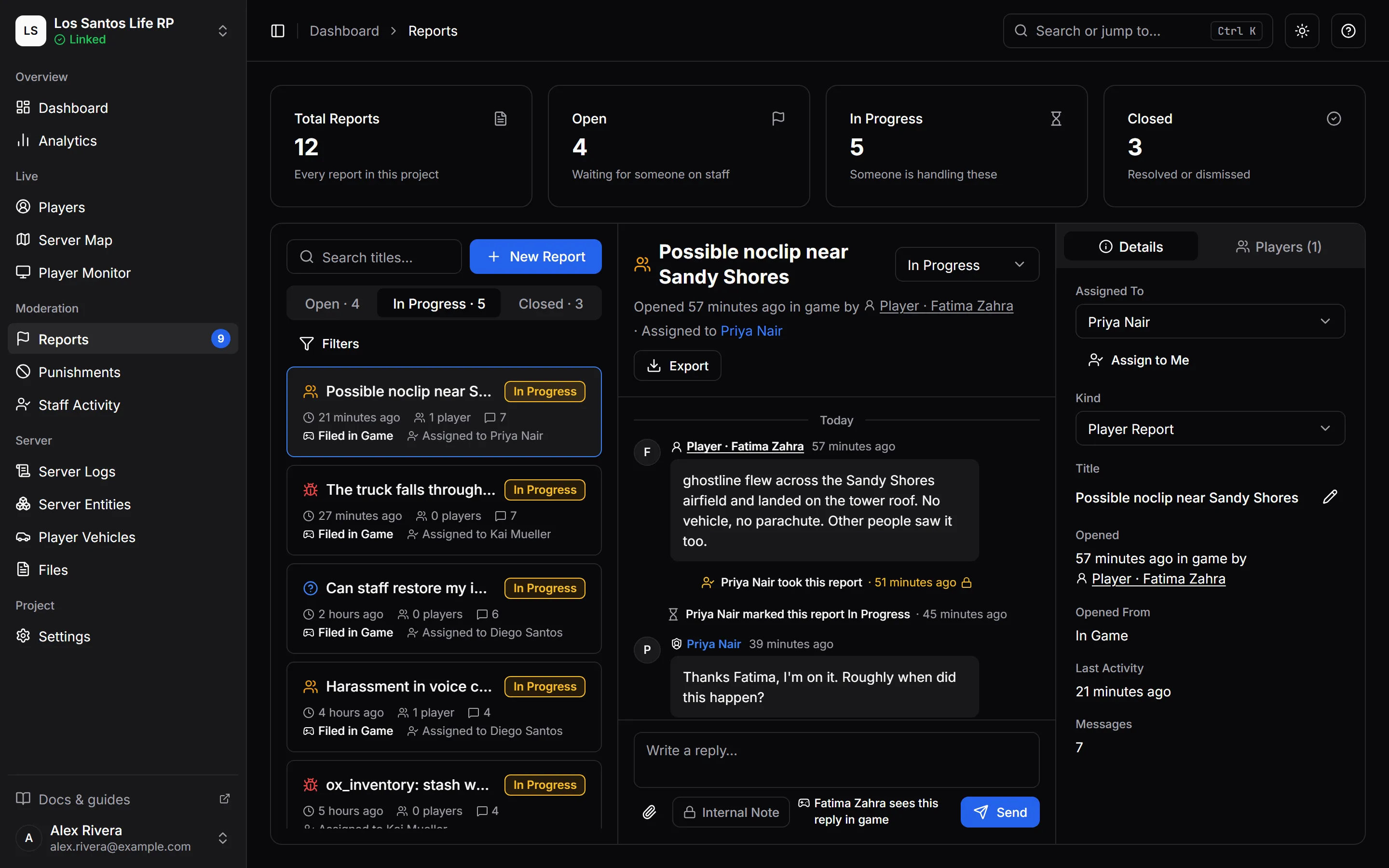
Open Reports in the sidebar. You need View Reports. The sidebar shows how many reports are waiting, counting those that are open or in progress.
- Four cards at the top give the totals: Total Reports, Open (waiting for someone on staff), In Progress (someone is handling them) and Closed (resolved or dismissed).
- Tabs switch between Open, In Progress and Closed, each with its count.
- The list is ordered by latest activity and loads more with Load More. A row shows the kind, the title, the status, how many players it is about, how many messages it holds, who it is assigned to and, for a Discord ticket, the ticket channel.
- Search titles looks through report titles.
- Filters adds Kind, Assigned To (Anyone, Me or a named staff member), Player (only reports about this player) and Opened From (Panel, In Game or Discord). Clear Filters resets them.
Select a report to open it. The report you are on is in the page address, so you can link a colleague straight to it. Reports and replies arrive live, and an Also viewing line names other staff who have the same report open.
Kinds
| Kind | For |
|---|---|
| Player Report | A problem with a player: rule breaking, harassment, cheating. |
| Bug | Something in the server does not work as it should. |
| Question | A question for staff. |
| Other | Anything else. |
Staff can change a report’s kind later, in its Details.
Statuses
A report is Open, In Progress or Closed. Staff change the status with the menu at the top of the report. Two things are worth knowing:
- A reply never changes the status by itself. If you answer an open report and want others to see it is being handled, set it to In Progress.
- Reopening a closed report is one click: pick Open again.
Every status change leaves a line in the conversation, such as “Sam closed this report”. Closing a report that a player filed in game tells the player it is closed, in game. Closing a Discord ticket’s report closes the ticket in Discord, and closing the ticket in Discord closes the report. Reopening restores the ticket as long as its channel still exists. Players cannot reply to a closed report; they open a new one.
Reading and Replying
A report has three tabs: Conversation, Details and Players. On a wide screen the conversation sits next to the details.
In the Conversation tab you see every message in order, with who wrote it and where from. Older messages load with Load Older Messages. Messages that came from a player in game, or from Discord, are marked as such, and the line under the reply box says who will see your answer, for example “Alex sees this reply in game”.
To reply, type in the box and press Enter. Shift and Enter together add a new line. A reply can be up to 4,000 characters. Everything on this page except reading needs Manage Reports. Without it the report is read-only and says so.
Internal Notes
Tick Internal Note before you send, and the message is for staff only. The box says “Internal note: only staff will see this”, and the message is marked Staff only in the conversation. Players never see internal notes, in game or in Discord. Use them to record what you checked, or to hand a case over.
Images
Press Attach Images or drop images onto the box to add them to your message.
- PNG, JPEG, WebP or GIF, up to 5 MB each.
- Up to 5 images per message and 50 per report.
- Images are stored under Files as Report Attachments, and are removed after the number of days your plan keeps files.
- Players in game see that a message has attachments, not the images. Images are viewed in the web panel.
Details, Assignment and Players
Details
The Details tab shows Assigned To, Kind, Title (with Edit Title), when it was Opened and by whom, Last Activity, when it was Closed, the number of Messages and where it was Opened From. A title can be up to 120 characters.
Assigning a Report
Choose a staff member under Assigned To, or press Assign to Me. The list holds the project’s owner and members, owner first. Choose Unassigned to remove the assignee. Each change leaves a line in the conversation.
The person you assign is told by Discord direct message if they have that notification on, unless they assigned it to themselves. Staff can also claim a report from the in-game menu or from a Discord ticket, which assigns it to them. To claim in Discord, a staff member must have linked their Discord account under Account > Sign-in & Security and hold Manage Reports. See Notifications.
Linking Players
A report can be about up to 10 players. The Players tab lists them, each linking to their profile. Edit Players lets you change the list. Linking the players a report is about lets you find it later with the Player filter. A player filing in game can name up to 5 other players; those carry over.
Players and the Discord Ticket
When a report has an open Discord ticket, changing its players can change who is in the ticket too. This is for staff who hold Open Discord Tickets as well as Manage Reports, while Discord Tickets is on. It is offered only while the ticket is open and its channel still exists. Changing the players of a report whose ticket is closed does not touch the ticket.
In Edit Players, as soon as your edit adds or removes someone, a box appears below the player picker: Update Discord ticket #0002 too, with the ticket’s own number. It is ticked every time you start editing, and its description says what will happen, for example “Adds Kai and Juno. Removes Rex. Added players can read everything said in the channel.” Untick it to change only the report.
Press Save Players. The report’s players are saved first. Then, if the box is ticked, the change goes over to the ticket:
- Each player you added is let into the ticket channel through their Discord account that is in your Discord server. MonoAdmin knows a player’s Discord accounts from the
discord:identifier FiveM gives your game server when they join. If a player has more than one account in your server, the one MonoAdmin saw most recently is used. - Each player you removed is taken out of the channel, through every Discord account of theirs that is in it.
- Two people are never taken out: whoever opened the ticket, and the player who filed the report.
A toast sums up what happened, for example “Players updated. Kai was added to the Discord ticket. Juno is not in your Discord server.” The sentences it can hold:
| The toast says | What happened |
|---|---|
| “{names} was added to the Discord ticket.” | Their Discord account is in the channel now. |
| “{names} was taken out of the Discord ticket.” | Their Discord account lost the channel. |
| “{names} stays in the Discord ticket: they opened it or are the reporter.” | They are one of the two people who are never taken out. |
| “{names} is not in your Discord server.” | None of their Discord accounts is in your server, so nobody was added. |
| “{names} has no Discord account on record.” | MonoAdmin has never seen a Discord account for them. |
With more than one name the verbs agree: “Kai and Juno were added to the Discord ticket.” A player who was in the ticket already, or was never in it, is not mentioned. If there is nothing to say, the toast reads “The Discord ticket needed no change.”
If the ticket step fails, the players are saved all the same and the toast says so: “Players updated, but the Discord ticket was not changed: {reason}”. If the ticket was closed or its channel deleted after you opened the report, the reason is “This report has no open Discord ticket to change.”
Each person put in or taken out leaves a staff-only line in the conversation, such as “Curt added Kai to the Discord ticket” or “Curt removed Kai from the Discord ticket”. Players never see it. What the bot says in Discord, and what players see in game, is covered in Discord Tickets.
Starting a Report Yourself
Press New Report to start a conversation your staff can pick up. Choose a Kind, give it a Title (up to 120 characters), write a First Message (up to 4,000) and optionally link up to 10 players. Staff reports are marked as opened from the panel.
Opening a Discord Ticket With It
Staff with Open Discord Tickets see one more switch in the dialog while Discord Tickets is on: Open a Discord ticket. It is off by default, and its hint reads “Also opens a private channel for this report in your Discord server. The first message becomes its summary.” Switch it on and the dialog asks for:
- Ticket Type. It appears only when the project has more than one ticket type. With one type, that one is used without asking.
- People in the ticket: “They can read everything said in the channel. Up to 5 people.”
The Discord accounts of the players you pick for the report are filled in as people, when they are in your Discord server. Each one can be removed again. A player who cannot be filled in gets a line instead: “{name}: not in your Discord server”, or “{name}: left out, the ticket is full” when five people are in already.
To add anyone else, search your Discord server in the box that says “Nickname, username or Discord ID”. Type at least 2 characters of the start of a server nickname or username, or paste a Discord ID. Each result shows the Discord name, the @username and, when MonoAdmin knows a game account for that Discord account, “Player: {name}”. A tooltip explains what a Discord ID is: “A Discord ID is the long number that identifies a Discord account. Turn on Developer Mode in Discord’s advanced settings, then right-click a person and choose Copy User ID.” There is more on searching under Discord Tickets.
A ticket needs at least one person. Without one, the dialog says “Choose at least one person for the ticket.”
Press Create Report. The report is created first, and then the ticket opens. The toast reads “Report and Discord ticket created”. If the ticket fails, the report is still created, and the toast says “Report created. No Discord ticket was opened: {reason}”. Open the report and press Create Discord Ticket to try again.
Player Reports with /report
Players can file reports in game with /report once the project owner switches on Player Reports in Settings > Features. It is off by default, and only the owner can change it. The Reports System feature must be on too. While reports are off, the command tells players “Player reports are switched off on this server.”
The command can be renamed. Under the Player Reports switch, the Report Command box takes another name, and anyone with Edit Settings can change it. If another script on your server uses the same command, the panel warns you and offers ways to settle it. Both are covered in Features and Modules.
What a player sends:
- A kind, a title of up to 80 characters and a message of up to 1,000.
- Up to 5 other players involved.
- Optionally a screenshot of what their screen showed when they opened the window, which is saved to Files.
The limits that protect you from floods:
- A player can have at most three open reports at once. At the limit they see “You already have three open reports. Wait for staff to close one.”
- The game also spaces out new reports from one player by about two minutes, and MonoAdmin limits how many reports and replies one player can send in a short time. A player who goes over is asked to wait a few minutes.
A player sees only their own reports and the staff replies to them. They never see internal notes, who on staff is handling a report or how many messages it holds. They can reply to an open report in game, and they see a toast when staff reply. For the player’s side, see What Players See.
Staff who can read reports are told in game when a new one arrives, and when a player writes again on one.
Exporting a Report
With Export Reports, in a browser, press Export at the top of a report to download its whole conversation and files.
| Format | What you get |
|---|---|
| HTML page | One page you can open anywhere. |
| JSON data | The conversation as data for other tools. |
| ZIP with files | The page, the JSON and every file. |
Include internal notes is off every time you open the menu. Leave it off before sharing an export outside your staff. Exporting is recorded in Audit Logs.
Discord Tickets
If your project has Discord Tickets set up, a report has a Create Discord Ticket button for staff with Open Discord Tickets. It opens a private channel in your Discord server for the report and adds the people you choose, and everything said there is saved in the report. You can choose the reporter and the players the report is about, and you can search your whole Discord server for anyone else. A ticket holds up to 5 people in total. A report that is a ticket shows its channel and an Open in Discord link.
You can also open a ticket while you start the report, and change who is in an open ticket when you edit the report’s players. Changing who is in a ticket is recorded in Audit Logs as “Changed who is in a report’s Discord ticket”.
The in-game menu shows this same Reports page in its Web Panel, so all of this works there too.
Permissions
| You want to | You need |
|---|---|
| Read reports and conversations | View Reports |
| Reply, add internal notes, assign, change status, kind or title, link players, start a report | Manage Reports |
| Open a Discord ticket channel for a report | Open Discord Tickets |
| Open one while starting a report, or change who is in an open ticket while editing a report’s players | Open Discord Tickets and Manage Reports |
| Download a report | Export Reports |
| Set up the Discord bot and tickets | Manage Discord Tickets |
The default Moderator role holds View Reports, Manage Reports, Open Discord Tickets and Export Reports, and Support holds View Reports and Manage Reports. See Roles and Permissions.
What Reports Do Not Do
Reports cannot be deleted. Close a report when it is done and it stays in the closed list with its full conversation, for as long as the project exists. There is no way to merge two reports. To keep a copy outside MonoAdmin, export it.