Analytics
Charts of players, activity, entities, the economy, jobs, disconnects and crashes over any range your plan's history allows.
On This Page
Analytics turns what your server reports into charts, so you can answer questions that a live view cannot: when is the server busiest, which script spawns too many vehicles, where does the money come from, why do players leave. It needs the View Analytics permission.
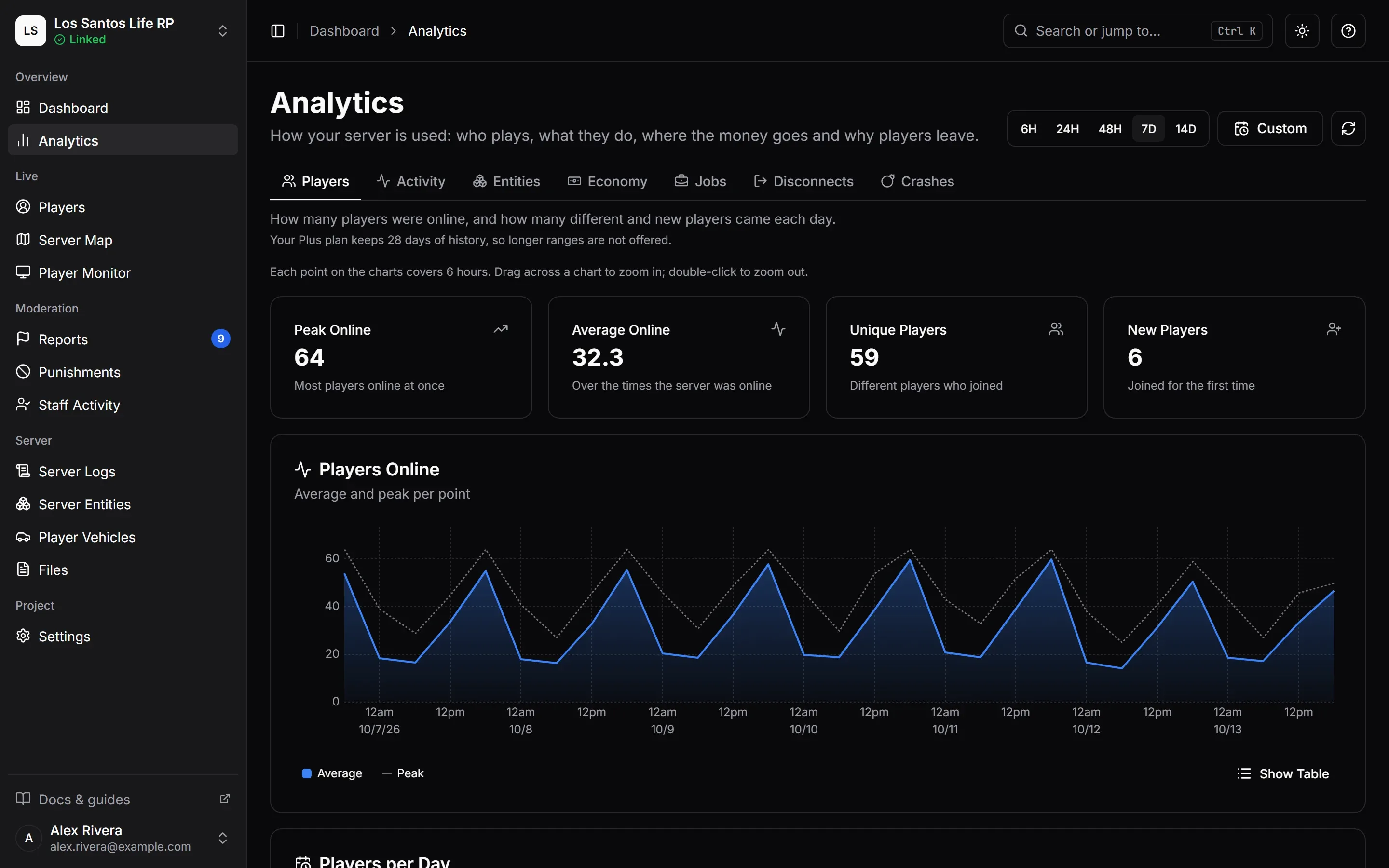
Choosing a View and a Range
Seven tabs run across the top: Players, Activity, Entities, Economy, Jobs, Disconnects and Crashes. A line under the tabs says what the open one shows. On a phone the tabs become a menu.
The range picker at the top right sets the time window for every view:
- Presets: 6H, 24H, 48H, 7D, 14D, 30D and 60D.
- Custom Days… opens two date fields, From and To. Both days are included, in your time zone, and you press Apply. The start day must not come after the end day.
- The refresh button reloads the open view.
Your plan decides how far back you can look. Presets longer than your plan’s history are not offered, and a line says so. If a custom range starts earlier than the history allows, the view starts at the earliest day it can and tells you the date. See Plans and Limits.
The open view and range are in the page address, so you can send a link to a colleague and it opens on the same chart. Under each view a line states what one point on a chart covers, such as an hour or a day. Drag across a chart to zoom in and double-click to zoom out. The time charts also have Show Table, which swaps the picture for the numbers behind it, and series can be hidden or shown by clicking their names in the legend.
Dates and day boundaries follow your own time zone setting. See Display, Themes and Time Zones.
Players
How many people played and how many were new.
- Peak Online: the most players at once.
- Average Online: the average over the times the server was online.
- Unique Players: different players who joined.
- New Players: players who joined for the first time in the range.
The Players Online chart plots the average and the peak per point. Players per Day splits each day, in your time zone, into new and returning players. Player counts are recorded once a minute while your server is online, and every join is counted. Until your server has been online, the view shows No Player Data Yet.
Activity
How players spend their time, based on what each player’s game reports while they are online: Standing Still, Walking, Running, Driving, Passenger, Aiming, Shooting, Swimming, Falling, Dead and In a Menu.
The view shows Time Tracked, the Most Common activity with its share, and Players, the most players seen in any single activity. The chart How Players Spend Their Time gives each activity’s share of tracked time and the number of players behind it. Very short moments, under 2 seconds, are left out.
Entities
Vehicles, peds and objects on the server over time, recorded once a minute. The ped count is every ped (character) on the server, NPCs and players alike. Each count shows the latest sample and the peak for the range. High counts can cause lag, and counts that keep climbing usually mean a script spawns things and never removes them. To see and remove individual entities, use Server Entities; to clear a whole kind at once, use the cleanups on the dashboard.
Economy
Money moving through your character accounts, with the reasons behind it. It needs ESX, QBCore or Qbox; on Standalone the view explains that and stays empty.
- The top cards show Money In, Money Out, Net (in minus out) and Changes, the number of money changes reported.
- The Account menu narrows everything to Cash, Bank, Black Money, Crypto or All Accounts, depending on what your framework has.
- Money In and Out charts money in above the line and money out below it.
- Where Money Comes From and Goes lists the biggest reasons, as your scripts report them.
- Top Players ranks the players who moved the most money across all accounts, and Per Account gives totals for each account.
Money given or taken by staff through MonoAdmin, including character edits, appears under the reason Staff (MonoAdmin). It stays in the figures so nothing is hidden. Economy figures are kept per hour, so each point covers at least an hour.
Your scripts choose their own account and reason names, so the view keeps them to a number it can draw. When a range holds more than 25 accounts, the 24 busiest keep a series of their own and the rest are added up as other. A server that reports a very large number of different names has its extra ones counted under other from the start: more than 32 accounts in a day, or more than 512 account and reason pairs in an hour. The totals stay right, and the line of each money change in Server Logs still names the real account and reason.
Jobs
Who works where, and how often players change jobs. It needs ESX, QBCore or Qbox.
- Players in Jobs, Jobs Held and Job Changes summarize the range.
- Who Works Where shows the latest snapshot of how many players hold each job. Your server sends a snapshot every few minutes, and the view tells you how many.
- Most Common Moves lists the job-to-job changes people made most often.
- Players per Job charts the five biggest jobs over the range, with the rest together as Other Jobs.
- Job Changes charts how often players changed jobs.
Your server names its own jobs, so the view keeps them to a number it can draw. When a range holds more than 25 jobs, the 24 busiest keep a series of their own and the rest are added up as other. MonoAdmin also remembers at most 200 job names for your project at a time (a name your server has not reported for a day frees its place); the players in jobs beyond that are added up in one row called other in Who Works Where. A server with a normal list of jobs never meets either limit.
Disconnects
Why players left. Every time a player leaves, the reason is recorded and sorted into one of these:
| Reason | Meaning |
|---|---|
| Quit | The player left on their own. |
| Timed Out | The connection was lost or stopped answering. |
| Crashed | The game crashed or hit an error. |
| Kicked | Staff or a script kicked the player. |
| Banned | The player was banned. |
| Server Restart | The server restarted or shut down. |
| Other | A message MonoAdmin does not recognise. |
The cards at the top show the total number of Disconnects, how many were Crashes and Timeouts (each with its share), and how many were Kicked or Banned. Why Players Left and Disconnects Over Time chart the reasons, and Most Common Messages lists the exact text players saw.
Two charts show where and when. Where Players Left is a map of the GTA world, switchable between Dots and Heat, where red spots saw many disconnects and amber a few. When Players Left is a grid of days of the week against hours. The Map and week show menu narrows both to one reason. Visits that ended by a server restart or a lost connection to MonoAdmin have no position, so they are counted but not on the map.
Crashes
Where and when players’ games crashed, and the most common crash messages: Crashes, the number On the Map and the Most Common Message. Where Games Crashed plots each crash as a dot you can hover for its message and time, or as a heat map. When Games Crashed is the same day-and-hour grid, Most Common Messages lists the text players saw, and Latest Crashes shows the ten most recent with a position. A map holds a limited number of the most recent crashes and says when it is showing only some.
Notes
- Analytics only reflects what your server reports while the resource is running. A server that was offline has no points for that time.
- Data older than your plan’s history is not shown, and the oldest data is removed after 60 days whatever the plan. See Data, Privacy and Retention.
- If you cannot open Analytics at all, your role is missing View Analytics, or MonoAdmin has switched the module off for your project.
- Individual events, such as a single kick or a single join, are in Server Logs; Analytics is for patterns.