Members and Invitations
Invite staff by email, change their role, set their identifiers and remove them, and see how seats on your plan are counted.
On This Page
Everyone who can use your project’s panel is a member: the owner, plus the staff they invite. Each member has exactly one role that decides what they may do. This page covers inviting people, how seats on your plan are counted, changing roles, identifiers, and removing or leaving.
The team lives under Settings: Members lists everyone, Invites lists invitations that have not been answered, and My Membership is you.
The Members Screen
Open Settings > Members. Every member can see the list. The header shows the seat usage (“{used} of {limit} seats used”) and, if you may invite, an Invite Member button.
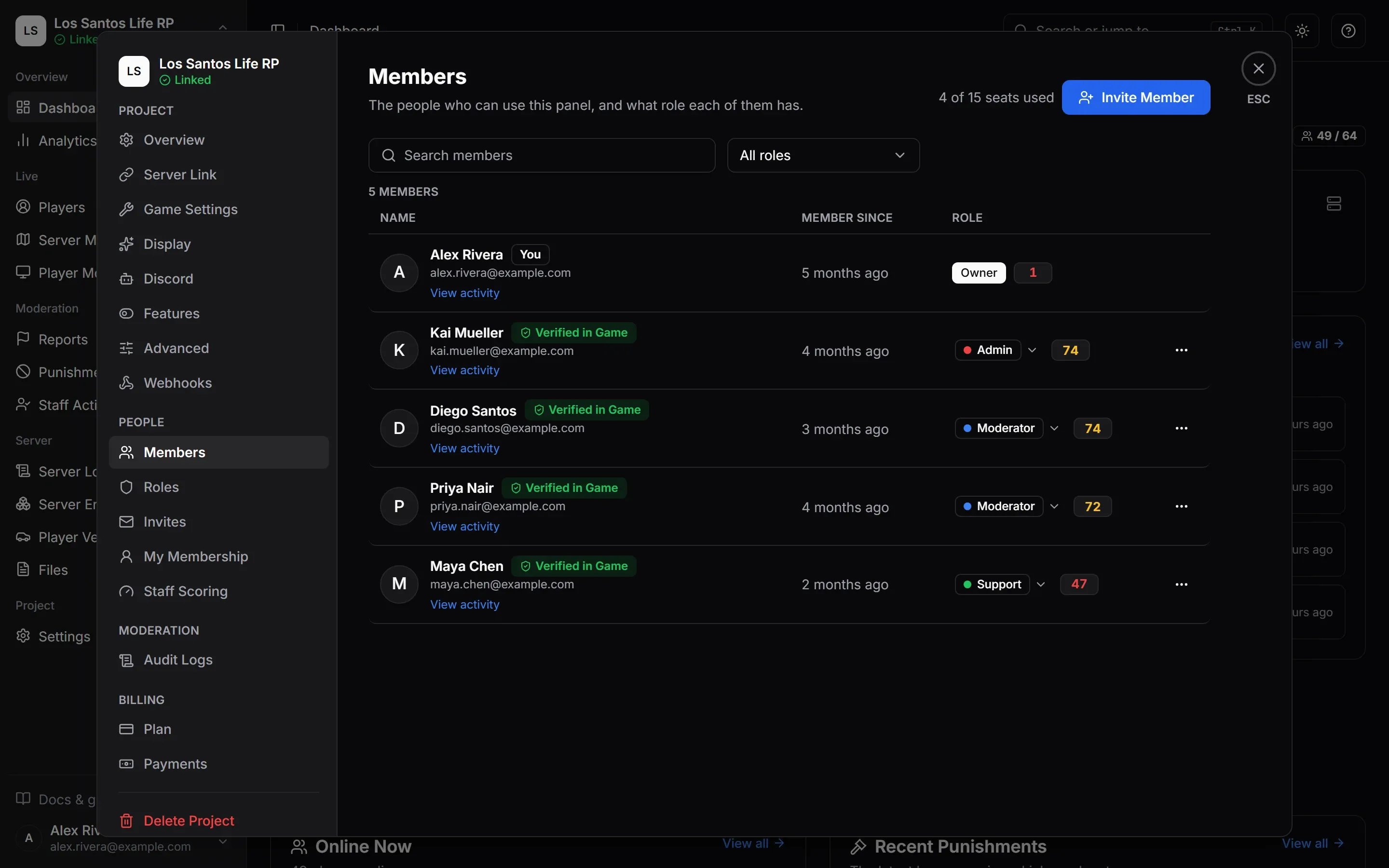
Each row shows:
- The member’s name, with a You badge on your own row.
- A Verified in Game badge when they linked a game account from inside the game. Hover it for the explanation: “Linked a game account from inside the game, so MonoAdmin recognises them as staff in the in-game menu.” See Turn On and Open the Menu.
- Their email address, shown only to you and to members who hold Manage Members.
- View activity, if you hold View Staff Activity, which opens their report in Staff Activity, and a score pill next to their role.
- When they joined, and their role.
Search members finds people by name or email, and a role filter narrows the list to one role or to the owner. If you cannot manage anyone, the screen says so: “Inviting people and changing roles needs the Manage Members permission.”
The Owner
The owner is listed first with an Owner badge. The owner has no role: they hold every permission and outrank every role. They cannot be removed and cannot leave. If the owner no longer wants the project, they can delete it. Ownership cannot be transferred from the panel. Only MonoAdmin staff can transfer a project, and both people are told when they do.
Inviting Someone
You need the Manage Members permission.
- Press Invite Member on Settings > Members or Settings > Invites. The guided setup has the same form in its Invite Your Team step.
- Enter their Email Address.
- Pick a Role. “You can invite into roles that rank below your own.” A role also has to be one whose permissions you hold yourself, so you cannot hand out anything you do not have.
- Press Send Invitation.
They get an email with a link that works for 7 days, and join with the role you picked. If the address already has a MonoAdmin account, they may also get a Discord message that an invitation is waiting. With no role available to you, the dialog says “There is no role you can invite into. Create a role below your own first.”
The invited person opens the link and signs in with the invited address, or creates an account with it. You come back to the invitation afterwards. They can also find it under Invitations on their Projects page, and accept or decline it there. Declining says “Decline the invitation to {name}?” and warns that someone on the staff has to invite them again to join later.
An invitation has to be answered with the address it was sent to. If they are signed in with another address, the page says so and offers Sign Out and Switch Account. When they accept, whoever sent the invitation hears about it, and the audit log records that a member joined.
Invitations That Wait
Settings > Invites (only for members who hold Manage Members) lists each pending invitation with the address, the role, who invited, when it was sent and when it expires. Two actions per row:
- Resend sends a new link and cancels the old one. The 7 days start again. “Invitation sent again” confirms it.
- Revoke asks “Revoke the invitation for {email}?” and the link in their email stops working. You can invite them again later.
An invitation that reaches its 7 days disappears from the list. They would see “This Invitation Has Expired” and need a new one. An address can have only one pending invitation at a time (“That person already belongs to this project, or already has a pending invitation.”), and invitation emails to one address are limited to a few an hour.
How Many Invitations You Can Send
An invitation is an email from MonoAdmin to someone who may never have heard of it, so the number you can send is limited. Every invitation email counts, whether it is a new invitation or a Resend, over any rolling 24 hours:
- Your project can send 3 times its seat limit; for example, a limit of 10 seats means 30 invitation emails a day. The seat limit comes from your plan: see Plans and Limits.
- One person can send 50 a day, counting every project they invite from.
Past either limit the invitation is refused with “Too many attempts. Try again in {time}.”, and the time shown is when the oldest email of the last 24 hours stops counting. A Revoke does not give an email back, because the email was sent. A revoked invitation whose email has not gone out yet is not sent at all. If a lot of invitation emails from your project are still waiting to go out, you may be asked to try again in a minute.
How Seats Are Counted
Your plan limits how many people can be on the team. The counter on the Members and Invites screens reads “{used} of {limit} seats used”.
- Members count, apart from the owner.
- Pending invitations count too, so you cannot invite more people than you have room for. An accepted invitation becomes a member and keeps its seat. A revoked or expired one frees it.
- At the limit, inviting fails with “Your plan’s seats are all taken. Remove a member, revoke an invitation, or upgrade the plan.” If a plan shrinks, existing members stay, but nobody new can be invited until there is room. See When a Plan Ends or Runs Over.
The number of seats depends on your plan: see Plans and Limits.
Changing a Role
Open the menu on a member’s row (the three dots) and choose Change Role, or press their role pill. The dialog, Change the Role of {name}, says “The new role applies immediately. You can only assign roles that rank below your own.” The member gets an email about the change, and if they are in game, their menu follows it at once.
You can act on a member only when you hold Manage Members and their current role ranks below yours. You can never change your own role. To move several people into one role at once, use Add Members on the role’s Members tab (see Roles and Permissions).
Identifiers
Members can have identifiers, which are the IDs that FiveM gives a player account: Rockstar license, Rockstar license 2, Steam, Discord, Cfx.re (FiveM), Microsoft Live and Xbox Live. IP addresses are not a kind: they are shared and change.
There are two ways an identifier gets onto a member:
- Verified in game. The member types a code in game, and MonoAdmin stores the identifiers of that game account as verified. This is the only thing that recognises someone as staff in the in-game menu, and only the Rockstar license, Rockstar license 2 and Cfx.re (FiveM) kinds count. See Turn On and Open the Menu.
- Typed in. Edit Identifiers on a member’s row (or Edit My Identifiers on My Membership) opens a dialog with one field per kind. You can paste values straight from the server console or txAdmin, with or without the prefix, and leave a field empty to remove it. These are for reference, so staff can tell which players are whom. They do not sign anyone in.
The dialog checks each value’s shape (“That doesn’t look like a {kind} identifier.”) and refuses one that another member already has (“Another staff member of this project already has this identifier linked.”). A verified identifier shows “Verified in game. To change it, link again from the game.”, with Unlink to remove it; “Unlinked when you save: MonoAdmin stops recognising this game account in game.” Changing the value of an identifier makes it unverified until it is linked in game again.
You can edit the identifiers of members you outrank when you hold Manage Members. Everyone can edit their own.
Removing a Member and Leaving
Remove from Project is in the same row menu. The dialog says “They lose access to {project} immediately and their linked identifiers are forgotten. You can invite them again later.” They are emailed that they were removed, the audit log records it, and their in-game powers end.
A member can leave on their own from Settings > My Membership with Leave Project: “You lose access immediately. To come back, someone on the staff has to invite you again.” The owner cannot leave; the owner deletes the project instead.
Everything above is recorded in Audit Logs: invitations created, resent and revoked, members joining, role changes, identifier changes and removals.