The Self Tab
Noclip, freecam, god mode, spectate, teleport, vehicles, healing, announcements and server cleanups from the in-game menu's Self tab.
On This Page
The Self tab is the first tab of the in-game menu. It holds the tools that act on you or on the world around you: movement modes, teleporting, vehicles, healing, announcements and cleanups. Every row appears only when your role has the permission for it and your server can run it, so two staff members can see different lists. If nothing is allowed, the tab says “Nothing here for your role yet” and explains that the owner can add permissions in the web panel.
Rows are listed in the order below. Move with Up and Down, change a value with Left and Right, run a row with Enter and go back with Esc or Backspace. The highlighted row has a short explanation under it. The Panel Tab and Player Window lists every menu key.
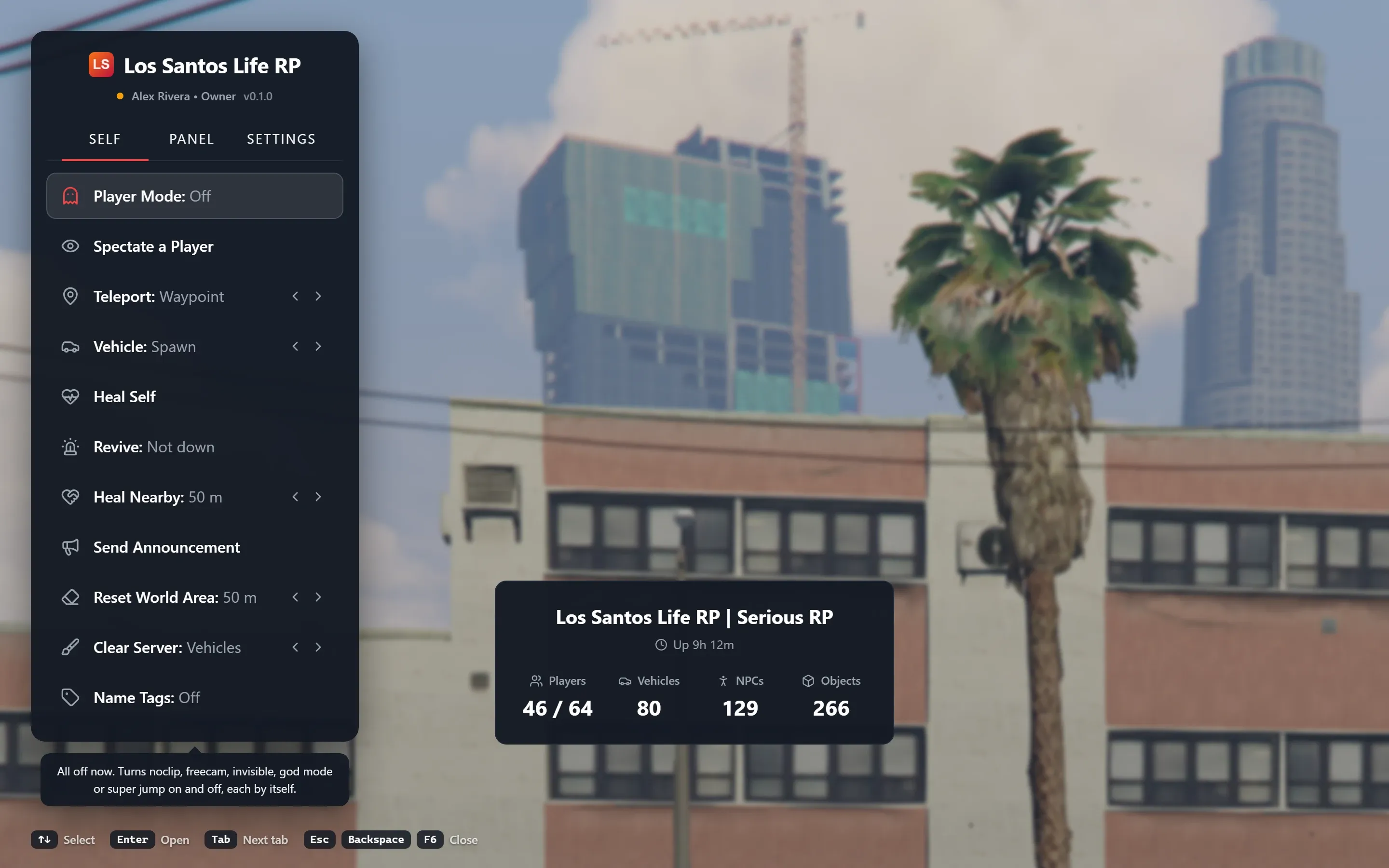
What Each Row Needs
| Row | Permission | Also needs |
|---|---|---|
| Player Mode | Noclip, Invisible, God Mode or Super Jump (one per mode) | Super Jump needs a resource that supports it |
| Spectate a Player | Spectate and View Players | |
| Teleport | Teleport | |
| Vehicle | Spawn Vehicle, Repair Vehicle, Delete Vehicle, Boost Vehicle (one per choice) | Fix and Boost need a resource that supports them |
| Heal Self | Heal | |
| Revive | Revive | A framework (ESX, QBCore or Qbox), or a standalone server with Revive set to Custom |
| Heal Nearby | Heal | |
| Announce | Send Announcements | |
| Reset World Area | Clear Area | |
| Clear Server | Clear Vehicles, Clear NPCs and Clear Objects (one per kind) | |
| Name Tags and Player Blips | Player Names and Blips |
A choice inside a row, such as Boost under Vehicle, shows only if you hold its permission. A row with no choices left is hidden. A feature switched off under Features and Modules takes its permissions away from everyone, so the matching row disappears. Permission Reference lists every permission.
Player Mode
Player Mode opens a list of modes you can turn on and off, each by itself. You can have several on at once, with one exception: noclip and freecam are two ways of moving, so turning one on turns the other off.
| Mode | What it does |
|---|---|
| Noclip | Fly through walls. Collision is off, your character is held in place, you take no damage and other players cannot see you (you still see yourself). A driver moves with the vehicle. |
| Freecam | Fly the camera alone while your character stays where it is. Needs the same permission as noclip. |
| Invisible | Other players cannot see you and your name tag is hidden. You see yourself at half opacity. |
| God Mode | You take no damage. |
| Super Jump | You jump far higher than normal. |
God mode and invisibility are applied again every moment, so they outlast a respawn.
Flying Keys
While noclip or freecam is on, these keys move you. With freecam the mouse looks around. A reminder of the keys shows at the bottom right of the screen.
| Key | Action |
|---|---|
| W A S D | Move along the camera |
| Q | Up |
| Space | Down |
| Shift | Change speed |
Shift steps through five speeds: 2, 5, 12, 30 and 70 meters per second, and wraps around. Every time noclip or freecam starts, the speed is 12.
What Shows on Screen
Each mode that is on shows a small tag at the top center of the screen, even when the menu is closed: “NOCLIP · 12 m/s”, “FREECAM · 12 m/s”, “GOD MODE” and so on. Only noclip and freecam show a speed.
A mode ends when you turn it off, when your access ends, when you lose the permission for it (that mode only), or when the owner switches the menu off. Spectating does not end your modes: they are set aside while you watch and come back when you stop, as long as you still have the permission for them. You can also turn noclip on and off without opening the menu by binding the madmin_noclip key (see The Panel Tab and Player Window).
Spectate a Player
Spectate a Player shows a list of the players online that MonoAdmin tracks, with their server ID and ping, a page at a time. Pick one with Enter and use Left and Right to change page. Players MonoAdmin does not track cannot be watched, and the list says how many were left out.
While you watch:
- Your own character is parked out of the way, hidden and frozen, and your camera follows the player.
- Your voice is held off where your voice resource supports mutes, so you cannot be heard by the player you watch. Your other modes are set aside, and asking for one is refused.
- The row changes to Stop Spectating (“Watching {name}”). With the menu closed, press Backspace to stop. A hint at the bottom reads “Watching {name} · Backspace to stop”.
- You can watch one player at a time. Starting a second spectate from the player window replaces the first and keeps the way back to where you started.
When you stop, you are put back where you were: “Stopped watching {name}. You are back where you were.” If the player leaves the server you get “{name} left the server. You are back where you were.” Spectating is recorded in the audit log.
Teleport
Teleport is a chooser. Press Left and Right to pick a choice and Enter to run it.
- Waypoint takes you to the waypoint you set on the map. Without one you get “Set a waypoint on the map first.”
- Coordinates opens a small form with X, Y and Z (optional). Paste
x, y, zorvector3(x, y, z)into any field and it splits into the three. Use current fills in your own position. Without a Z, you land on the ground. - Back returns you to where you stood before your last teleport from the menu. Press it again and you return to where you pressed Back, so it toggles between two places. Before your first teleport you get “Nowhere to go back to yet: teleport from the menu first.”
- Copy position shows your position and a Copy button. The clipboard works only while the menu holds the keyboard. If it refuses, select the text and copy it yourself.
Teleporting to a player (Go To) lives in the player window, and also counts for Back.
Vehicle
Vehicle is a chooser with up to four choices, each needing its own permission.
- Spawn asks for a model name in a dialog titled “Spawn a vehicle”. Type it as the game’s files name it, such as
adderorsultan: lower case letters, digits and underscores, up to 32 characters. The vehicle appears where you stand. A model the game does not have gives “This game has no vehicle by that name.” - Fix repairs the vehicle you are in.
- Delete asks “Delete your vehicle?” and explains that it deletes only the vehicle you are in, never anyone else’s. Confirm with Delete vehicle.
- Boost gives the vehicle you are in more power and top speed for five minutes.
Fix, Delete and Boost need you to be in a vehicle: otherwise “You are not in a vehicle.”
Heal Self and Revive
Heal Self restores your own health to full.
Revive shows “Down” or “Not down” as its value. If you are down, Enter brings you back at full health. If you are not, nothing happens and it says so: “You’re not down, so there’s nothing to revive. Heal Self tops up your health.” Revive goes through the ambulance script your server runs, so its death screen and timers end too. See Revive and Ambulance Scripts. A standalone server has no framework to revive through, so the row is hidden there, unless the project’s Revive is set to Custom under Settings > Advanced. Then your own code does the reviving and the row appears, and Down or Not down comes from the generic check: the isDead state bag, QBCore-style metadata or the game’s own death.
Heal Nearby
Heal Nearby heals every player within a distance of you, whatever they are doing. Step through 10, 25, 50, 100, 150, 200 and 300 meters, then Everyone, which heals every player on the server. The default is 50 meters.
While the row is highlighted, a green sphere in the world shows how far the heal reaches, and it changes as you step. Enter asks for confirmation (“Heal everyone within {radius} m?” or “Heal everyone on the server?”). The result reads “Healed {n} players within {radius} m.”
Announce
Announce sends a message to everyone. Step with Left and Right to pick its style: Default is the announcement style chosen under Settings > Display, and Banner, Spotlight, Ticker, Broadcast or Toast draws this one announcement in that style (see Display, Themes and Time Zones). The styles appear only when your server’s resource can draw them. Press Enter and a dialog asks for the message, up to 300 characters. A second dialog repeats the text, names the style if you picked one, and asks “Send this announcement to everyone?”. Confirm with Send to everyone. Every player whose game has finished loading sees it for 10 seconds. The dashboard has the same tool with other durations.
Reset World Area
Reset World Area removes every vehicle, NPC and object within a distance of you, for every player nearby. Vehicles that players are sitting in go too, and it cannot be undone. Step through the same distances as Heal Nearby without Everyone, 50 meters by default. An amber sphere shows the reach, and a red dialog asks “Reset everything within {radius} m of you?” before it runs. The result reads “Area reset: {n} entities gone.”
Use it for a crash site or a pile of spawned props. For the whole server, use Clear Server.
Clear Server
Clear Server removes one kind of thing from the whole server after a warning. Step between Vehicles, NPCs and Objects: you see only the kinds you hold the permission for.
Players see a countdown of 10 seconds before it runs. A red dialog explains the effect first:
- Vehicles: every empty vehicle is removed. Vehicles with someone in them stay.
- NPCs: every NPC is removed. Players are never touched.
- Objects: every spawned object is removed.
The result reads “Clearing {what} in {seconds} s.” If a cleanup of that kind is already counting down, you are told so. A running cleanup can be cancelled from the web panel’s dashboard until the countdown ends. What players see is described in What Players See.
Name Tags and Player Blips
Name Tags shows “[id] name” over the players near you, up to 64 of them. Player Blips shows every player on the map, with the direction they face. Each is an on and off switch, and turning both off ends the overlay. The server ID in the tags can be switched off under Show IDs in name tags on the Settings tab. Your own character is not tagged.
Everything Is Recorded
Actions you run from the menu go through MonoAdmin like those from the web panel. They appear in Audit Logs with an In Game badge, and the staff ones also show in Server Logs. They earn points in Staff Activity the same way.