The Guided Setup
Walk through the setup wizard: link the server, pick an icon, check what was found, choose features, set a menu key and invite your team.
On This Page
When you create a project, MonoAdmin opens a guided setup: a few quick questions, one screen at a time. Every answer is saved the moment you give it, and you can change all of it later in Settings, so nothing here is final. This page describes each screen, in order, so you know what to expect and what each choice does.
Only the project owner can run the guided setup. For other members the setup is not available.
How the Setup Works
The progress line at the top reads “Step 3 of 7” and counts only the screens that apply to your project. Two screens appear only sometimes: the menu key and the Discord tickets screen.
The buttons are the same throughout:
| Button | What it does |
|---|---|
| Back | Goes to the previous screen. The browser’s Back button works too. |
| Continue | Marks the screen done and goes on. On the first screen it is available once the server is linked. |
| Skip | Leaves the screen as it is and goes on. It reads Skip for Now on the first screen and Later on the Discord screen. |
Leaving early is safe. Close the tab and come back later: on the dashboard, a Finish Setting Up card shows “{done} of {total} done” and the Next: step, with Continue to pick up where you stopped and Hide to dismiss it. The card is shown to the owner, in a browser, until the setup is finished or hidden. To get back in after hiding it, open Settings > Overview: its Guided Setup part has Open Guided Setup, and Show on Dashboard to bring the card back while the setup is not finished.
1. Link Your Server
Link Your Server lists three things to do and then waits for your server. This screen is where you get the resource, and its steps are covered in detail on other pages:
- Get the resource: choose Claim on Our Store, which opens MonoAdmin on our store. Sign in there with the Cfx.re account that owns your server’s license key and finish the free checkout. Then choose Get MonoAdmin: it opens MonoAdmin in your Granted Assets on portal.cfx.re. Download it there and unzip it into your
resourcesfolder so the folder is namedmonoadmin, with the hidden.fxapfile still next tofxmanifest.lua. See Install the Resource. - Start it with your server: add
ensure monoadmintoserver.cfg. The screen has a copy button for the line. Restart the server, or run the same line in the server console. - Link the server: run the command shown with your pairing code in the server console. See Link Your Server.
While it waits, the screen says Waiting for your server. If nothing happens, Nothing happening? suggests checking that the resource started (the console prints a MonoAdmin line when it loads), that the code is still valid (it works once and for 10 minutes), and that the server has outbound HTTPS access.
The moment the server connects, the screen changes by itself to Your Server Is Linked and shows the server’s name, the resource version and the detected framework. If the framework differs from your project’s, a notice says so, and the next screens let you switch.
2. Choose Your Server Icon
The icon shows next to your server’s name across the panel and in the in-game menu’s header. You have two choices:
- Use Server Icon: the icon your server already has. Your
server.cfgsets it withload_server_iconand a PNG file; the resource sends it to MonoAdmin when it connects, and it follows along when you change it. The setup screen calls this “the sv_icon line”, after the server setting FiveM keeps it in. MonoAdmin accepts a PNG of up to 32 KiB. If the server has not sent one, the screen says so. - Upload Your Own: a PNG, JPEG, WebP or GIF of at most 2 MB and at least 32 pixels on a side. It is cropped to a square and stored as a 128 pixel PNG. The button reads Upload Icon, then Replace Icon.
Without either, the panel shows the first letters of your server name. You can switch back to the server’s icon at any time; the panel asks you to confirm, because the uploaded icon is removed.
3. What We Found on Your Server
This screen reports what the linked server told MonoAdmin, one plain line per item. Nothing here needs a change unless a line looks wrong.
| Row | What it tells you |
|---|---|
| Framework | The framework and its version, and what that unlocks. For example “Jobs, money, items and character data work for ESX.” A standalone server reads “No framework found. Moderation, the map and the monitor work; jobs, money and character data need ESX, QBCore or Qbox.” |
| Inventory | The inventory resource found, out of ox_inventory, qb-inventory, ps-inventory and qs-inventory. |
| Database | The database resource found, out of oxmysql, mysql-async and ghmattimysql. Character data and owned vehicles need oxmysql. |
| Ambulance script | The ambulance script Revive will go through. “Revive also ends its death screen” when one is found. The setup does not offer your own revive code: write it later in Settings > Advanced, where Custom is one of the choices. |
| Garage script | The garage script found, jg-advancedgarages, with its version. “Vehicles use the garages and impound lots of jg-advancedgarages, with a reason and a Retrieval Cost on impounds. Deleting one of its cars puts it back in its garage.” A version MonoAdmin does not support, such as jg v4, warns: “{script} is not supported yet. MonoAdmin supports v3; its vehicles are shown but not changed.” With none, the row reads “No garage script found, so vehicles use your framework’s own garage data. Works with: jg-advancedgarages.” See Garage Scripts. |
| Phone script | The phone script found, lb-phone, with its version. “Phone numbers come from lb-phone, a phone lock can be reset from a character, and public posts and calls reach Server Logs.” Another major version than 2 warns: “{script} is not supported yet. MonoAdmin supports lb-phone 2; its numbers, Reset Lock and phone logs stay off.” With none, the row reads “No phone script found, so phone numbers come from your framework. Works with: lb-phone.” See Phone Scripts. |
| Player slots | The most players your server accepts at once. |
| OneSync | Whether the server runs with OneSync, the FiveM setting that lets the server see every player and entity. “On” reads “Player health, moving players and the entity tools work.” Off warns that MonoAdmin needs it, and says to add set onesync on to the server.cfg your server starts with, then restart. The row appears once the server has connected with a MonoAdmin version that reports it. |
| txAdmin | Whether txAdmin runs the server and, if it does, whether txAdmin’s own allowlist could keep players out. A server that txAdmin does not run reads “txAdmin not found.” With the allowlist Disabled or set to External Allowlist Resource, the row shows no problem. When it may be on, the row warns you and says what to change: in txAdmin, open Settings > Allowlist and set Allowlist Mode to External Allowlist Resource (or Disabled). When MonoAdmin cannot tell, a button, It’s Set to External, lets you say it is already set. See Whitelist. |
| Report command | The command players type to send a report, /report unless you renamed it. While Player Reports is off it reads “Player reports are off, so /report is left to your server’s own scripts.” With it on and nothing else using the command, it reads “/report is free on your server.” and adds that scripts which add it in players’ games show up once a player has joined. When another resource registers it, the row warns: “/report is also a command of {resources}.” See below. |
The Garage script and Phone script rows are not a problem when they say none were found: they only tell you whether MonoAdmin works with a script you run. A warning there means the script runs in a version MonoAdmin does not support yet.
When the Report command row warns, a panel under the rows names each resource and where it registers the command, On the server or In players’ games, and offers three ways to settle it: Use Another Command; Keep /report, Turn Off the other script, where the panel says to remove its ensure line from server.cfg and restart, or to type stop and its name in the server console for now (MonoAdmin never changes your server itself, and the warning clears by itself once the script has stopped); or Turn Off MonoAdmin’s Player Reports, which only the owner can do and which asks first. Features and Modules describes all three, and the rules for the command’s name.
If the server runs a different framework than the project is set to, the Framework row warns you, and a Switch to {framework} button changes the project to match. If the server is offline, the screen shows what it reported the last time it was online. If it is not linked yet, it shows Link Your Server First.
4. Choose Your Features
Choose Your Features shows the main areas of the panel as cards. Each is one switch, saved as soon as you flip it, and each is the same switch you find later under Settings > Features. Everything is on by default, except the two marked Recommended, which only the owner can change.
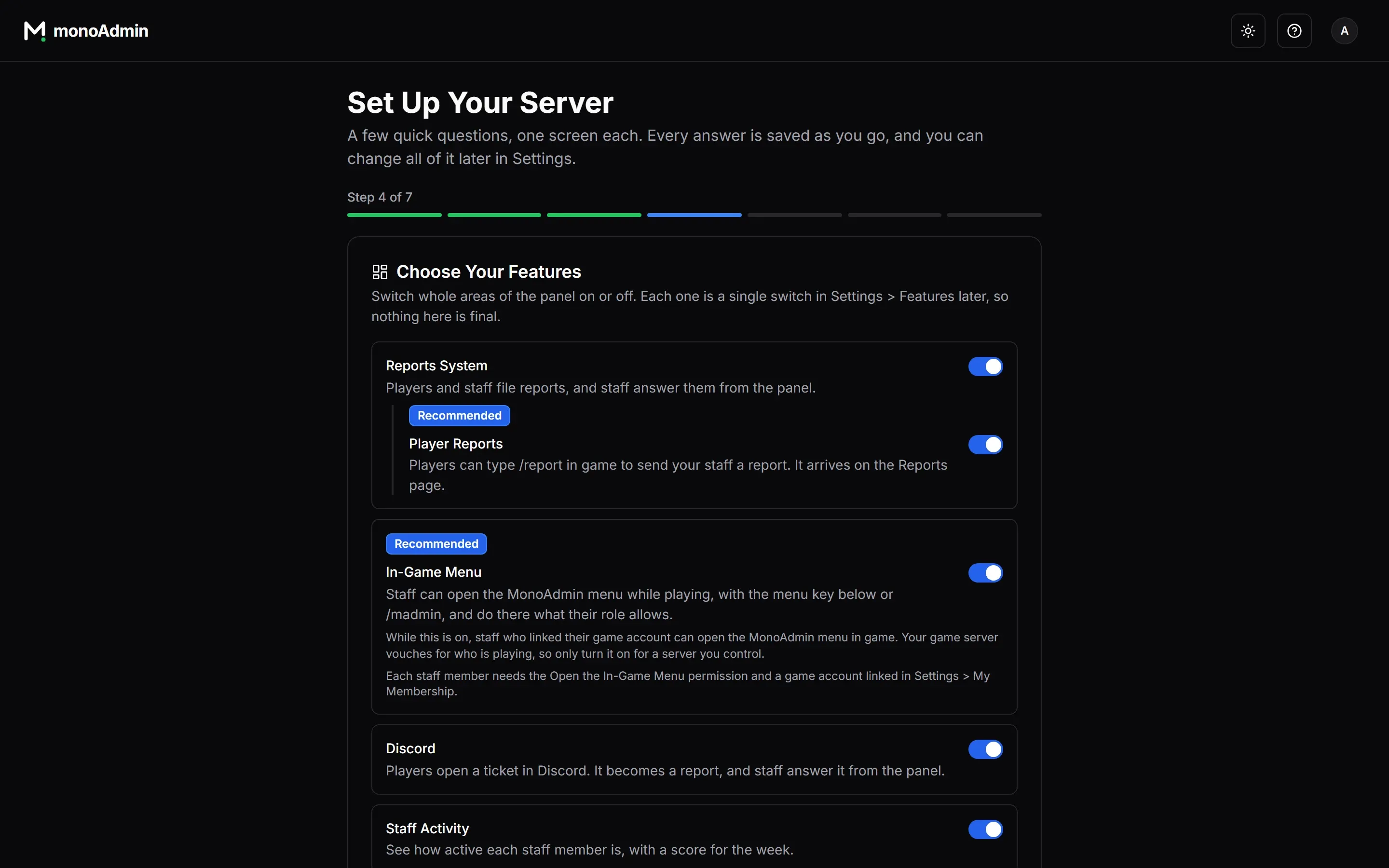
| Switch | What it does |
|---|---|
| Reports System | Players and staff file reports, and staff answer them from the panel. Turning it off also stops players’ report command. |
| Discord | Players open a ticket in Discord. It becomes a report, and staff answer it from the panel. |
| Staff Activity | How active each staff member is, with a score. |
| Server Logs | Chat, commands, items and money on your server, searchable in the panel. |
| Player Monitor | Watch players’ screens live. |
| Server Map | Live player positions on the GTA map. |
| In-Game Menu (Recommended) | Staff can open the MonoAdmin menu while playing. Off until you turn it on. |
| Player Reports (Recommended) | Players can type /report in game, or the command you pick later. Off until you turn it on, and it needs Reports System. |
Turning on In-Game Menu shows its consequence right under the switch: staff who linked their game account can open the menu, and because your game server vouches for who is playing, you should only turn it on for a server you control. Each staff member also needs the Open the In-Game Menu permission and a linked game account. See Turn On and Open the Menu.
Turning on Player Reports is when MonoAdmin starts looking for other scripts that use the report command. If one does, the same warning as in step 3 appears right under the switch, with the same three ways to settle it. The command’s name is changed in Settings > Features, or with Use Another Command in the warning. See Features and Modules.
A feature that is off is off for everyone, including you. See Features and Modules.
5. Pick Your Menu Key
This screen appears only if the in-game menu is on. It is the key staff press in game to open and close the menu. The choices are No key (type /madmin), which is the default, then F1 to F7, F9 to F11, Insert, Delete, Home, End, Page Up and Page Down. F8 (the console) and F12 are not offered. Pick a key that no other script on your server uses.
The choice is saved at once and reaches staff in game right away, with no rejoin. The key works only for staff. Without a key, staff type /madmin, which always works. The game reads the key as a raw key press, and F6 is the key MonoAdmin has checked on a live server. If another key does nothing, try a different one, and check that no other script on your server uses it.
The screen also lets you link your own game account, which the menu requires:
- Choose Link Game Account. A code appears.
- Join your server on the game account you want to link.
- Type
/madmin linkand the code in the game chat, ormadmin linkand the code (no slash) in the F8 console.
The screen shows Your game account is linked. when it worked. Other staff link theirs in Settings > My Membership.
6. Invite Your Team
Staff sign in to the panel with their own account, so each person needs an invitation. Enter an Email Address, pick a Role and choose Send Invitation. You can invite into roles that rank below your own, and the lowest role is the safest start. You can change a role later in Settings > Roles.
The invitation is an email with a link that works for 7 days. Invitations you send appear under Invitations sent, and each one takes a seat on your plan until it is accepted or revoked. Manage invitations in Settings opens the full list. You can skip this screen and invite people later. See Members and Invitations.
7. Discord Tickets
This screen appears only when Reports System and Discord are both on. It lets players ask for help from a button in your Discord server: a private channel opens, the ticket also shows up under Reports in the panel, and staff can answer from either side.
Choose Set Up Now to go to Discord, add the MonoAdmin bot to your server (you must own the server or be an Administrator in it) and come straight back. Then pick a Panel Channel, where players press the button, and a Ticket Category, where new ticket channels are made, and choose Turn On and Post Panel. Choose Later to skip. Setting this up needs the Manage Discord Tickets permission. The screen also says “You can also use your own Discord bot. Set it up later in Settings > Discord.” Everything can be changed afterwards in Settings > Discord; see Discord Tickets.
You’re All Set
The last screen summarises what you did: whether the server is linked, which icon is used, how many modules are on, the menu key, how many invitations you sent and whether Discord tickets are on. Choose Go to Dashboard to finish, or Customize More. If your server ran on txAdmin before, a Coming from txAdmin? link on this screen takes you to Settings > Import from txAdmin, where you can bring over your players, bans, warnings and notes. See Move From txAdmin.
Customize More
An optional extra after the summary, also skippable. It has three parts, each also in Settings:
- Panel Theme: how the panel looks for members who follow the project, and for players in game. See Display, Themes and Time Zones.
- Time Zone (Project time zone): the time zone your server and staff keep. Dates, charts and staff activity days follow it.
- In-Game Display: how notifications, announcements and shouts look on your players’ screens, and which theme announcements wear. Each kind has a Preview button that shows it on a game screen.
Finish with Go to Dashboard.
After the Setup
Everything from this page lives in Settings, so you can change it whenever you like. For the settings in full, see Project Settings. To meet the dashboard you land on, see The Dashboard.