Link Your Server
Connect your FiveM server to its project with a one-time code and the monoadmin link console command, then check it with monoadmin status.
On This Page
Linking connects the resource on your game server to your project in the panel. You create a one-time pairing code in the panel and run one command with it in the server console. After that the resource keeps the link by itself, across restarts, with no code needed again. This page covers creating the code, running the command, checking the result and what to do when you want to unlink or move the link.
You need the resource installed and started first. See Install the Resource.
Create a Pairing Code
Creating a code needs the Manage Server Link permission. The project owner always has it. The default Admin role does not, so give it to a role on purpose if someone besides the owner should link servers.
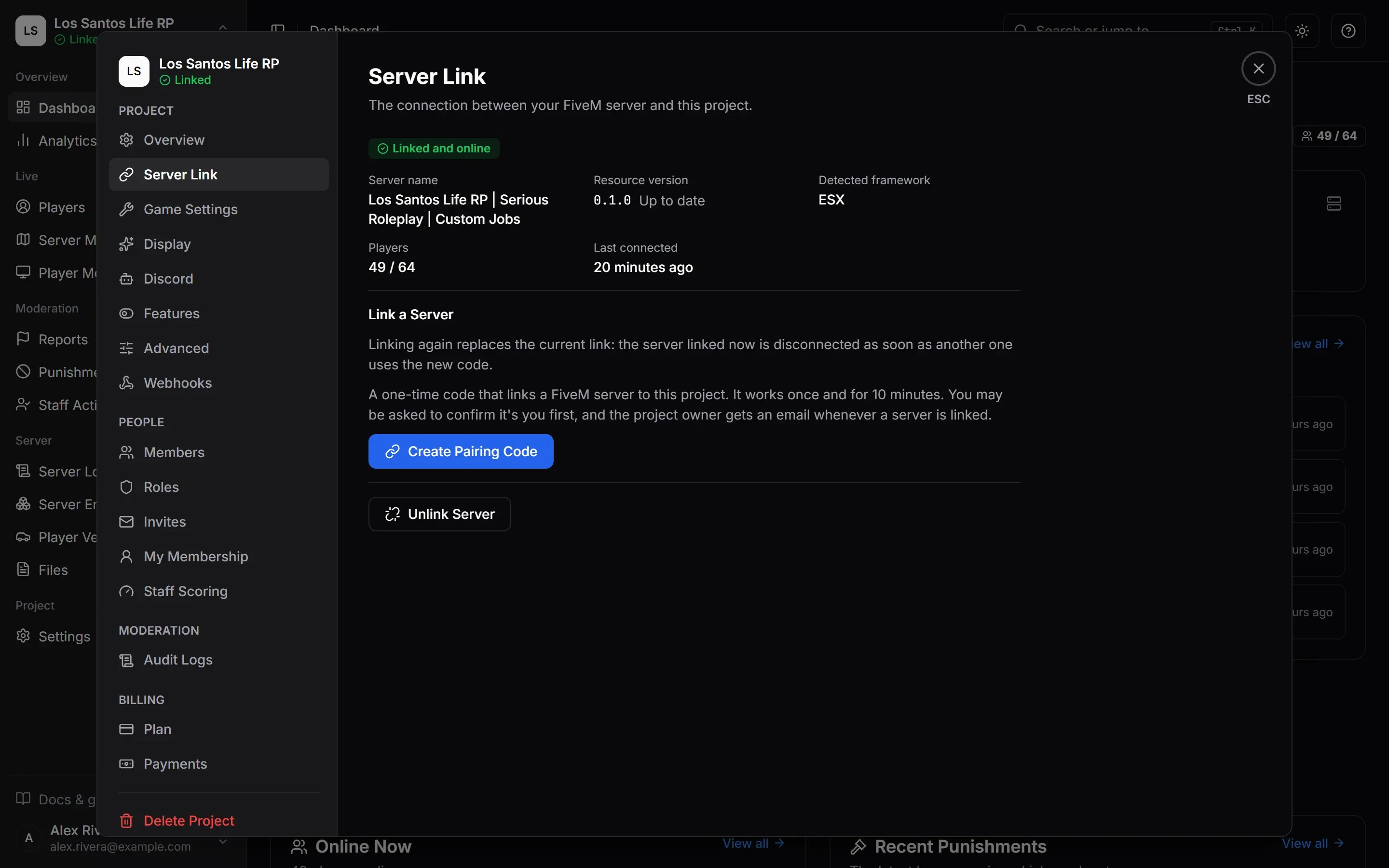
- Open your project and go to Settings > Server Link. For a new project, the guided setup shows the same thing on its first screen, Link Your Server, and makes the first code for you.
- Choose Create Pairing Code.
- If you have not signed in recently, a Confirm It’s You window asks for your password (or your authenticator code if you use two-factor, or Discord if your account has no password). A confirmation lasts 10 minutes.
- The panel shows the full command, for example
monoadmin link XXXXX-XXXXX, with a copy button and a countdown.
A pairing code:
- works once, and for 10 minutes,
- is cancelled when you make a new one, so only the newest code works,
- stops working if, before it is used, the member who made it leaves the project, loses Manage Server Link, or secures their account (changes their password or signs out everywhere); the owner always holds the permission. The console answers as it does for an expired code,
- is 10 letters and digits, shown as
XXXXX-XXXXX; case and the dash do not matter when you type it.
Treat it like a password until it has been used or has expired. Whoever runs it first gets the link.
Run the Command
Run the command in the server console:
monoadmin link XXXXX-XXXXXThe places that work are the console window FXServer runs in, txAdmin’s Live Console, and RCON. The command is refused when a player runs it, even a player with ACE access to it, and when another resource runs it through ExecuteCommand. A player cannot run it from the in-game chat or the F8 console. If you see monoadmin command refused: it only runs from the server console in the console log, the line did not arrive as the console.
A good link prints this:
Contacting MonoAdmin...
Linked to project My Server. Connecting...
A few seconds later the log shows the connection coming up:
[    script:monoadmin] [info] server linked project=My Server
[    script:monoadmin] [info] [link.socket] cloud link connected host=ws.monoadmin.net
[    script:monoadmin] [info] connected to the cloud project=My Server player_limit=<n> heartbeat_ms=<ms> caps=<capabilities>
You do not need to restart the server or the resource. Players who are already online are picked up on the first sync.
If the Command Fails
| You see | What it means |
|---|---|
Usage: monoadmin link <code> |
The code is missing, or there is more than one word after link. |
That does not look like a pairing code. It is 10 characters, shown as XXXXX-XXXXX in the panel. |
The text is the wrong length or has stray characters. Copy the command from the panel instead of retyping it. |
This pairing code is not valid or has expired. Create a new one in the panel. |
The code was already used, ran out its 10 minutes, was replaced by a newer one, or its maker left the project, lost Manage Server Link or secured their account since. Create a new code. |
Too many attempts. Wait 60 seconds and try again. |
Too many tries from one address. Wait the number of seconds shown. |
Could not reach MonoAdmin. Nothing was changed. followed by a reason (timeout, network, http 403 and so on) |
The server could not reach MonoAdmin, or MonoAdmin refused the request. Nothing was saved on the server. See Troubleshooting. |
A link attempt is already in progress. |
You ran the command twice quickly. Wait for the first to finish. |
This server is already linked to My Server. Run monoadmin unlink first. |
See If the Server Is Already Linked. |
What Happens Next
The moment the server connects, the panel updates by itself. The setup screen turns into Your Server Is Linked and shows the server’s name, the resource version and the framework the resource detected. In Settings > Server Link the status reads Linked and online.
Behind the scenes the resource also:
- sends the list of players who are online,
- receives the project’s settings and downloads the current bans, mutes and community service orders into its local copy,
- tells the cloud which framework, inventory, database and ambulance script it found, and which features this server can run.
The project owner receives an email every time a server is linked. If the framework you chose when you created the project differs from what the server runs, the console prints a warning and the panel shows a mismatch notice. See Supported Frameworks.
Check the Link with monoadmin status
Run monoadmin status in the console at any time:
MonoAdmin v<version>
Project: My Server (#6)
Connection: connected
Framework: esx 1.16.0
Integrations: inventory ox_inventory, medical esx_ambulancejob, database oxmysql, garage none, phone none
Players: 12 online, 12 tracked by the panel
Punishments: 3 enforced from the local copy (revision 8)| Line | Meaning |
|---|---|
MonoAdmin v<version> |
The resource version. A line Update available: v<latest> - <address> follows when a newer one exists. |
Project: |
The project this server is linked to, with its number. |
Connection: |
connected, connecting, reconnecting, stopped, not started, or connected, waiting for the cloud to accept this server. |
Last failure: |
Appears only when the link is down, and says why in plain words. |
Framework: |
What the resource detected, with its version. A Warning: line follows if the panel is set to a different framework. |
Integrations: |
The inventory, ambulance script and database resource it found, and the garage and phone scripts with their versions (garage jg-advancedgarages v3.2.10, phone lb-phone 2.8.4), or none. |
Players: |
How many are online, and how many of them MonoAdmin tracks. Players beyond your plan’s limit are not tracked. |
Punishments: |
How many bans, mutes and service orders the server enforces from its own copy, and the revision of that copy. It reads not synchronised yet before the first sync. |
Connect check: |
Appears only when fail-closed is on, and says players are refused while the cloud cannot be asked. |
The status never says “disconnected”. A link that is down shows reconnecting (the resource keeps trying, waiting a little longer each time, up to 30 seconds), or stopped with a Last failure: line when it has given up. Console and Chat Commands lists every reason, and Troubleshooting says what to do about each.
On a server that is not linked, status shows Cloud link: not linked. with a reminder of the command. If the server still holds bans from an earlier link, it adds how many are still enforced.
What the Panel Shows
| Where | What you see |
|---|---|
| Settings > Server Link | Linked and online, Linked, currently offline or Not linked, plus Server name, Resource version (Up to date or Update available), Detected framework, Last seen, Last connected and Players |
| The dashboard | Badges for Linked or Not linked, Online or Offline, the resource version, and players online out of the server’s slots |
If the Server Is Already Linked
monoadmin link refuses while the server holds a link, so nobody can overwrite it by accident. To link the same server to a different project, or to start clean:
- Run
monoadmin unlinkin the console. It printsUnlinked from project My Server. The stored credential was deleted. - Create a new code for the project you want and run
monoadmin linkwith it.
To move a project to a different machine, you do not need to unlink the old one first. Link the new server with a new code. The moment the new server links, the old server’s link stops working, and its monoadmin status shows Last failure: credential revoked - run monoadmin unlink, then link with a new code from the panel. A server that was offline at that moment shows credential rejected - pair again from the panel the next time it tries to connect.
A project has one linked server at a time. If you run a test server beside your live one, give it its own project.
Unlinking
You can unlink from either end.
- From the console:
monoadmin unlinkdeletes the stored credential and closes the connection. The cached bans, mutes and community service orders stay in force on that server, and if any bans are cached the console says how many. They are replaced only when the server is linked to a different project. Linking the same project again keeps them. - From the panel: Settings > Server Link > Unlink Server. The server is disconnected right away and its key stops working. Live data, the map and in-game actions stop until you link a server again. Players, punishments and logs are kept. The server’s
monoadmin statusthen shows the revoked-credential message above (orcredential rejected - pair again from the panelif it was offline at that moment), and you runmonoadmin unlinkthere before linking again.
Who Is Told
MonoAdmin emails the project owner when:
- a server is linked, every time,
- the link is used from a new address while the server is already connected (at most once an hour), which is the sign of a copied credential,
- the server has been offline for 5 minutes, and again when it is back and has stayed connected for a minute.
Each of these can also arrive as a Discord direct message. See Notifications.
Next Step
Finish the guided setup to choose your features, menu key and team.