The Dashboard
Your server at a glance: players online, open reports, active punishments, player counts over time, where players connect from and quick actions.
On This Page
The dashboard is the first page of every project. It shows whether your server is linked and online, how many players are on it, what needs a staff member’s attention, and the tools you reach for most often: an announcement to everyone and the server-wide cleanups.
Every member of the project can open the dashboard, but each card on it follows your role. You only see the cards you have the permission for.
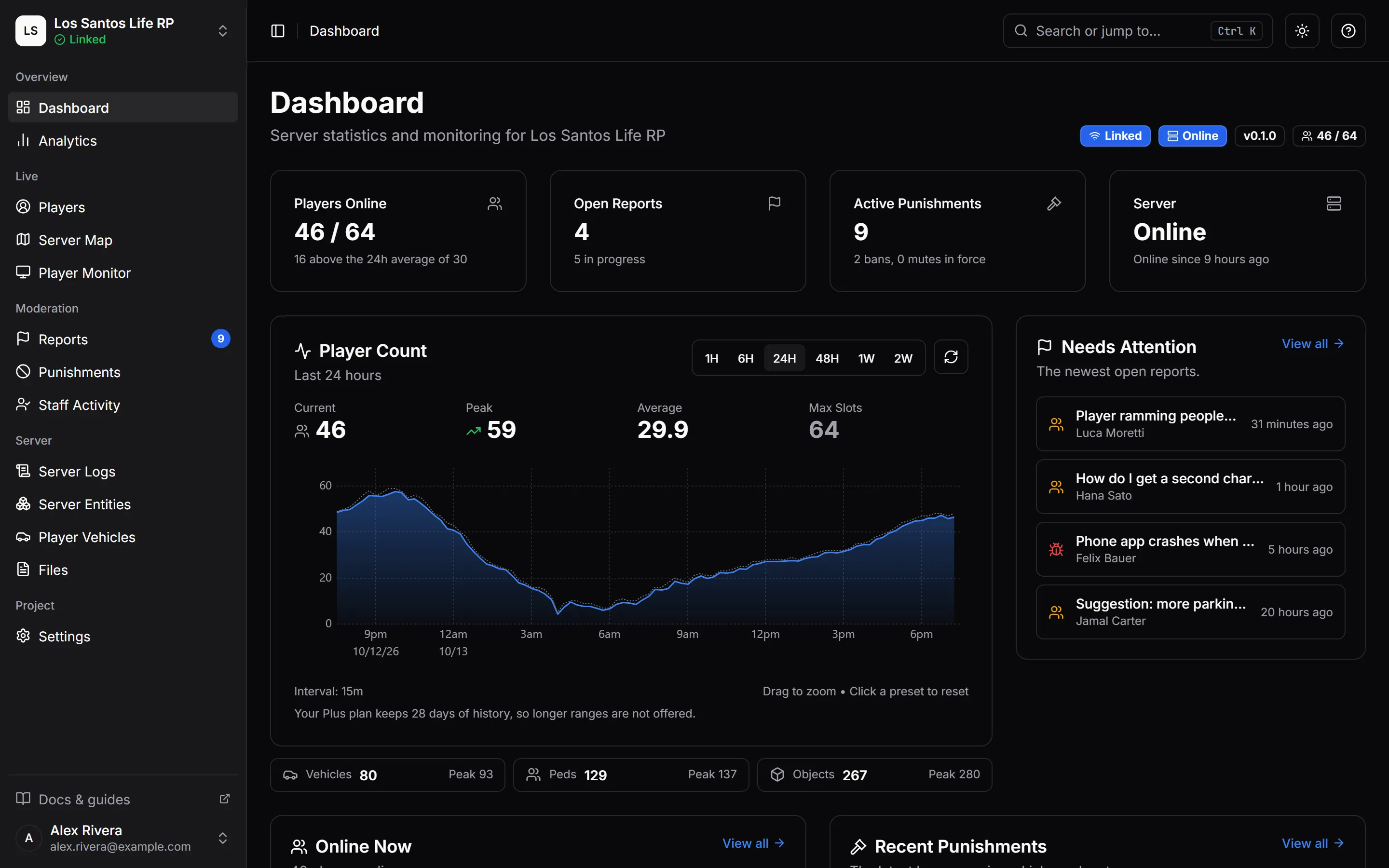
The Status Badges
Under the page title, a row of badges tells you the state of the link.
| Badge | What it means |
|---|---|
| Linked or Not linked | Whether a FiveM server is linked to this project. |
| Online or Offline | Whether the linked server is connected right now. Hover it to see the server name, or when it was last seen. |
| The resource version, such as v0.1.0 | The version of the MonoAdmin resource on your server. It turns amber with an arrow when a newer one exists. |
| Players, such as 12 / 48 | Players online out of the server’s slots. Shown while the server is online. |
Three alerts can appear above the cards:
- The server runs a different framework. The project is set to one framework and the server reported another. Framework features such as money, items and jobs are offered only where both the project’s framework and the one your server runs allow them. A mismatch between ESX, QBCore and Qbox leaves them on, but a Standalone on either side turns them off. If you can view settings, the Open Settings button takes you to Settings > Overview, where the framework is set.
- ESX is older than MonoAdmin supports, or Qbox is older than MonoAdmin supports. The alert names the framework your server runs, the version it reports and the oldest version MonoAdmin supports. Money, items and character edits may fail until the framework is updated on the game server. See Supported Frameworks for the versions.
- A newer MonoAdmin resource is available. The Get the Update button opens MonoAdmin in your Granted Assets on portal.cfx.re, where the new version is downloaded. Updating keeps the link; see Update or Remove the Resource.
If no server is linked yet, the dashboard shows a Link Your FiveM Server card with a Link a Server button. Without the Manage Server Link permission it tells you to ask the project owner instead. Link Your Server walks through it.
The Numbers
Once the server is linked, four stat cards sit at the top.
| Card | Shows | Needs |
|---|---|---|
| Players Online | Players now over the slot count, and how that compares with the average of the last 24 hours. | Nothing extra |
| Open Reports | Reports waiting for staff, and how many are in progress. | View Reports |
| Active Punishments | Everything still in force, with the number of bans and mutes underneath. A warning counts as in force until the player confirms it. | View Punishments |
| Server | Online or Offline, with since when it has been connected or when it was last seen. | Nothing extra |
The Player Count Chart
The Player Count chart plots how many players were online. Use the range buttons to switch between 1H, 6H, 24H, 48H, 1W, 2W and 1M. Ranges longer than your plan’s history are not offered, and a line under the chart says so. See Plans and Limits for what each plan keeps.
- Above the chart, Current, Peak, Average and Max Slots summarize the range.
- Each point on the chart covers a stretch of time, stated under it as Interval. Drag across the chart to zoom in, and click the active range button to zoom back out.
- The refresh button asks for fresh numbers right away. Otherwise the chart refreshes by itself every minute, because player counts are recorded once a minute while your server is online.
- A row under the chart shows the latest Vehicles, Peds and Objects on the server, each with its peak for the range. Counts that keep climbing usually point to a script that spawns things and never removes them. Server Entities lists them one by one.
For longer-term charts of activity, the economy, jobs, disconnects and crashes, open Analytics.
The Lists
Three cards list the latest activity. Each one links to its full page.
- Needs Attention shows the five newest open reports. When there are none it says so. New reports appear the moment they are filed. See Reports.
- Online Now shows up to eight players currently on the server, with their server ID and playtime. If more are online, the card says how many more and points you to the player list. Needs View Players. See Players and Profiles.
- Recent Punishments shows the five latest bans, warnings, kicks and mutes and who issued them. See Punishments.
Player Locations
The Player Locations card draws a world map of where your players connect from, with a list of Top Countries beside it. It shows counts only: nobody is named. Needs View Players, and it appears in the browser panel only.
- Switch the period between Online Now, 24 Hours, 7 Days and 30 Days. Periods longer than your plan’s history are not offered.
- Each player is placed by the country and city of their latest visit in the period.
- Which cities you see depends on your role. A city comes from a player’s address, and a small one can point at a single person. The project owner and members who hold View Player IPs see every city. Everyone else who can open the card sees the same totals and countries, and only some cities: none for Online Now, and for 24 Hours, 7 Days and 30 Days only cities with at least 5 players, counted from visits that ended before today (UTC) and refreshed once a day. A player in a smaller city still counts in the country, so the numbers do not change; the map just shows no dot for that city. A visit that is still going on, or that ended today, is left out of the cities until tomorrow.
- A line reports players who could not be placed. Their address may be on a local network, may already have been removed, or may not be in the location database.
- Each visit, with the IP address of that visit, is kept for at least 60 days and at most about 90 days: visits are deleted in 30-day batches. IP addresses are never kept longer than 90 days. This does not depend on your plan.
- The card can briefly say Locations not ready yet until MonoAdmin has loaded its location database. It fills in by itself.
Server Quick Actions
The bottom card has four tiles. Each one asks you to confirm before it does anything, and each says why it is blocked when it is: your role does not include it, no server is linked, or the server is offline.
Announcement
Sends a message to every online player. The message is one line of up to 300 characters, shown on their screen for 5, 10, 15, 30 or 60 seconds (10 by default). Needs Send Announcements.
Style picks how this one announcement looks: Project’s style, the default, is the style set under Settings > Display; or pick Banner, Spotlight, Ticker, Broadcast or Toast. The list appears only when your server’s MonoAdmin resource is recent enough to draw a style per announcement. If the resource turns out to be older, the dialog says so and asks you to update it or send in the project’s style.
The dialog has two tabs. New sends the message and tells you how many players it reached. History lists the 50 most recent announcements with who sent them, how many players were online and whether the server confirmed delivery. One sent in a style of its own says which, such as Style: Spotlight. How each style looks in game, and which theme announcements wear, is set under Display, Themes and Time Zones.
Clear Vehicles, Clear NPCs and Clear Objects
Each cleanup removes one kind of entity across the whole server.
| Tile | Removes | Needs |
|---|---|---|
| Clear Vehicles | Every empty vehicle. Vehicles with someone inside are kept. With jg-advancedgarages v3, owned vehicles go back to their garage. |
Clear Vehicles |
| Clear NPCs | Every NPC (ped). Players are not affected, and NPCs come back over time. | Clear NPCs |
| Clear Objects | Every spawned object. Objects that are part of the map are not affected. | Clear Objects |
Before anything is removed, pick Warn Players First: no warning, or a countdown of 10 seconds, 30 seconds (the default), 1 minute, 2 minutes or 5 minutes. Players see the countdown on screen, and anyone can get into a vehicle to keep it. You can cancel until the countdown ends.
Running and finished cleanups appear under the tiles with their progress, who requested them, how many things were removed and how many were kept. A cleanup that never reports back is marked failed after two minutes, and the card says that it is not known what was removed.
When Cards Are Missing
- A card is missing when your role lacks its permission. Ask an owner or admin to adjust your role; see Roles and Permissions.
- If a whole module is switched off in Settings > Features, its permissions are withheld from everyone, and its cards disappear. See Features and Modules.
- While more players are online than your plan allows, only the dashboard and settings stay open, and a banner explains why. See When a Plan Ends or Runs Over.