The Panel Tab and Player Window
Find players near you, act on them from the player window, open reports and use the web panel's pages without leaving the game.
On This Page
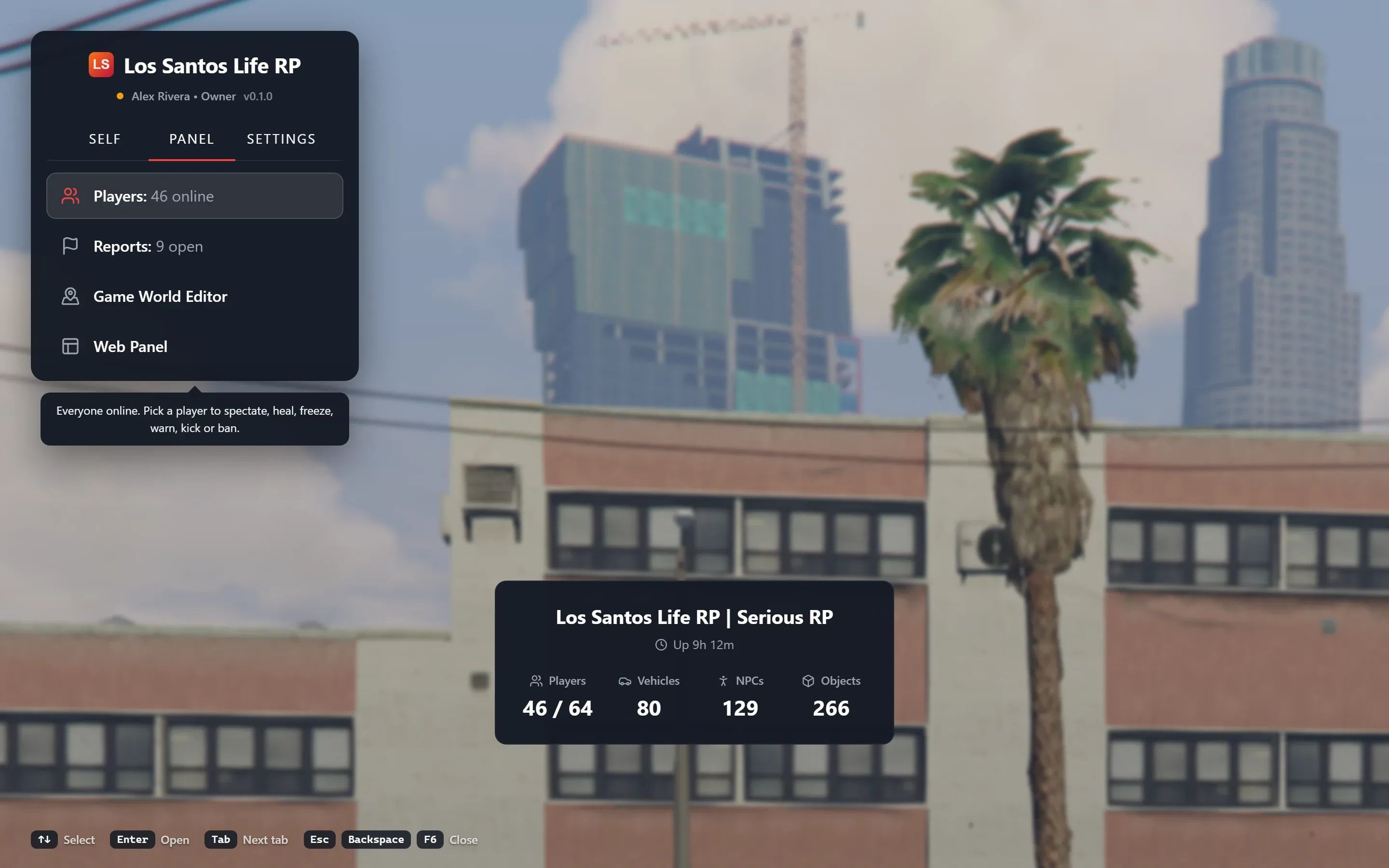
The Panel tab is the second tab of the in-game menu. Where the Self tab acts on you, the Panel tab is about everyone else on the server: a list of the players online, a window to act on one of them, your open reports, and the web panel’s day-to-day pages. The Settings tab, the third, holds your own preferences. This page covers both, the keys that drive the menu and two optional key bindings.
Like the rest of the menu, the Panel tab shows only what your role allows. MonoAdmin checks every action again when it runs, so a hidden button is never the only thing standing between a player and a permission.
The Panel Rows
The tab is a short list. Each row opens a sheet beside the menu.
| Row | Needs | What it opens |
|---|---|---|
| Players (“{n} online”) | View Players | Everyone online, as cards |
| Reports (“{n} open”) | View Reports | The Web Panel, on its Reports page |
| Game World Editor | Game World Editor | The editor for the community service area (see Game World Editor) |
| Web Panel | Nothing extra | The web panel’s pages |
Server at a Glance
When nothing else is open in the middle of the screen, a small card at the bottom of the menu’s space shows the server’s hostname, how long it has been up (“Up 3h 12m”), players against slots, and how many vehicles, NPCs and objects exist. It needs View Players, refreshes every few seconds and takes no keys or mouse.
The Players Sheet
The Players sheet lists everyone online as cards, nearest first. Each card shows:
- What the player is doing: on foot, driving, riding a bike, on a boat, flying a helicopter or a plane.
- Their server ID and name, with tags: you, staff (a recognised staff member in game too) and frozen.
- The distance from you, in meters or kilometers.
- A badge, In scope or Out of range. A player is in scope when your game has them loaded nearby, and out of range when they are too far away for it. It describes only what your game has loaded. The actions in the player window do not depend on it.
- A health bar: green, amber at three fifths and red at a fifth.
Above the cards:
- Search narrows the list by part of a name or an exact server ID (up to 32 characters). Type after pressing Enter or clicking the field.
- Sort changes the order between Distance, Server id and Name. Distance is the default.
- Nearby only is a switch that keeps only the players in scope.
The subtitle reads like “12 in scope · 45/48 online · Page 1 of 2”. The sheet shows 30 players a page and refreshes every two seconds. Move over the cards with the arrow keys, turn pages by going past the first or last row, and open a player with Enter or a click.
The Player Window
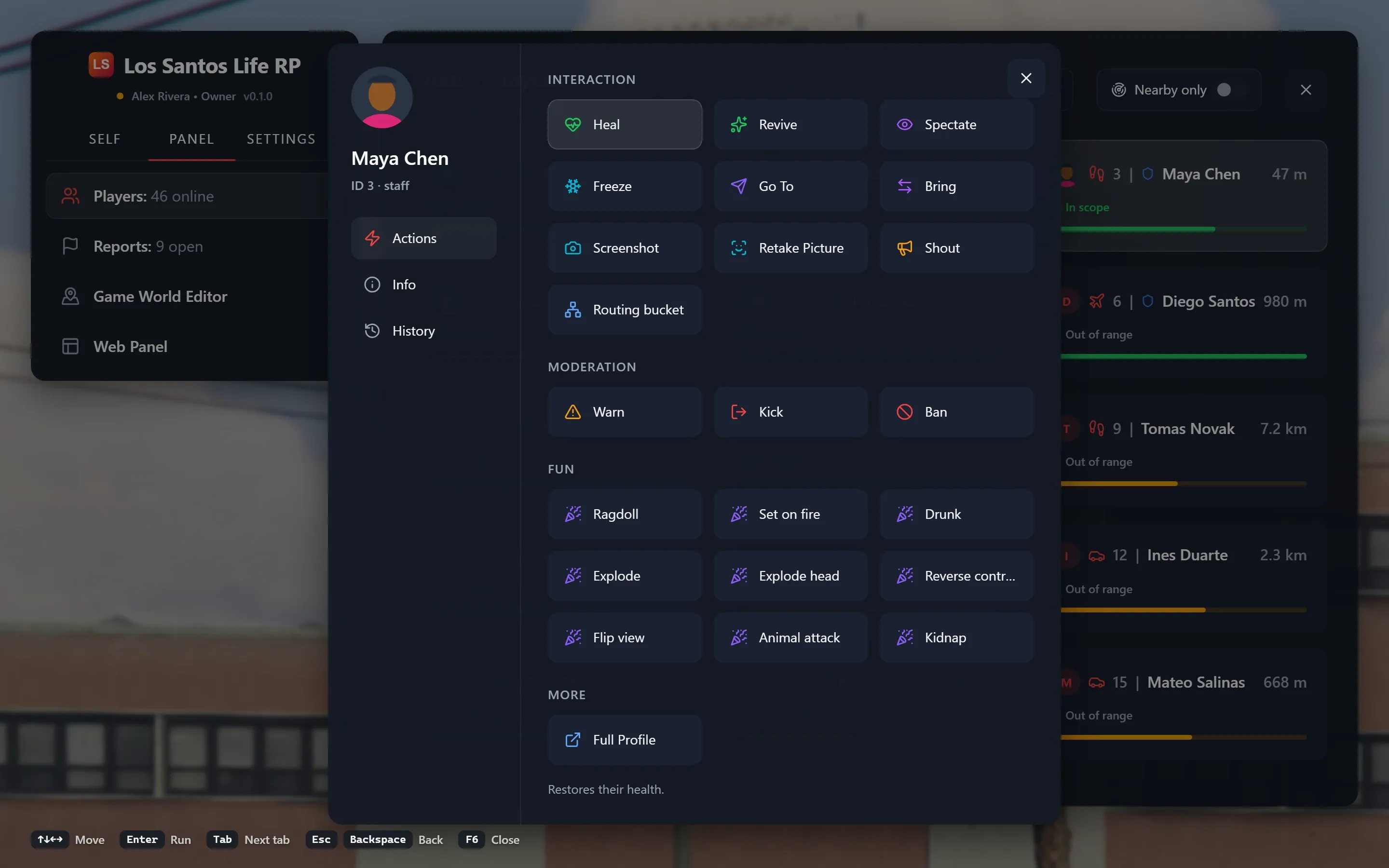
Opening a card shows the player window. Its header has the player’s name, their server ID and the same tags as the card, and it has three sections: Actions, Info and History. With the menu keys, Up and Down choose the section, Right goes in and Left from the first column comes back. If the player leaves while the window is open, it closes with “{name} left the server.”
Actions
Actions are tiles in four groups. A line under the tiles says what the highlighted one does. You see only the tiles you hold the permission for.
| Group | Tile | Needs |
|---|---|---|
| Interaction | Heal, Revive | Heal, Revive |
| Spectate | Spectate (see The Self Tab) | |
| Freeze or Unfreeze | Freeze | |
| Go To (teleports you to them), Bring (teleports them to you) | Teleport | |
| Screenshot (kept with their profile) | Screenshot | |
| Retake Picture (a new picture of their character for the profile) | Screenshot, and a resource that supports it | |
| Shout (up to 200 characters, shown on their screen for 8 seconds) | Shout | |
| Routing bucket | Set Routing Bucket | |
| Moderation | Warn, Kick, Ban | Warn, Kick, Ban |
| Fun | Ragdoll, Set on fire, Drunk, Explode, Explode head, Reverse controls, Flip view, Animal attack, Kidnap | The matching Fun permission |
| More | Full Profile | View Players |
A routing bucket is a separate copy of the game world: players in different buckets cannot see each other. Routing bucket asks for a whole number from 0 to 65535, where 0 is the main world.
On your own card you get Heal, Revive, Retake Picture and Full Profile only. A player MonoAdmin does not track yet shows “Not tracked by MonoAdmin” and offers nothing: the cloud does not know them, so nothing can be done to them from here. Try again in a moment.
Warn, Kick and Ban open a form that takes the keyboard.
- Reason is required, up to 500 characters, and the player reads it (“The player reads this.”).
- How long appears for a ban: 1 hour, 1 day, 7 days, 30 days or Permanent.
- A confirmation states the consequence in plain words. For a ban: “{name} is banned for {duration}. They cannot connect until it ends or is lifted in the web panel.” A kick removes the player now and they can connect again. A warning appears on their screen and must be confirmed before they play on.
Mutes and community service are not in the player window. Issue them from the Web Panel (the Punishments page or the player’s profile) or from the web panel in your browser. See Punishments and Warnings, Mutes and Community Service.
Info
Info shows the Server ID, Distance, Health, Status, Scope and Ping, then This visit (how long the current visit has lasted) and Playtime (the total MonoAdmin has counted).
History
History lists the player’s last 8 warnings, kicks, bans, voice mutes, text mutes and community service, newest first, with who issued each and an Active mark on those still in force. It needs View Punishments. With none on record it says “No warnings, kicks or bans on record.” Dates follow the project’s time zone.
Reports and the Web Panel
The Reports row opens the Web Panel on the Reports page. Its hint reads “Reports players sent with /report. Opens them in the Web Panel.”, with your project’s report command in place of /report. While you are in game, a short notice tells you when a player files a report or replies to one (“New report from {name}: {title}”), if you hold View Reports. How players file them is covered in What Players See.
The Web Panel row runs the cloud panel’s own pages inside the game. Nobody signs in: the panel knows you from your linked game account, and every action is checked against your role exactly as in a browser. The pages are:
- Dashboard and Analytics
- Players, with notes, characters and vehicles
- Server Map and Player Monitor
- Reports and Punishments
- Whitelist: its requests, applications and approved list. You can approve, deny, accept, reject, add and remove players here with the same permissions as in a browser. The mode, the form and the other whitelist settings stay in the browser.
- Server Logs
- Server Entities
- Player Vehicles (see Characters and Owned Vehicles)
- Files
Each page shows only if your role could open it in a browser. These stay in the browser: Staff Activity, the team, roles, settings (the whitelist’s mode and application form among them), webhooks, audit logs and billing. Opening one of those in game shows a page that says it is only in the web panel in your browser. Links inside the Web Panel open in your browser, not in the game.
A few things differ in game:
- Full IP addresses are never shown, even to the owner. They stay masked in game whatever your role holds.
- The page keeps its state while the menu is closed, so you come back to where you were.
- Esc in the Web Panel closes its own dialogs first, then the sheet. Starting a spectate from it closes the whole menu.
- The Server Map’s images load from the web panel’s address. If your game cannot reach it, the map falls back to a coordinate grid.
- The panel connects when the menu first shows. Until it does you see Opening the Panel. Other states are Staff Access Ended (“You are no longer recognised as staff in this game”), The Panel Is Unavailable (MonoAdmin cannot be reached, though the Self tab still works) and Update Needed (the server’s resource is too old). If the panel bundle fails to load, the sheet says so and offers Try again.
- While the project is over its plan’s player limit, most pages are locked, as in the browser.
The Settings Tab
The Settings tab holds your own preferences. Move with Up and Down, and change a value with Left and Right or Enter.
| Row | Choices | Kept |
|---|---|---|
| Menu opacity | 50% to 100% in steps of 5 | On this computer |
| Menu side | Left (default) or Right | On this computer |
| Banner position | Top (default), Center or Bottom: where announcements and server notices show for you | On this computer |
| Show IDs in name tags | On (default) shows “[12] Bob”, off shows “Bob” | On this computer |
| Coordinates | Shows your position and heading at the top of the screen; only you see it | Until you turn it off or leave the server |
| Theme | Follow project, or one of Classic, Midnight, Pink, Retro Desktop, Vapor, Savanna, Material, Ribbon | With your MonoAdmin account |
Theme is how the menu and your staff screens look for you. It is the same setting as Account > My Profile in the web panel, and a toast confirms each change. How players’ screens look is a project setting; see Display, Themes and Time Zones.
Below the preferences are rows that only show information: Open / close (the project’s menu key, or “Not set”), Players list and Noclip (the keys you bound, or “Not bound”), Tabs, Back, and Linked staff account (your name and role).
Menu Keys
While the menu is open, the game reads these keys for it. You keep walking and looking around.
| Key | What it does |
|---|---|
| Up / Down | Move the highlight. It wraps at the ends of a list. |
| Left / Right | Change a value, such as a distance. In the player window, go back or in. |
| Enter | Run the highlighted row, or confirm a dialog. |
| Esc or Backspace | Step back: out of a form, a window, a sheet, then close the menu. In a dialog, cancel. |
| Tab / Shift+Tab | Next and previous tab, from anywhere. The arrows never change tabs. |
| The menu key | Close the menu. |
Forms, text fields, the Players sheet with its player window, the Web Panel and the Game World Editor take the mouse and keyboard, and you cannot walk while they have it. There, Esc steps back, and Backspace does too unless you are typing. With the menu closed, Backspace stops a spectate.
Optional Key Bindings
Two commands come with no key, so they never clash with your other bindings. Bind them in FiveM under Settings > Key Bindings > FiveM:
| FiveM entry | Command | What it does |
|---|---|---|
| MonoAdmin: open the Players list | madmin_players |
Opens the menu on the Players sheet, or switches an open menu to it. |
| MonoAdmin: noclip on or off | madmin_noclip |
Turns noclip on or off without opening the menu. Your other modes stay as they are. |
The noclip key answers with a short notice: “Noclip on. Press the key again to land.” and “Noclip off.”, or why it could not: “Your role doesn’t allow noclip.” and “Stop spectating first.” Everyone has their own bindings, set on their own game. The two entries are listed for every player, but only recognised staff get anything from them.
A third entry, “MonoAdmin: drag the Game World Editor’s gizmo (hold)”, is bound to the left mouse button by default and only does something inside the editor.